ai photo editor prompt generator: tips
Write clearer AI photo edit prompts by naming one target, the result you want, and the details to preserve. See real glasses-edit examples and the current editor interface.
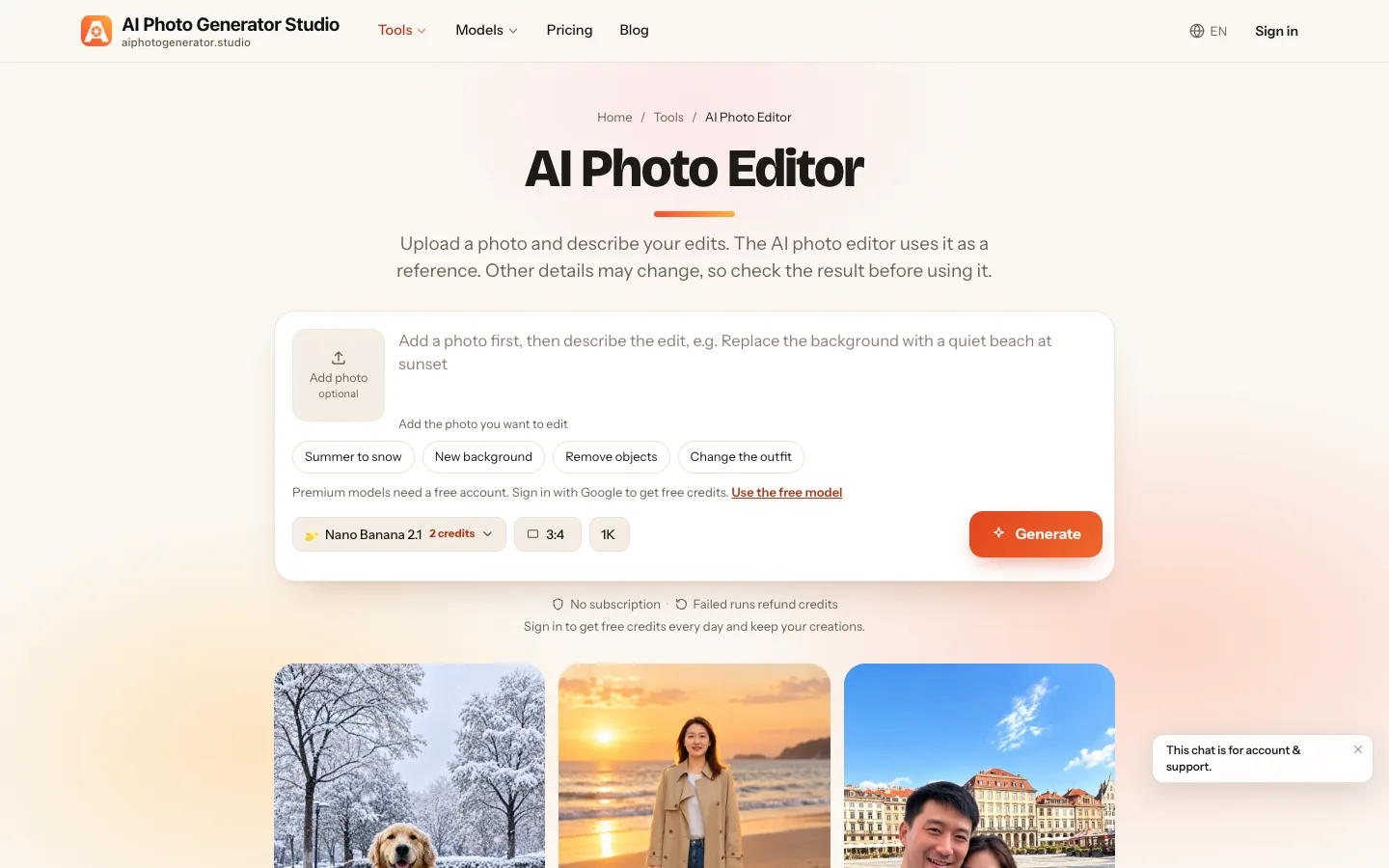
For a clear AI photo edit prompt, name one visible change, point to the exact object or area, describe the result you want, and say which nearby details should stay the same. This guide gives you a structure to adapt; the AI Photo Editor applies the instruction you write to an uploaded photo, but does not generate the prompt for you. The AI Photo Generator is the home page.
What belongs in a useful photo edit prompt?
A practical prompt answers four questions: what should change, where it is, what the new version should look like, and what should remain. The Picsart prompt guide uses a similar action-target-result-preserve structure. For an edit, make the target and the protected details concrete enough to check in the result.
| Prompt part | What to specify | Example detail |
|---|---|---|
| Action | A direct verb | Remove, replace, brighten, recolor |
| Target | The object and its location | “the black round glasses on her face” |
| Result | The appearance you want | “no frames or arms visible” |
| Preserve | Details that should not be part of the edit | “keep her expression, hair, blouse and framing” |
These parts are a writing aid, not a control that guarantees every detail will stay fixed. The editor uses the uploaded picture as a reference, and its live page warns that other details can change. Inspect the output before using it.
How do you keep the edit focused?
Start with the smallest change that solves your problem. “Improve this portrait” could mean lighting, skin, color, hair or background. “Remove the black round glasses” points to one specific target.
Add location or appearance when a photo has similar objects. “Remove the small vase on the left side of the mantel” is easier to evaluate than “remove the vase” if several vases appear. For a color change, identify the part to recolor and whether its shape or material should remain.
Then list only the details that matter to preserve. For an accessory edit, that might be a person’s expression, hairstyle, clothing and composition. A long list of unrelated instructions can make the intended change harder to judge. If you also want a new background or lighting style, handle that separately when you can assess each edit on its own.
Clear instructions make actual edits easier to judge
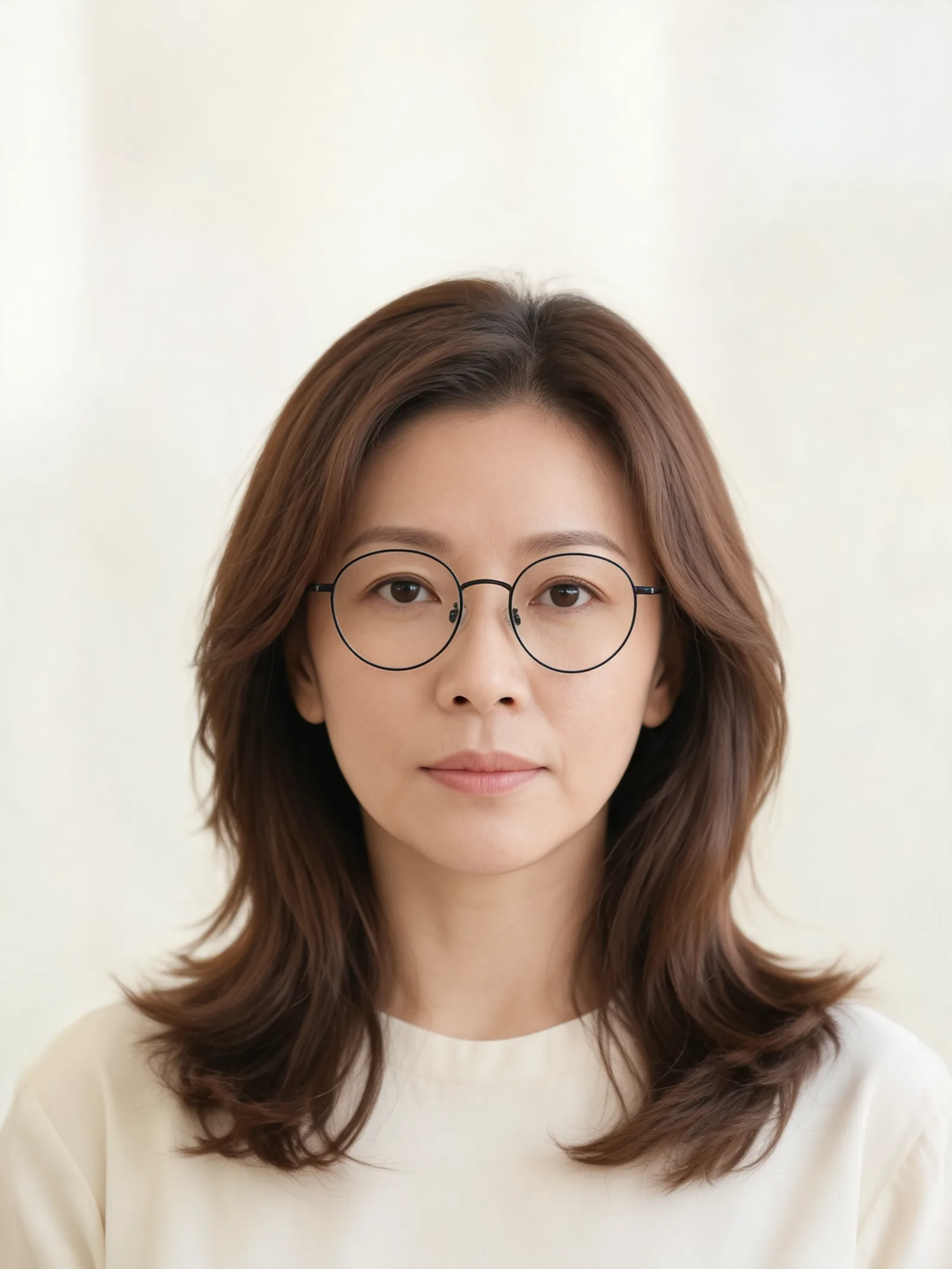
These two existing AI Photo Generator examples use the same fictional portrait. Each instruction names a specific glasses edit and the surrounding details to retain. They were produced with Nano Banana 2; they are examples from an earlier published session, not new generations for this guide.
| Original photo | Remove the glasses | Recolor the frames |
|---|---|---|
 | 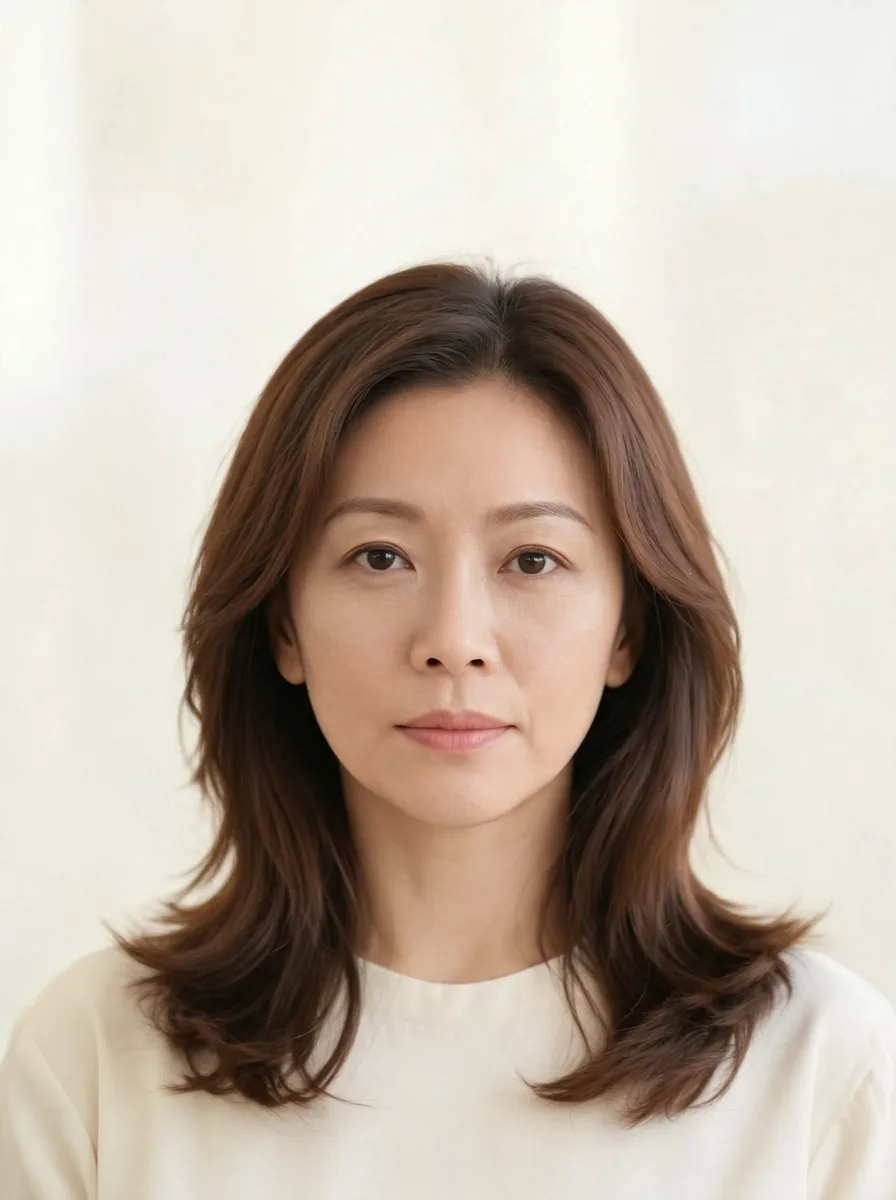 | 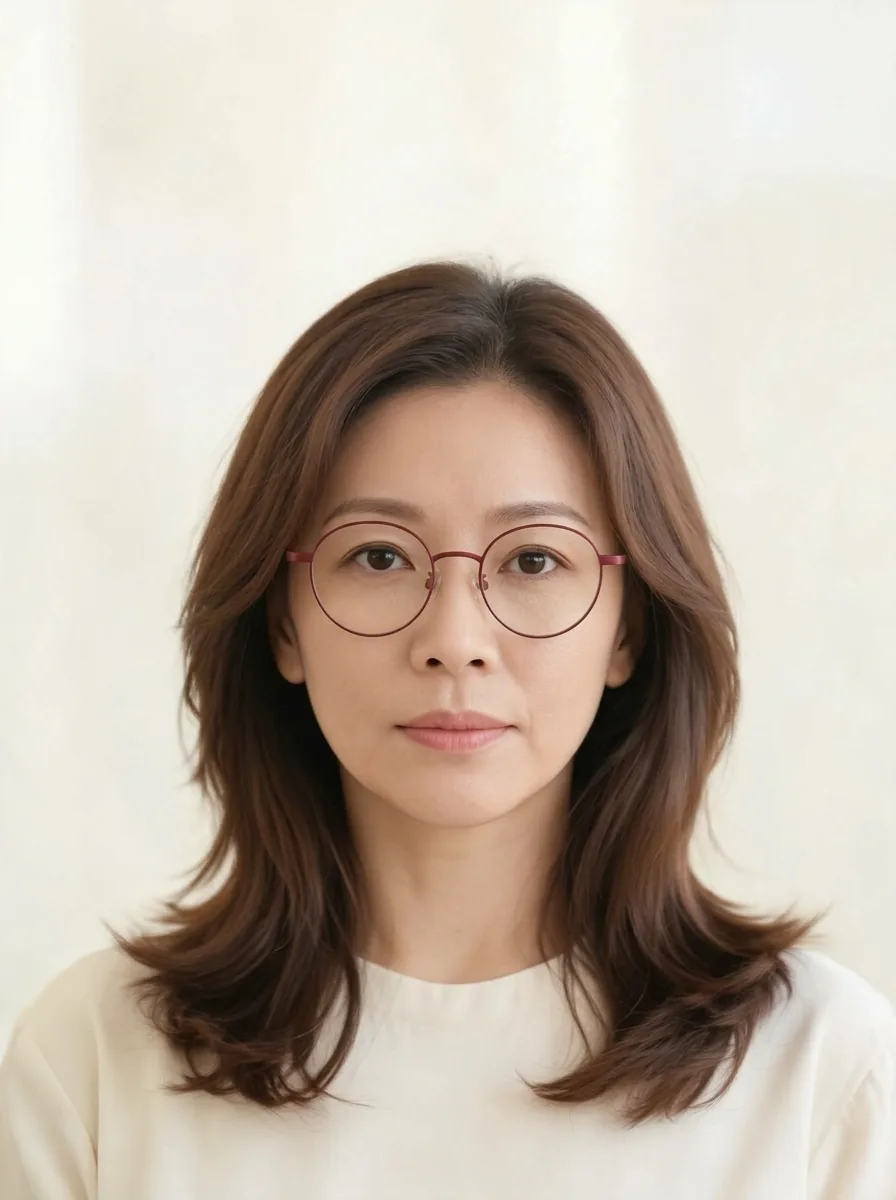 |
| “Remove her eyeglasses. Preserve her recognizable facial features, expression, hair, blouse, background and framing; retain natural skin texture.” | “Change only the eyeglass frames from black to red. Preserve the frame shape, lenses, face, hair, blouse, background and framing.” |
The left image is the fictional source photo used for both edits. The removal output has no visible rims, bridge or arms; the woman’s expression, hair, blouse and pale background remain recognizable. In the recoloring example, the round frames and clear lenses remain, but the requested red looks muted burgundy. That is why the result needs a color check even when the prompt names the target clearly.
The AI Photo Editor interface has an optional photo upload, a text area for your instruction, example edit buttons and a model selector. The page currently lists JPG, PNG and WebP uploads up to 8 MB per file; Nano Banana 2.1 accepts up to 10 reference photos. Premium models need a free account.
Name the details you want to preserve
Describe the specific details that matter to your task instead of relying on “keep everything else the same.” For a person, name the face, expression, hair, clothing and pose. For an object, name its shape, label, color or position. For a background replacement, identify the subject and framing as well as the new setting.
A reusable structure is: “Change [target and location] to [specific result]. Keep [important nearby details] and [the parts of the photo you are not editing].” Replace the brackets with details visible in your own picture. The glasses examples show how to name the target and keep the face, hair, clothing and framing in the same instruction.
The prompt is a request, not a mask. If preserving identity matters, compare the face and other important details with the original. The live editor page also advises checking the result because details beyond the requested edit can change. For more examples of a targeted accessory edit, see the Nano Banana glasses editing guide.
Split edits when you can inspect them separately
Split the work when the requested changes affect different parts of the image or when one result would be difficult to evaluate all at once. For example, first remove an unwanted object, inspect the filled area, then request a separate background color change if it is still needed. Keep the original photo so you can compare each result.
A single prompt can still cover a related change and its constraints: “Replace the background with a quiet beach at sunset. Keep the person, pose and clothes the same.” The editor’s live page includes a similar background example. If you want to transform an image more broadly, the image-to-image tool is another starting point; it also uses an uploaded reference and editable prompt text.
How can you tell whether the edit worked?
Check the changed area first, then inspect the details you asked to preserve. For a removal, look for leftover edges and unnatural patches. For a recolor, check the exact shade, object outline and nearby surfaces. For a portrait edit, compare the face, hair, clothes and framing with the original.
Save the result only after those checks. If one part missed the request, make the next instruction narrow: name the visible mismatch and say what should stay intact. The editor provides the upload and prompt workflow; the model’s result still needs your review.
Frequently asked questions
What should I write in an AI photo editor prompt?
Name one change, the object or area it affects, the result you want and the details to preserve. Use visible, specific terms so you can judge whether the output followed the request.
Should I say what to keep in the photo?
Yes, when those details matter to your task. Name them directly, such as a person’s face, hair, clothing and framing; preservation requests guide the edit but do not guarantee that every detail will remain identical.
Can one prompt make several photo edits?
It can request related changes, but separate prompts are easier to inspect when the changes affect different areas. Make one edit, compare the result with the original, then decide whether to continue.
Does AI Photo Generator write the prompt for me?
No. The tool page may prefill editable example text, but you write or revise the instruction, and that text is sent to the selected model. The editor does not create a prompt from your photo.
What image files can I upload to the AI Photo Editor?
The current page lists JPG, PNG and WebP files up to 8 MB per reference. It lists up to 10 reference photos for Nano Banana 2.1; other models can have different limits.
Next step
Open the AI Photo Editor, upload a photo you can compare with the output, and describe one change plus the details you want to keep. For a focused glasses edit, use the Nano Banana glasses examples; for lettering, see the AI photo text editor guide.