Upload an image · describe the change

Image to Image AI

Upload a picture and describe the version you want. Image to image AI keeps the layout, the subject and the camera angle, then redraws the rest in another era, season, material or setting.

  • 8 free credits when you sign up
  • 4 more free credits every day
  • No watermark
Add the image you want to transform

Best for text in images: posters, signs and labels.

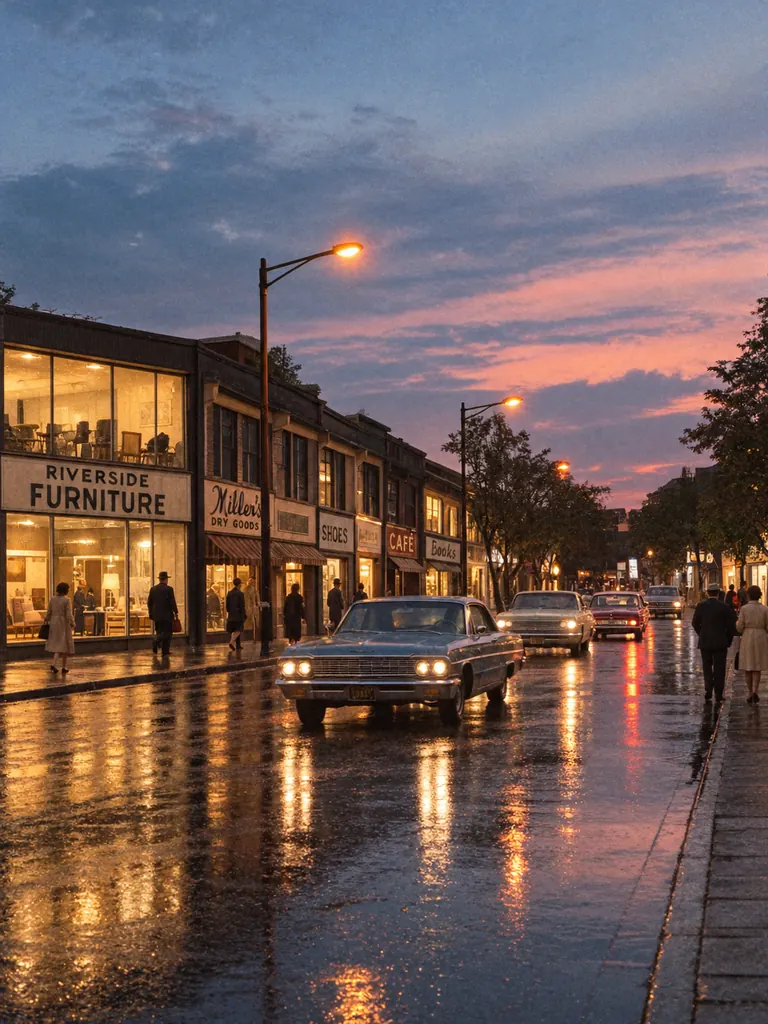
Original photo of a wet city street with lit shops and traffic at duskBefore
The same street restyled as the 1960s by image to image AI, with classic cars and period shop signsAfter
Example · Same street, new era

What image to image AI made from one picture

Each result kept the composition of the original and changed the rest from one prompt. Tap “Use this prompt”, add your own image and run it.

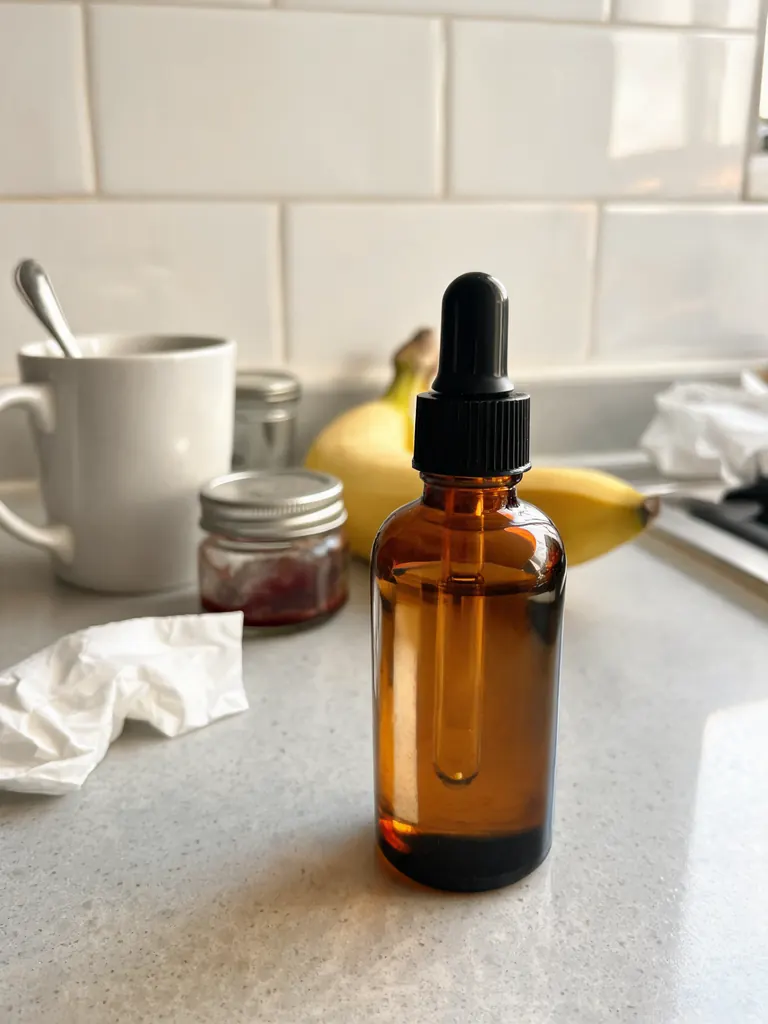
  • Original phone photo of an amber serum bottle on a cluttered kitchen counter
    Before
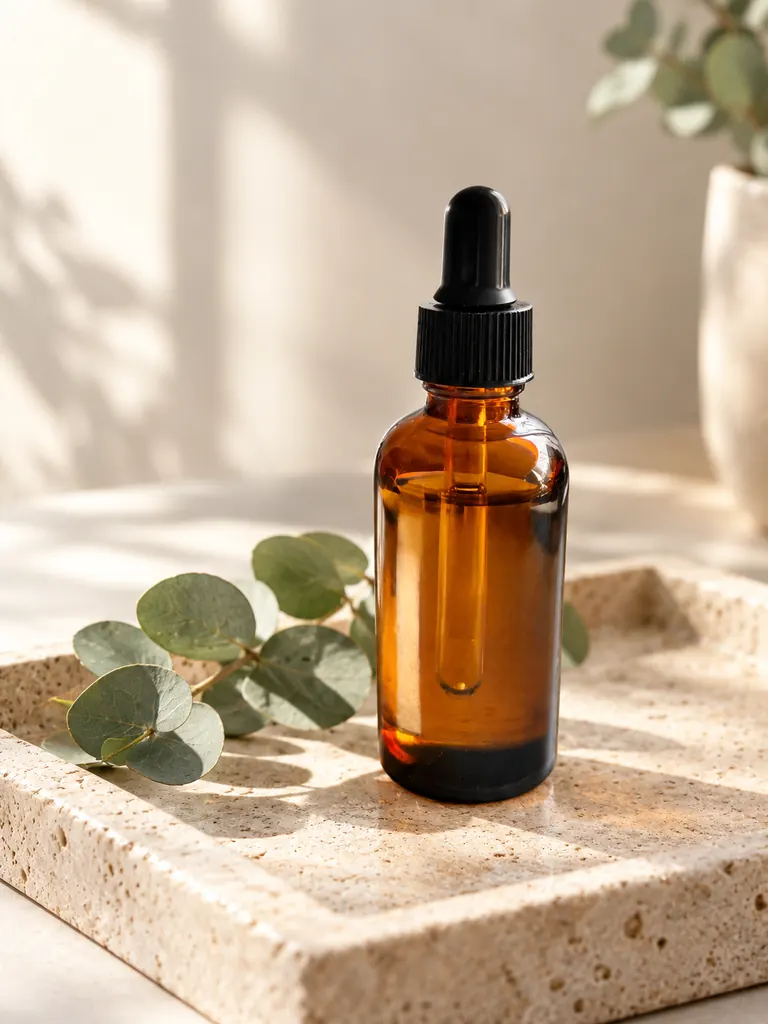
    The same amber serum bottle on a stone tray with eucalyptus in a new product scene
    After
    New product scene

    “Keep the amber dropper bottle exactly as it is and place it in a clean product scene: a pale travertine stone tray with a sprig of eucalyptus, soft morning sunlight from the left and a gentle shadow. Photorealistic product photo, 85mm lens, shallow depth of field.”

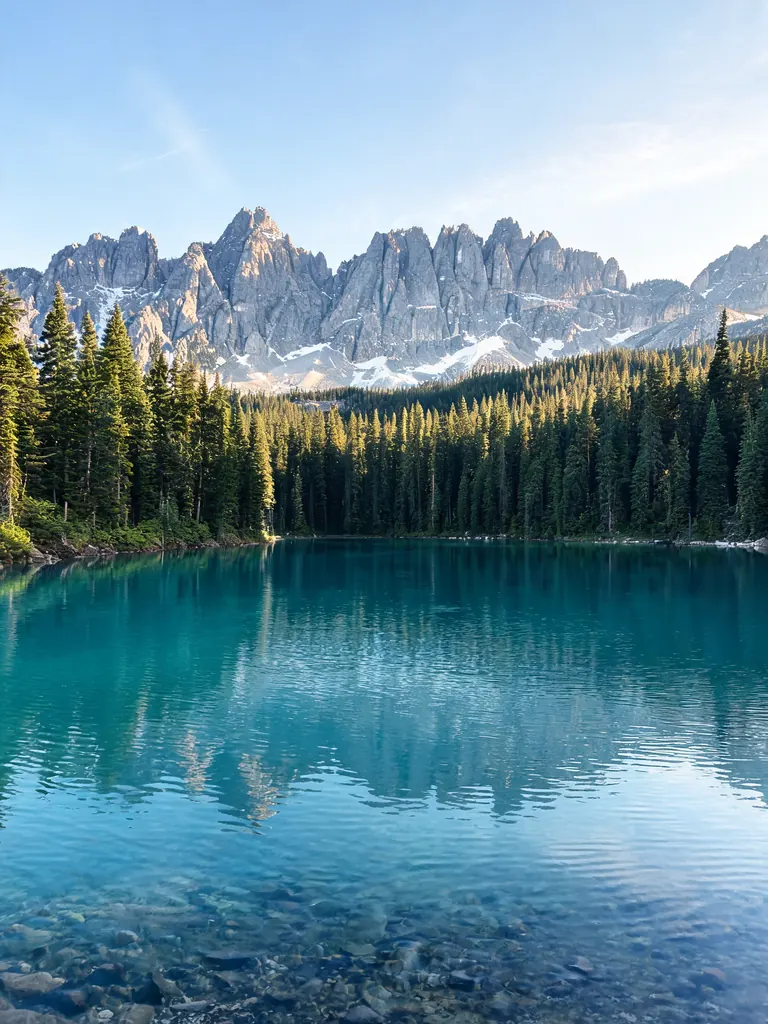
  • Original travel photo of a turquoise mountain lake with pine trees in summer
    Before
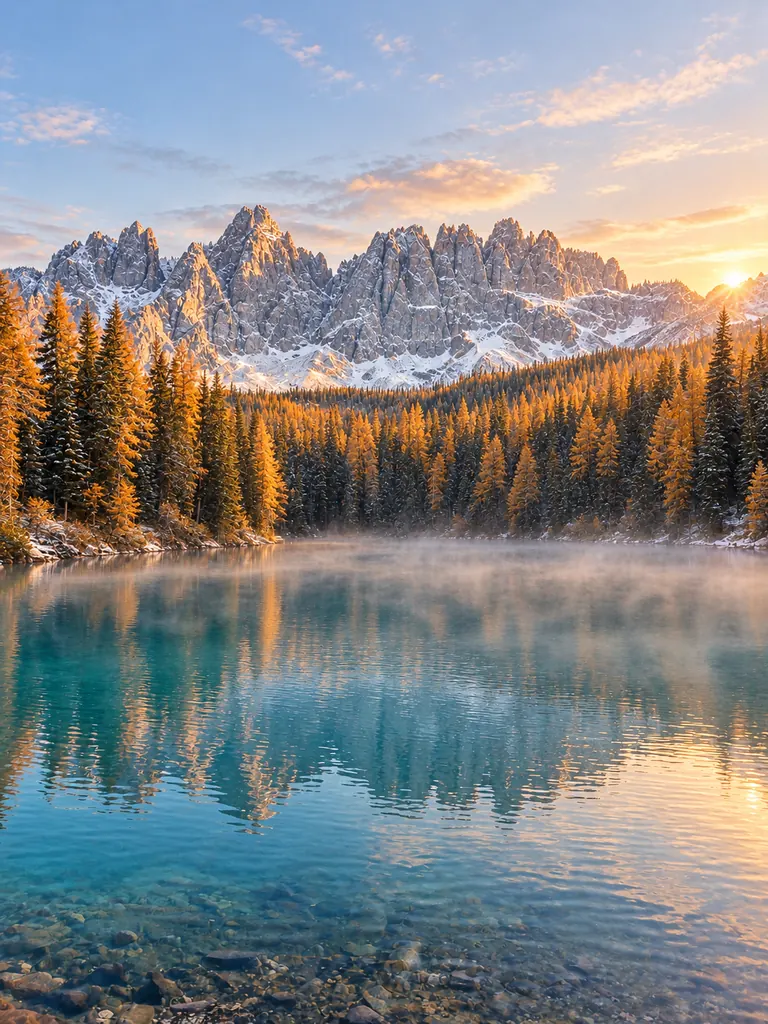
    The same mountain lake in autumn at sunrise with golden trees, mist and snowy peaks
    After
    Change the season

    “Keep the lake, the mountains and the camera angle, and change the season to late autumn at sunrise: golden larches among the pines, a dusting of fresh snow on the peaks and low mist over the turquoise water. Realistic travel photo with natural colors.”

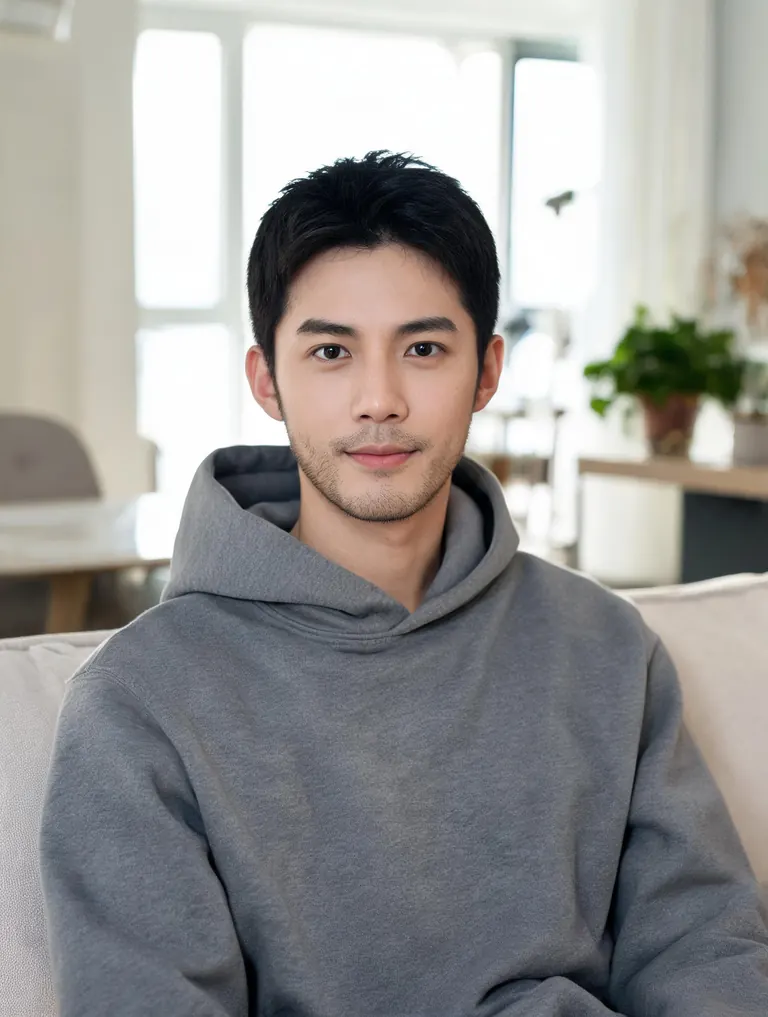
  • Original photo of a man in a gray hoodie sitting on a sofa at home
    Before
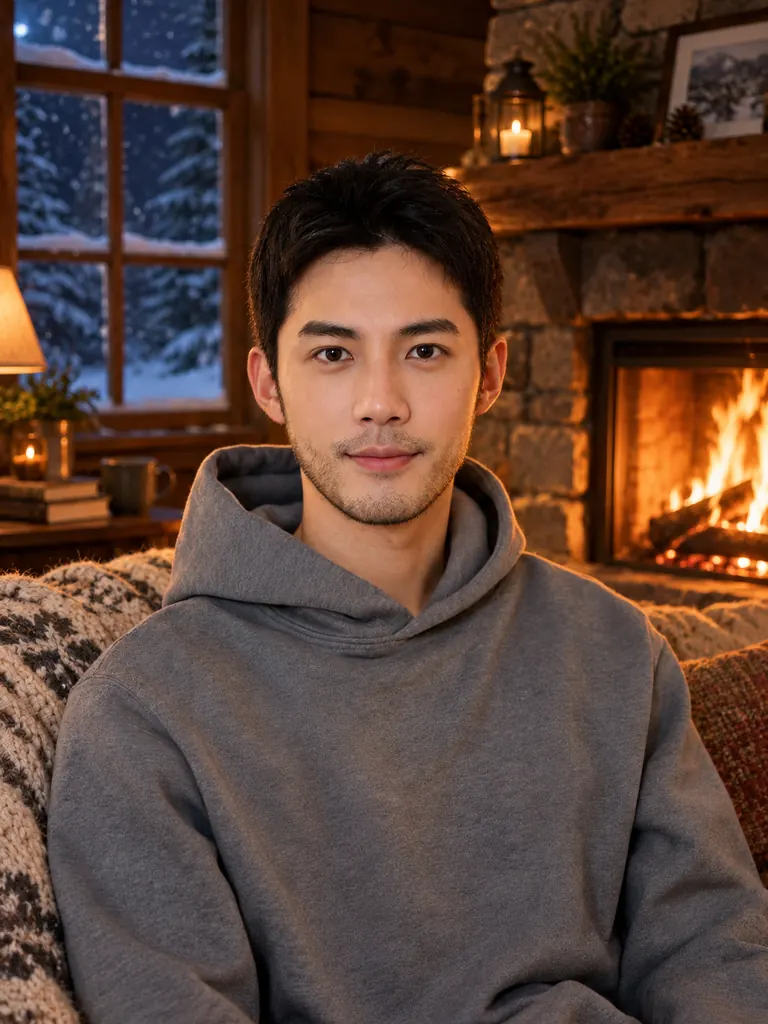
    The same man in his gray hoodie on a sofa in a wooden cabin by a glowing fireplace
    After
    Winter cabin

    “Keep the man, his face, his pose and his gray hoodie exactly as they are, and move the scene to a cozy wooden cabin on a winter night: a stone fireplace glowing behind him, a knitted blanket on the sofa, snow visible through a dark window and warm firelight on his face. Realistic photo, natural skin texture.”

What changes and what stays with image to image AI

The model reads the whole picture first: where things sit, how the light falls, what the subject is. Your prompt then decides how far the result moves away from it.

Keep the layout, change the look

The composition, perspective and main shapes carry over, while colors, era, weather and materials change. It is the fastest way to try five looks for one scene.

  • Say “same camera angle” to lock the framing
  • Name the new look in a few words: “1960s film”, “winter night”
  • Describe light that fits the new look

Keep the subject, change the setting

A product, a pet or a person stays recognizable while the world around them is rebuilt. Online sellers turn one kitchen-counter photo into a full set of product shots this way.

  • Say “keep the bottle exactly as it is”
  • Describe the surface, the props and the light direction
  • For people, Nano Banana 2 keeps faces most faithfully

Variations and remixes

Ask for another material or medium, or a small twist on the same idea. Run one prompt twice for two different takes, or feed a result back in for the next step.

  • Try materials: clay, paper, knitted wool, glass
  • Add a second image as a style reference
  • Keep the best take and build on it

How to use image to image AI

  1. 1

    Upload your image

    Tap the + tile, drag a picture in or paste it. Photos, 3D renders and drawings in JPG, PNG or WebP all work.

  2. 2

    Say what stays and what changes

    Say what should stay (layout, subject, pose) and what should change (style, season, setting, material). One or two plain sentences are enough.

  3. 3

    Choose a model

    GPT Image 2.5 is selected by default and follows long instructions well. It accepts 16 reference images, so you can pair a subject with a style photo. The credit cost shows before you start.

  4. 4

    Compare and download

    Most images are ready within a few minutes (free accounts wait at least 2 minutes on premium models). Check the result against your original, then download it at full size with no watermark.

Tips for better remixes

  1. 01

    Decide how big the change is

    “Same photo, only …” gives a light touch. “Recreate this as …” gives the model room for a full restyle. Pick the wording that matches what you mean.

  2. 02

    Lock the details that matter

    List the two or three things that must not move: the text on a label, the shape of a building, the color of a car. Anything you leave out is open to change.

  3. 03

    Match the light to the new scene

    A sunny terrace needs warm, hard light; a winter night needs cool light and glowing windows. Naming the light is what makes a new setting look real instead of pasted in.

  4. 04

    Start from a clean picture

    A sharp image of at least 1,000 pixels on the long side gives the model clear shapes to follow. Crop out clutter you do not want carried into the new version.

Image to image AI, explained

Text-to-image tools start from nothing, so the layout is a surprise every time. Image to image AI starts from your picture instead. The model keeps its structure (where the horizon sits, how a product is angled, how a person is posed) and repaints the surface to match your prompt. That makes it an AI image generator from image rather than from words alone, which is why designers use it to test ideas on a real scene.

This page runs on GPT Image 2.5 by default. It reads long prompts carefully and keeps printed text readable, which matters for product labels and street signs. For portraits where the face must stay close to the original, switch to Nano Banana 2 or Nano Banana Pro. Seedream 5 models are good for rich color, and FLUX.2 is free for signed-in accounts and works from a single image.

New accounts get 8 free credits, and 4 more arrive every day from the second day. With GPT Image 2.5, a 1K image costs 3 credits, 2K costs 4 and 4K costs 7. The exact cost shows next to the Generate button before anything is spent.

Uploads are used only to make your image, and results stay private in My Images until you delete them. Only transform pictures you have the right to use.

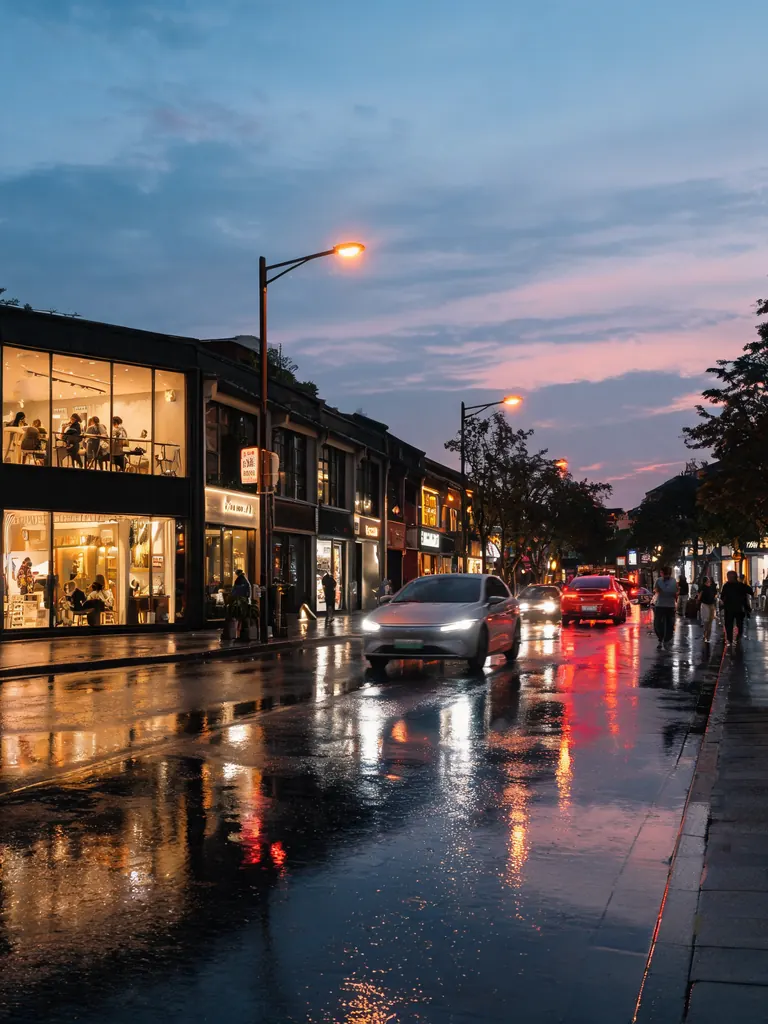
Image to image AI FAQ

Is this image to image AI free?

You can try it for free. New accounts get 8 credits plus 4 free credits a day from the second day, and FLUX.2 transforms one image at no credit cost for signed-in accounts. GPT Image 2.5 and other premium models use credits.

How is this different from the AI photo editor?

The photo editor changes one part of a photo and leaves the rest alone. Image to image AI remakes the whole picture: another style, season, era or setting built on the same layout.

Can I use more than one image?

Yes. GPT Image 2.5 takes 16 reference images, and Nano Banana 2 and Seedream 5 Lite take 14. Upload a subject and a style or scene photo, then say which one plays which role.

Will people in my photo still look like themselves?

Usually, when the prompt asks to keep the face and hairstyle. Likeness drifts more in strong restyles such as clay or paint. For the most faithful faces, choose Nano Banana 2 or Nano Banana Pro.

Can I post or sell the images?

Yes. Results download at full size with no watermark and may be used in personal and commercial projects, as long as the image you uploaded is yours to use.

What kind of images are not allowed?

Sexual content, anything involving minors and images meant to deceive or harass a real person are blocked. The content policy page has the full rules.

Give your picture a fresh take

Upload a picture, tell image to image AI what to keep and what to change, and compare the result in a few minutes.

Start creating