Upload a photo · name a medium

AI Art Generator from Photo

Upload a photo and name a medium: oil, watercolor, pastel or woodblock print. This AI art generator from photo paints your picture again in that medium, with visible brushstrokes, paper grain and a painter’s choice of color, so it reads as art rather than a filter.

  • 8 free credits when you sign up
  • 4 more free credits every day
  • No watermark
Add the photo you want painted

Best for text in images: posters, signs and labels.

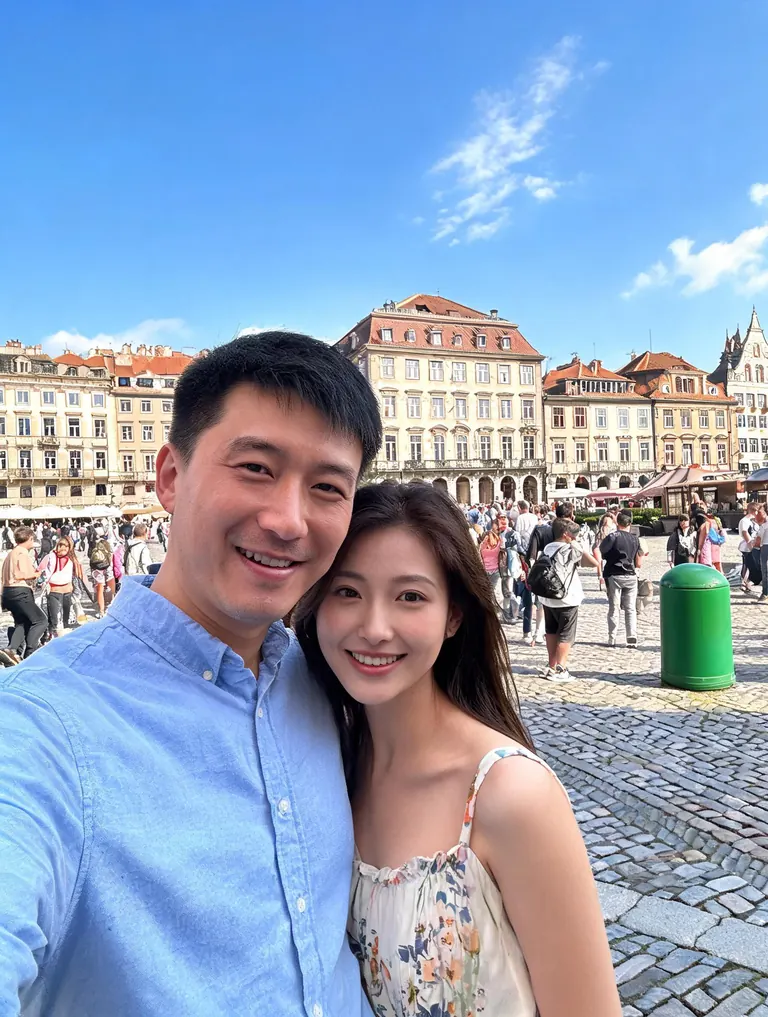
Original selfie of a couple in a sunny European plaza with tourists behind themBefore
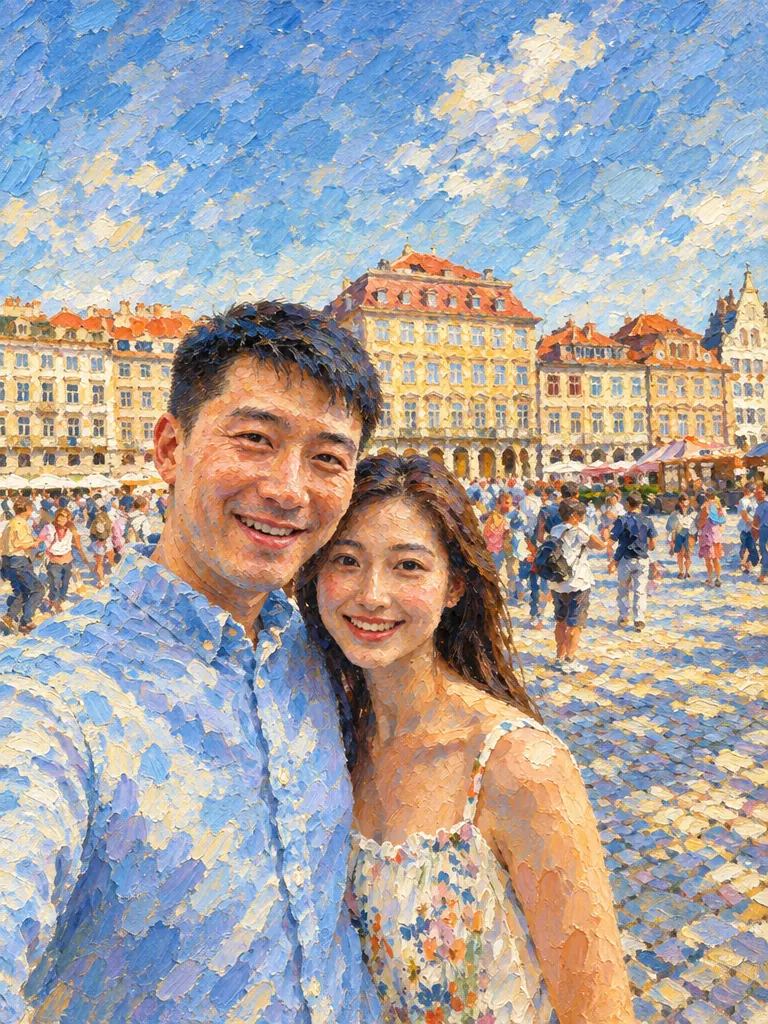
The same couple and plaza as an Impressionist oil painting with thick brushstrokesAfter
Example · Impressionist oil

Before and after: the AI art generator from photo

Each painting started as an ordinary snapshot. The prompt names the medium, the brushwork and the colors. Tap “Use this prompt”, add your own photo and run it.

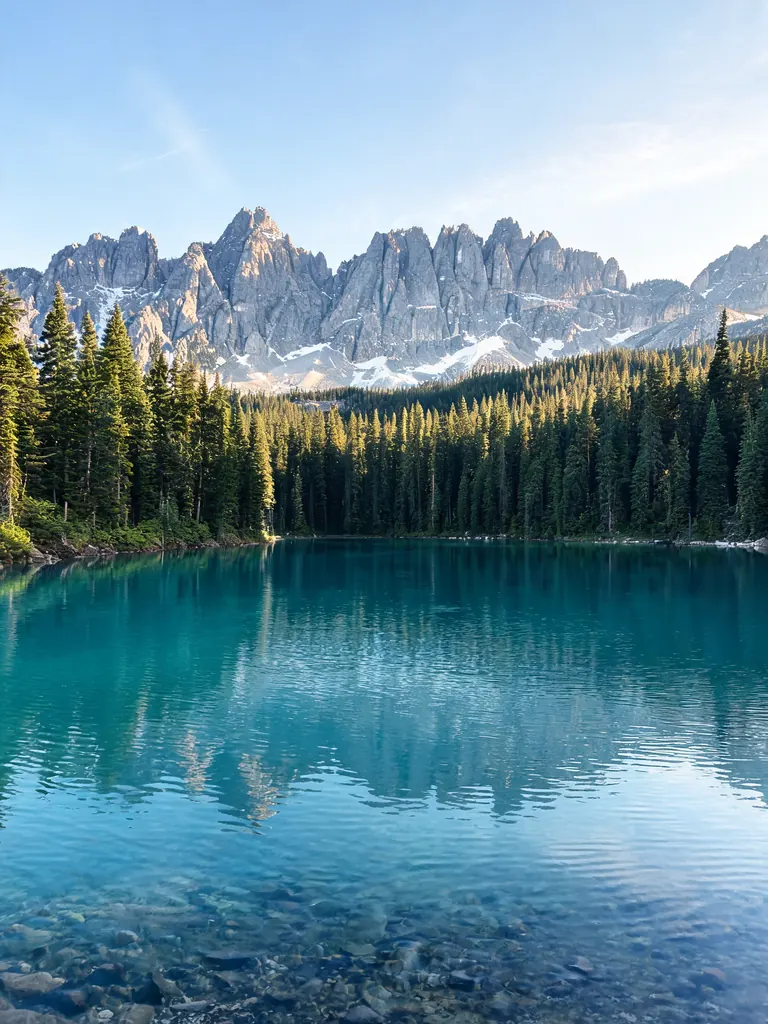
  • Original travel photo of a turquoise mountain lake with pine trees and peaks
    Before
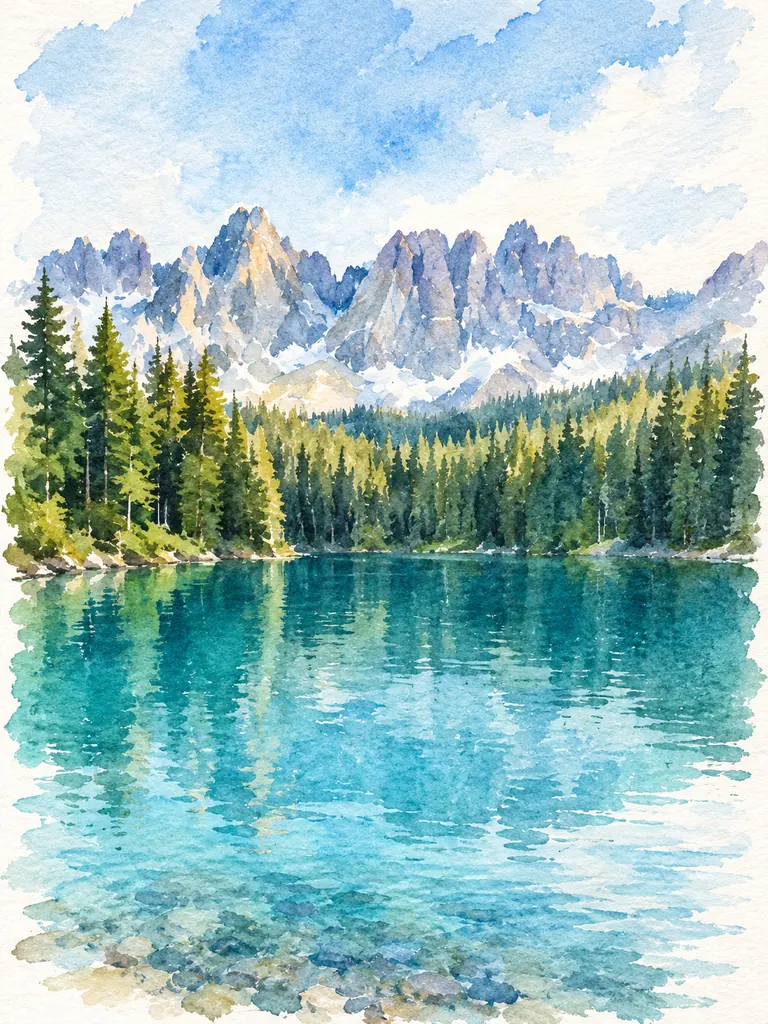
    The same mountain lake painted as a loose watercolor on textured paper
    After
    Watercolor landscape

    “Paint this mountain lake as a loose watercolor on cold-press paper: a soft wet-on-wet sky, turquoise water in clear washes, pines in a few dark strokes and white paper showing through at the edges.”

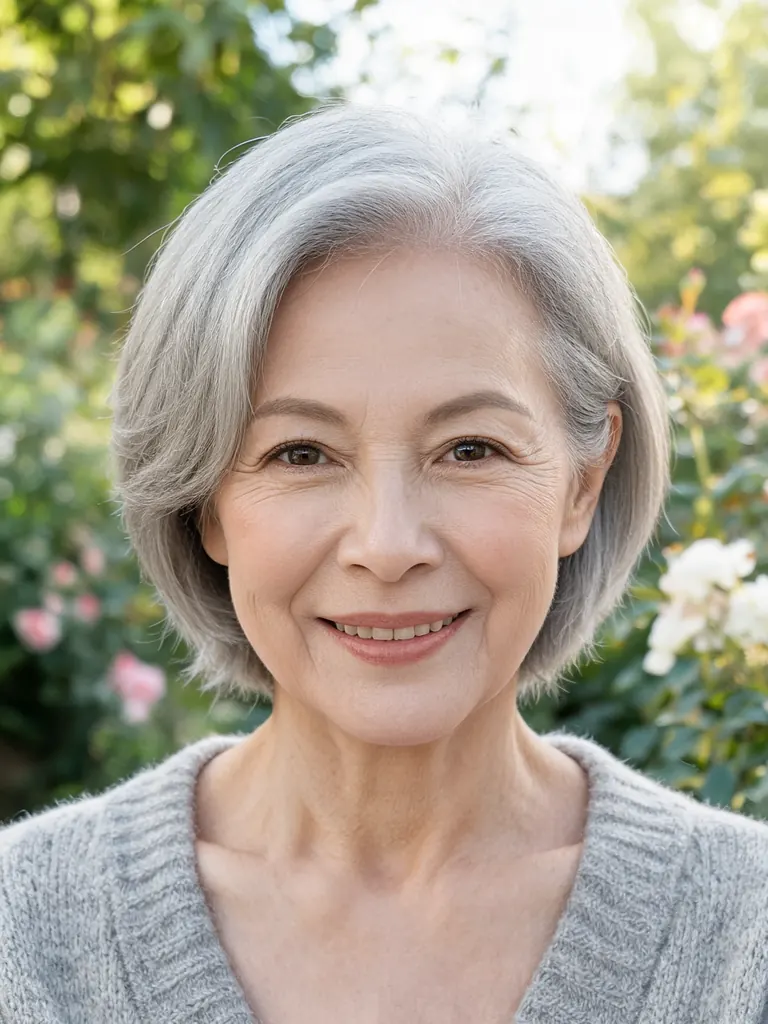
  • Original photo of an older woman with short gray hair in a garden
    Before
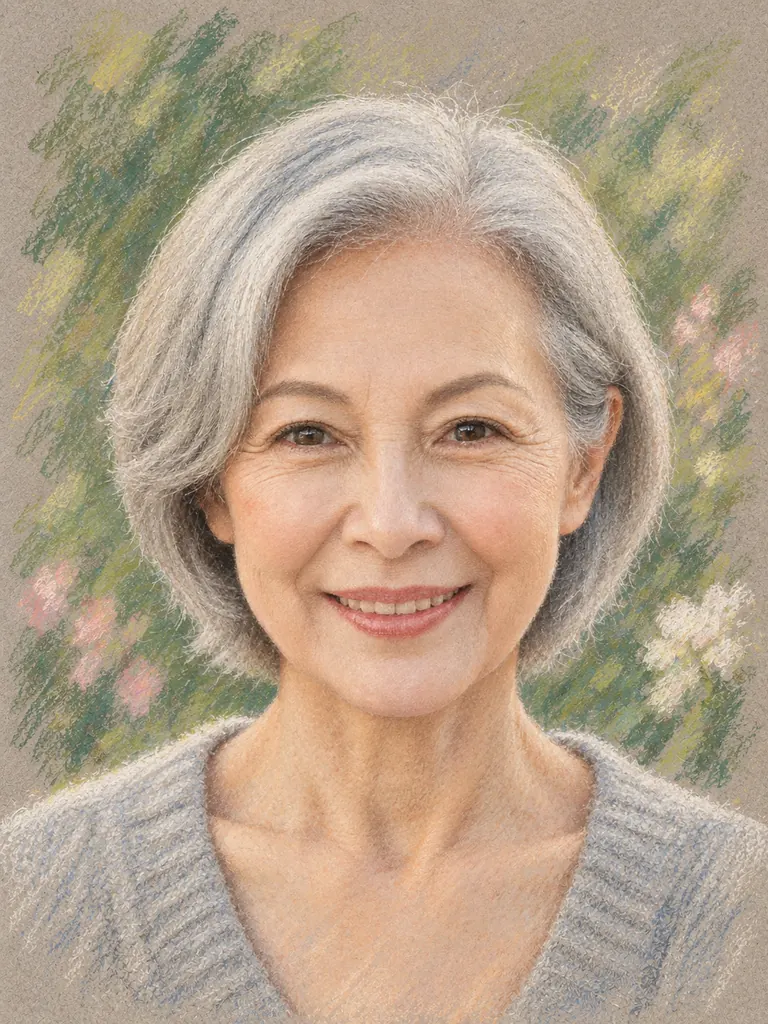
    The same woman drawn as a soft pastel portrait on gray toned paper
    After
    Pastel portrait

    “Make a soft pastel portrait of her on warm gray toned paper: chalky strokes, gentle shading on her face, her short gray hair and cardigan in muted colors, and the garden suggested by loose green marks. Keep her face and expression the same.”

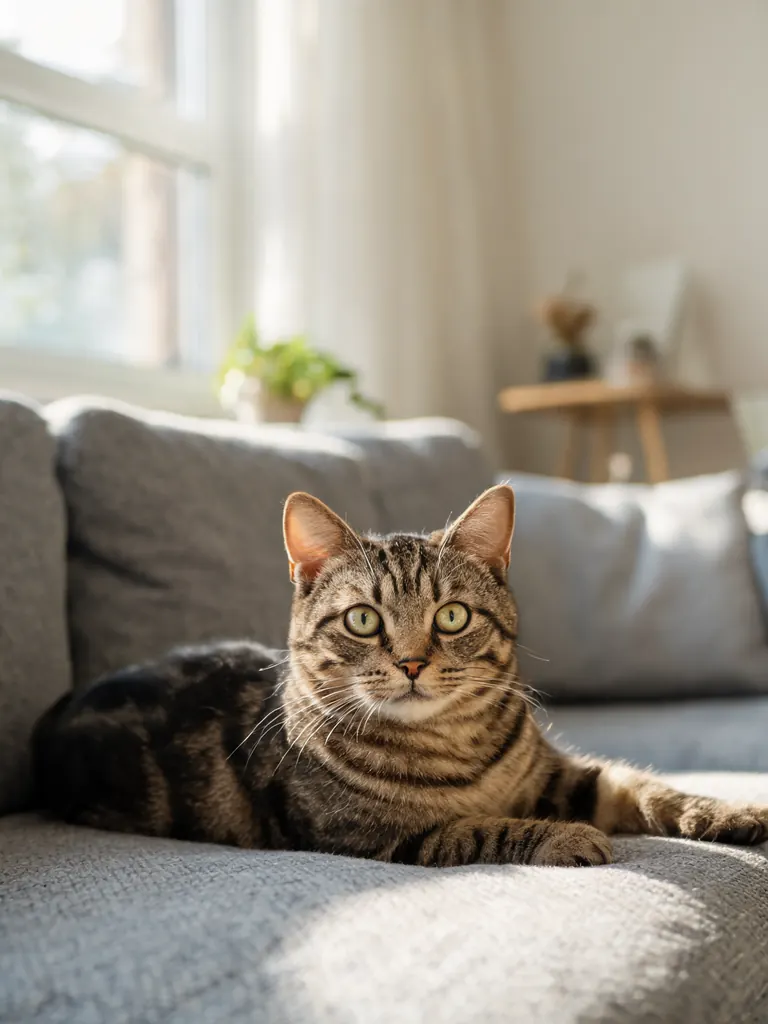
  • Original photo of a tabby cat lying on a gray sofa
    Before
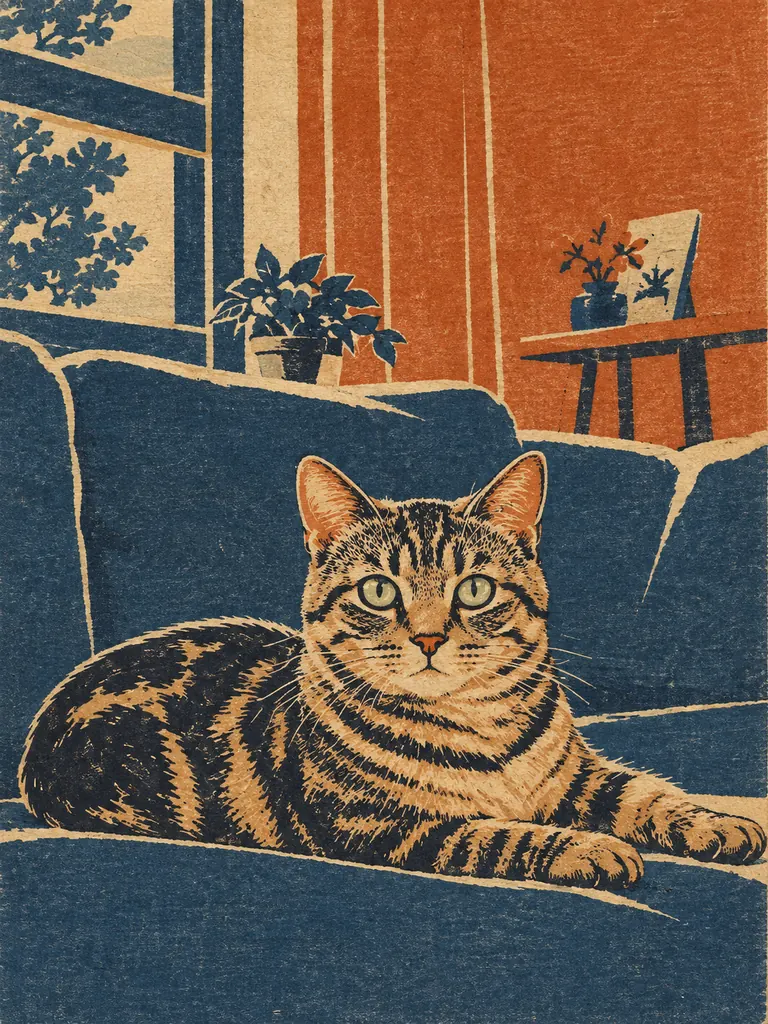
    The same tabby cat as a Japanese-style woodblock print in indigo, rust and cream
    After
    Woodblock print

    “Recreate this photo as a Japanese woodblock print: the tabby cat lying on the sofa, flat areas of indigo, rust and cream, fine carved outlines and visible paper grain. Keep the cat’s pose and stripes.”

Mediums the AI art generator from photo can paint

The model keeps what makes your photo yours (the faces, the pose, the place) and rebuilds the surface in the medium you name. The more you say about paint, paper and color, the more it looks like real art.

Oil and acrylic

Thick impasto for portraits and street scenes, thin glazes for a classical look, flat acrylic color for something modern. The brushstrokes follow the shapes in your photo, the way a painter’s would.

  • Say how thick the paint is: “thick impasto”, “smooth glazes”
  • Name the canvas or wood panel for texture
  • Ask for a limited palette: “ochre, blue and white”

Watercolor, pastel and ink

Soft mediums suit landscapes, gardens, pets and older family photos. Paper texture and unpainted white areas are what sell the look, so mention them.

  • Name the paper: “cold-press”, “toned gray”
  • Ask for loose edges and white paper showing
  • Keep the background simple so the subject stands out

Prints and folk styles

Woodblock, linocut, screen print and folk-art styles turn a photo into flat shapes with bold outlines. They work well small, as cards, labels and shop art.

  • Give 3–4 colors to keep it print-like
  • Say “flat color, no gradients”
  • Mention paper grain or ink texture

How to use the AI art generator from photo

  1. 1

    Pick a photo worth painting

    Clear light and a simple background paint best. Tap the + tile, drag a picture in or paste it. JPG, PNG and WebP all work.

  2. 2

    Name the medium and mood

    Write one or two sentences: the medium, how loose or detailed, the colors, and what must stay recognizable. “Watercolor, loose, soft blues, keep her face” is enough.

  3. 3

    Choose the model and size

    GPT Image 2.5 is selected by default and follows detailed style notes well. For a portrait gift where likeness matters most, switch to Nano Banana 2 or Nano Banana Pro. The credit cost shows before you start.

  4. 4

    Download, print or frame

    Most paintings are ready within a few minutes (free accounts wait at least 2 minutes on premium models). Pick 2K or 4K for prints; every download is full size with no watermark.

Tips for art that looks hand-made

  1. 01

    Describe the tools, not the result

    Words like “beautiful” or “artistic” give the model nothing to paint. “Palette knife”, “dry brush”, “charcoal smudges” and “deckled paper edge” do.

  2. 02

    Simplify before you paint

    Painters leave things out. Ask the AI to drop clutter such as signs, wires or a busy crowd, so the picture has one clear subject.

  3. 03

    Let the medium change the color

    A watercolor is lighter than a photo, and an old oil painting is warmer. Say which you want: “muted, earthy colors” or “bright, clean washes”.

  4. 04

    Check faces at full size

    Faces are the hardest part in loose styles. Zoom in before you print, and run the prompt again or switch to Nano Banana Pro if the likeness slips.

Why use an AI art generator from photo instead of a filter

A photo filter pushes colors around and lays a texture on top. An AI art generator from photo works more like a painter looking at your picture: it decides where the light falls, which shapes matter and what to leave out, then builds the image again in paint, pastel or ink. That is why the brushstrokes follow a cheek or a rooftop instead of a pattern stamped across the frame.

People use it for wall art from a trip, a painted portrait of a parent, a watercolor of their house or a print-style card of their cat. GPT Image 2.5 is the default here because it follows long style notes closely. Nano Banana 2 and Nano Banana Pro usually keep faces closest to the photo, Seedream 5 is strong at rich color, and FLUX.2 is free for signed-in accounts and paints from a single photo.

New accounts get 8 free credits, and 4 more arrive every day from the second day. A painting with GPT Image 2.5 costs 3 credits at 1K, 4 at 2K and 7 at 4K. The exact cost shows next to the Generate button before anything is spent.

Your photos are used only to make your painting, and results stay private in My Images until you delete them. Only paint photos you have the right to use.

AI art generator from photo FAQ

Is the AI art generator from photo free?

You can try it free. New accounts get 8 credits and 4 more each day from the second day, and FLUX.2 paints one photo at no credit cost for signed-in accounts. GPT Image 2.5 and other premium models use credits.

Which medium suits my photo?

Match the medium to the subject. Oil and pastel suit portraits, watercolor suits landscapes and gardens, and woodblock or linocut suits pets, buildings and simple shapes. If you are unsure, run the same photo in two mediums and compare.

Can I print the painting and hang it?

Yes. Pick 2K or 4K for printing; 4K keeps the most brush and paper detail for large frames. Downloads are full size with no watermark, and you may print, gift or sell them.

Will a painted portrait still look like the person?

Usually, when you ask to keep the face and expression. Loose styles such as watercolor drift more than oil. For the most faithful likeness choose Nano Banana 2 or Nano Banana Pro.

How is this different from the AI Art Generator page?

That page paints from a text prompt alone. The AI art generator from photo starts from your picture, so the people, pets and places in it stay recognizable in the painting.

What photos can’t I turn into art?

Sexual content, anything involving minors and images meant to deceive or harass a real person are blocked, even as paintings. The content policy page has the full rules.

Turn a favorite photo into art

Upload a picture, name a medium and let the AI art generator from photo paint it in a few minutes.

Start creating