Upload a photo · describe the change

AI Photo Editor

Upload a photo and type what should change. The AI photo editor redraws only that part and keeps the rest of your picture as it was.

  • 8 free credits when you sign up
  • 4 more free credits every day
  • No watermark
Add the photo you want to edit

Best for text in images: posters, signs and labels.

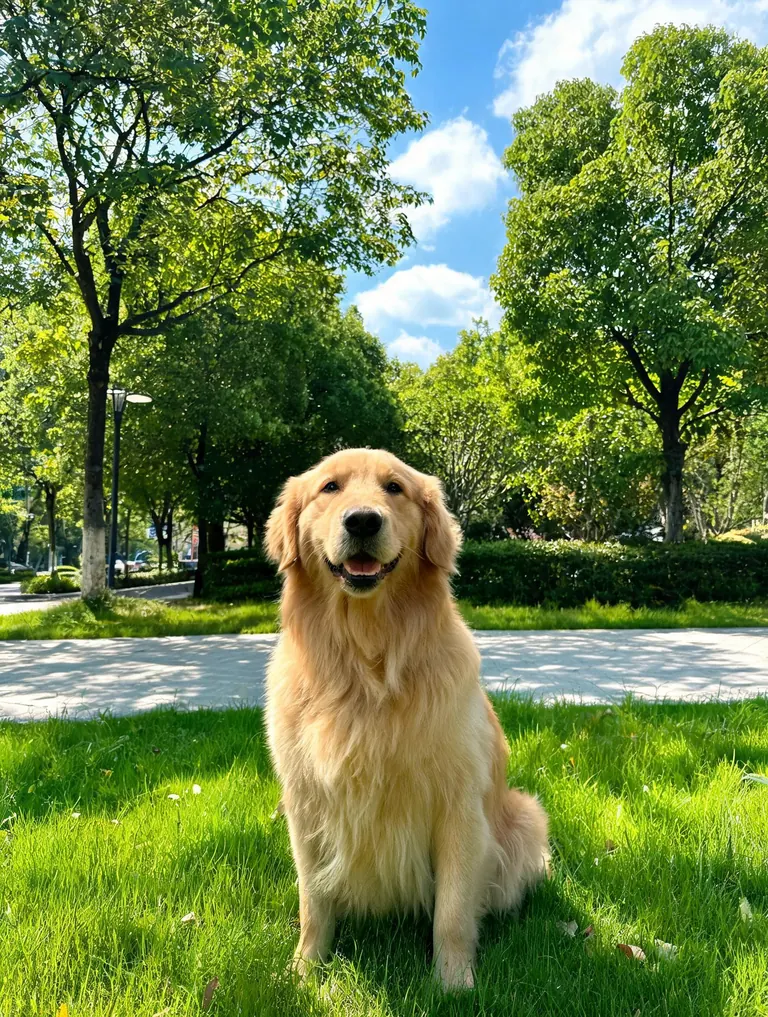
Original photo of a golden retriever sitting on green grass in a sunny parkBefore
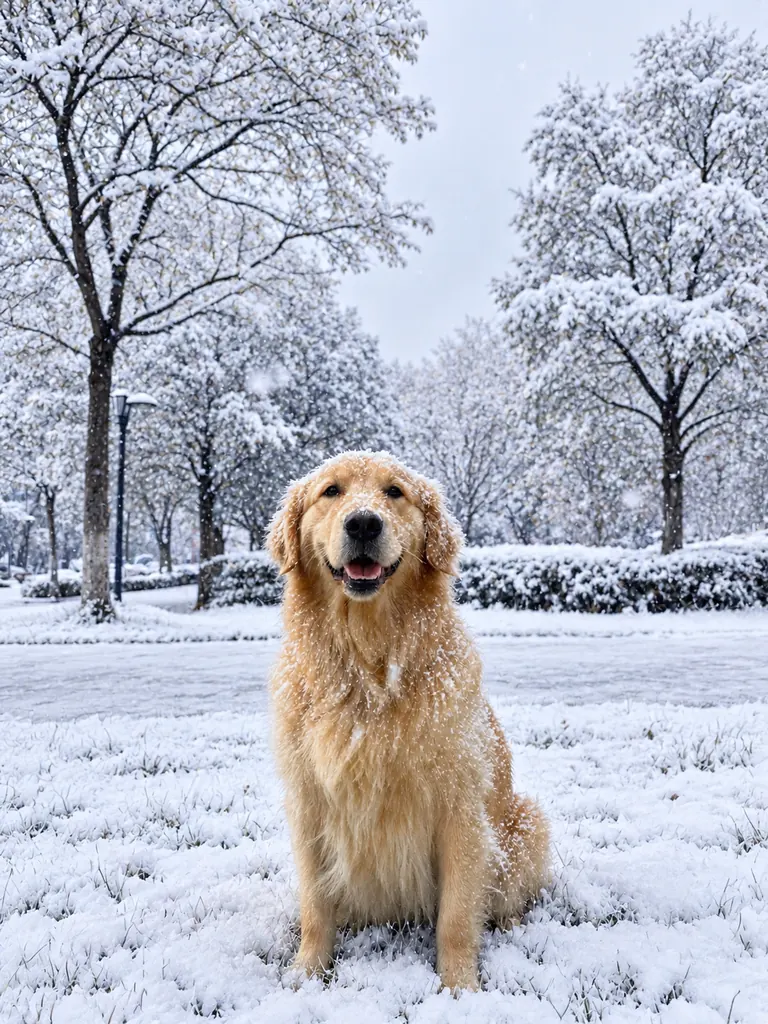
The same golden retriever in a snowy park after an AI photo editor weather editAfter
Example · Summer to snow

Edits people make with the AI photo editor

Each result below started as an ordinary photo and one sentence. Tap “Use this prompt”, add your own photo and run it.

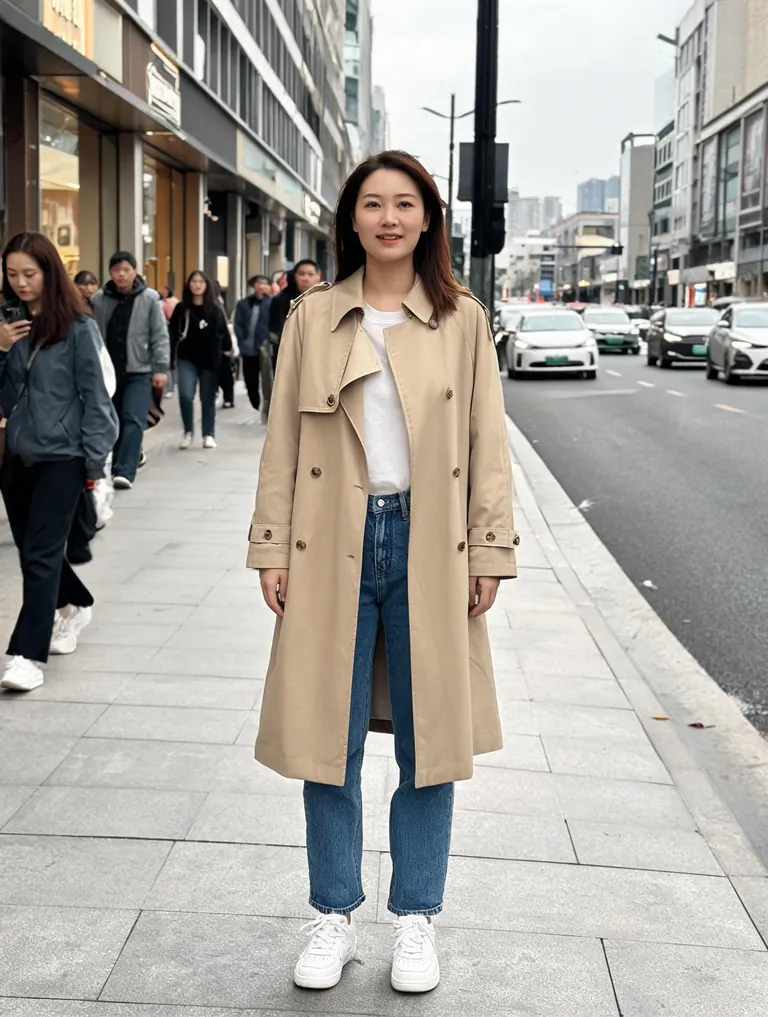
  • Original photo of a woman standing on a city street
    Before
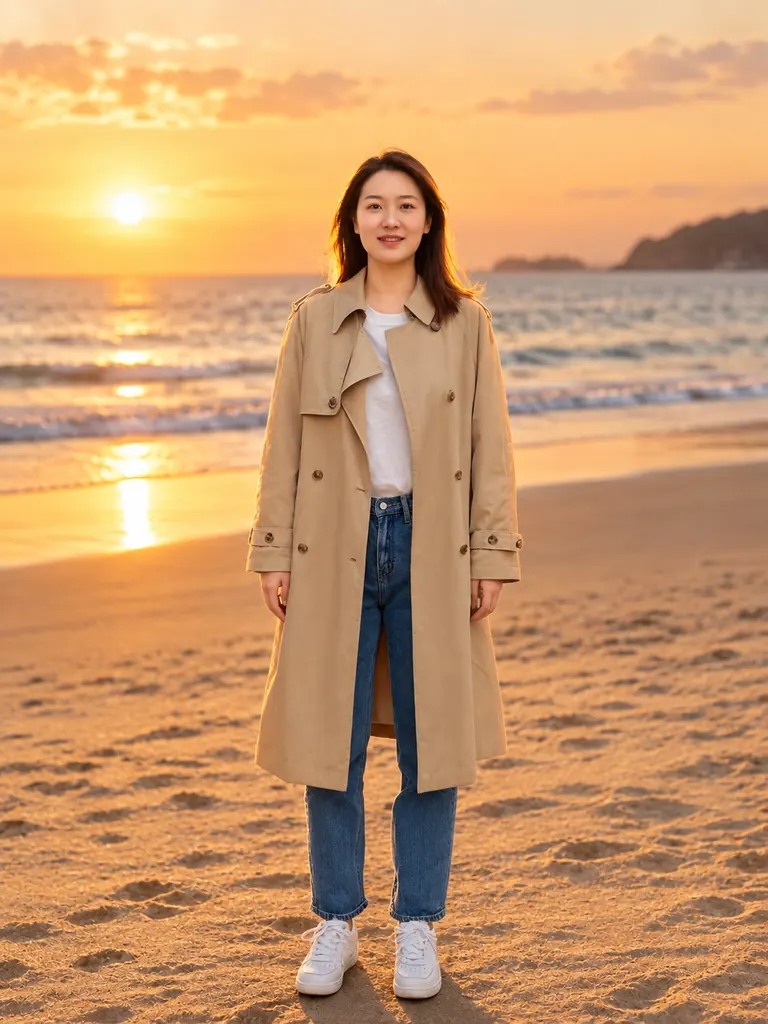
    The same woman edited onto a beach at sunset by the AI photo editor
    After
    New background

    “Replace the background with a quiet beach at sunset. Keep the person, the pose and the clothes exactly the same.”

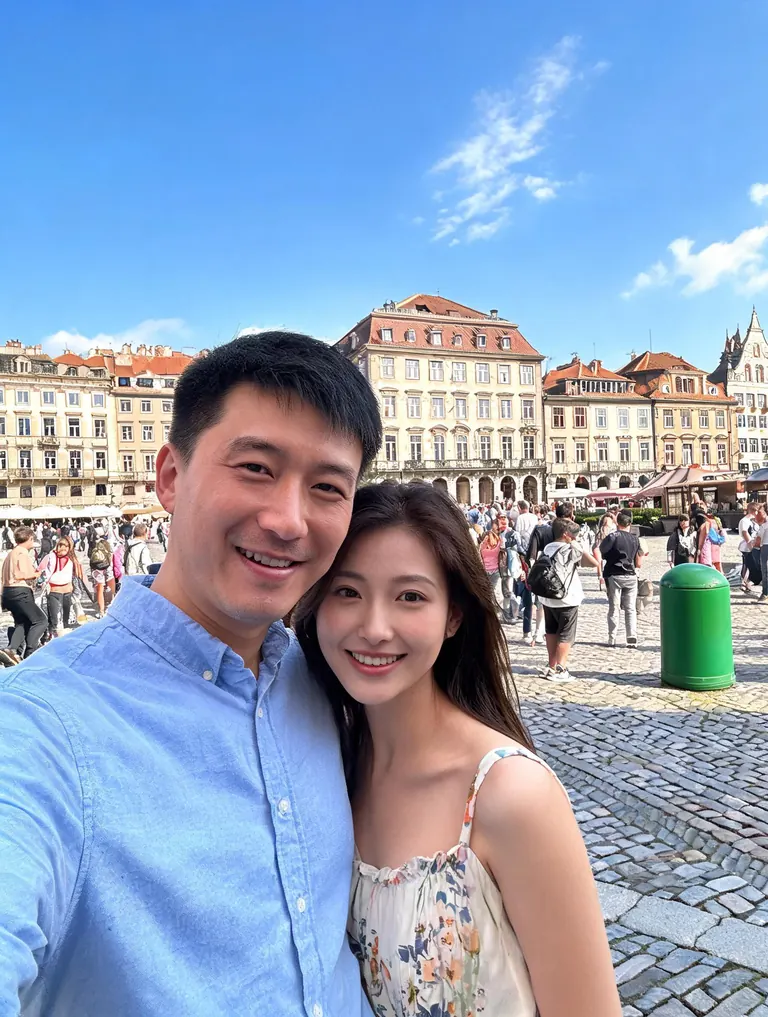
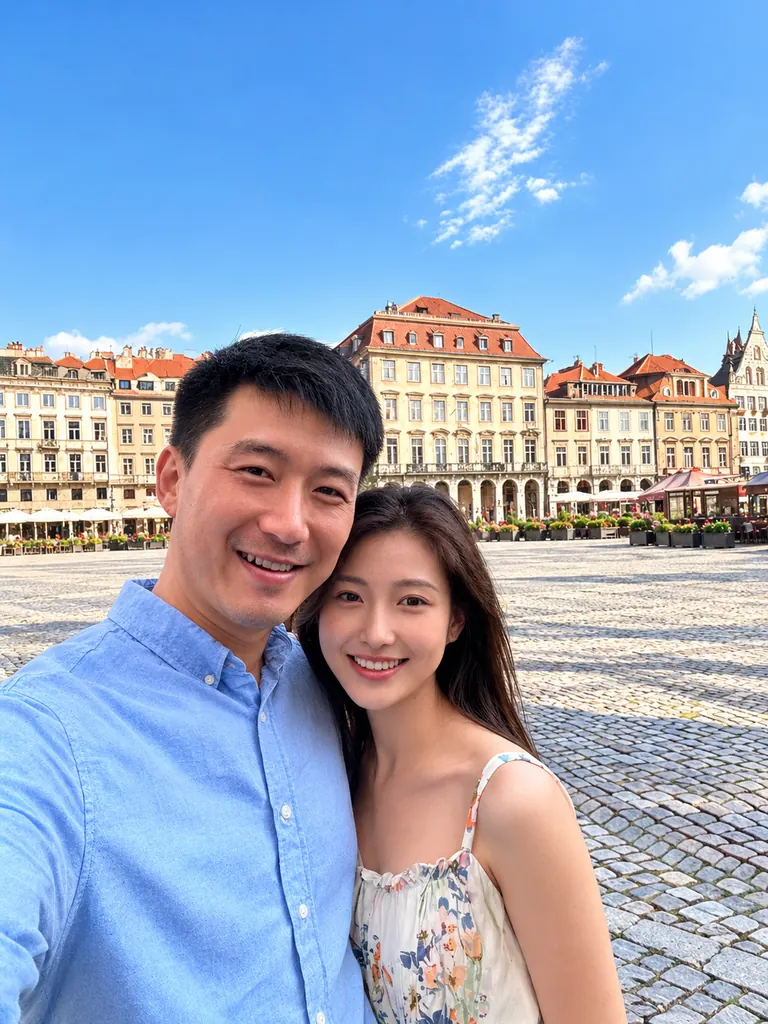
  • Original travel photo of a couple in a crowded plaza
    Before
    Travel photo after the AI removed the crowd behind the couple
    After
    Remove objects

    “Remove the tourists and the trash can behind the couple. Fill the space with the plaza so it looks natural.”

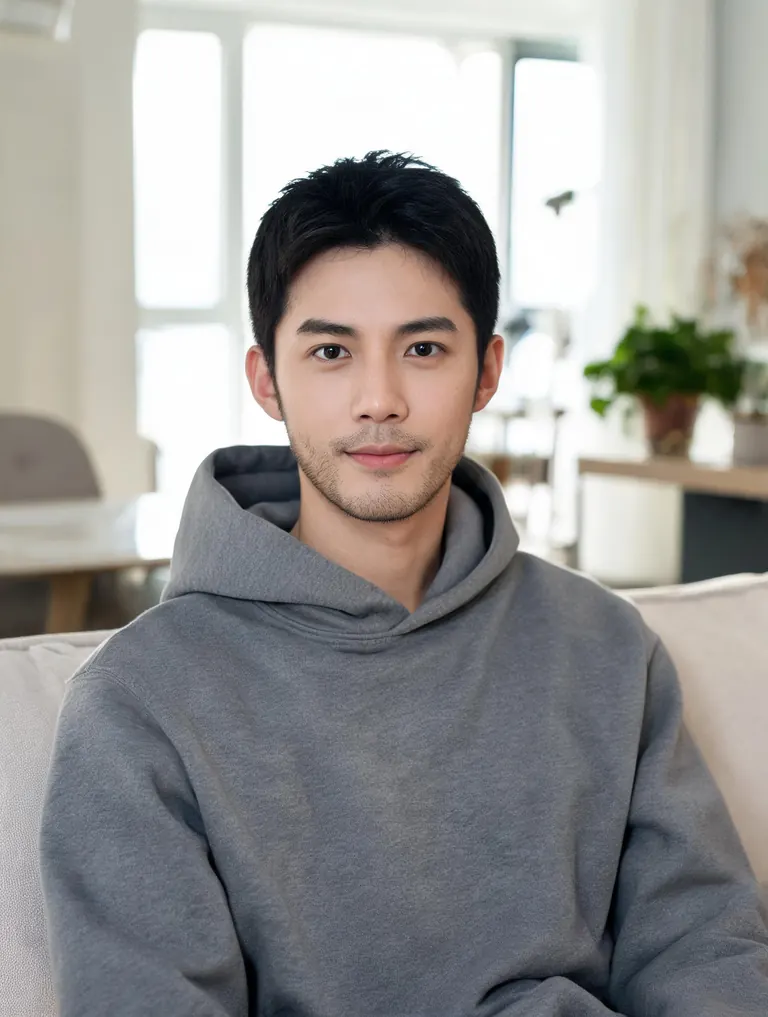
  • Original photo of a man in a gray hoodie at home
    Before
    The same man wearing a navy blazer after an AI outfit edit
    After
    Change the outfit

    “Change his gray hoodie to a navy wool blazer over a white shirt. Keep his face, hair and the room the same.”

What this AI photo editor can change

You describe the edit in plain words. No layers, brushes or masks. The model finds the part you mean and repaints it to match the light and angle of the photo.

Backgrounds and scenes

Move a portrait to a studio, a beach or an office. Clean up a messy room behind a product. Turn a gray sky blue.

  • Name the new place and the time of day
  • Say “keep the person the same” for portraits
  • Ask for matching light: “soft window light from the left”

Remove or add things

Take out strangers, wires, signs and stains, or add a plant, a cup of coffee, a hat. The empty space is filled so the edit is hard to spot.

  • Point to the object by where it is: “the man on the right”
  • For adding, say where it goes and how big it is
  • Large removals look best in 2K

Clothes, color and style

Change an outfit, recolor a car or a wall, or give the whole picture a film look, a warmer tone or a black-and-white finish.

  • Describe fabric and color: “navy wool”, “red linen”
  • For a look, name it: “1970s film”, “matte, low contrast”
  • Run the same prompt twice and keep the better one

How to edit a photo with AI

  1. 1

    Upload your photo

    Tap the + tile, drag a picture in or paste it. JPG, PNG and WebP work, and you can add more than one photo for models that take several.

  2. 2

    Type the change

    Write one or two sentences about what should change and what must stay. Plain language works better than keyword lists.

  3. 3

    Pick a model and size

    GPT Image 2.5 is selected by default. Nano Banana models are strong at keeping faces; FLUX.2 is free. The credit cost shows before you start.

  4. 4

    Download the edit

    Most edits are ready within a few minutes (free accounts wait at least 2 minutes). Results save to My Images and download at full size with no watermark.

Tips for cleaner AI edits

  1. 01

    Say what must not change

    The model follows the last thing you stress. End with “keep the face, pose and background the same” when only one detail should move.

  2. 02

    One edit per run

    Asking for five changes at once blurs them together. Make the big change first, download it, then upload that result for the next edit.

  3. 03

    Start from a sharp photo

    A clear, well-lit photo of at least 1,000 pixels on the long side gives the editor more detail to keep. Blurry inputs stay blurry.

  4. 04

    Use 2K or 4K for printing

    For a poster, a listing or a print, pick 2K or 4K. For social posts, 1K is enough and costs fewer credits.

An AI photo editor that works from a sentence

Classic photo editors ask you to select pixels, build masks and blend layers. An AI photo editor turns that around: you say what you want, and the model repaints the photo to match. It understands “the lamp on the left”, “make it look like evening” or “swap the jacket for a raincoat” and applies the change with the light and perspective of the original shot.

This editor runs on the same generator as the rest of AI Photo Generator Studio. GPT Image 2.5 is the default here because it follows long instructions closely and keeps text on signs and labels readable. You can switch to Nano Banana 2 or Nano Banana Pro when a face must stay exactly the same, to Seedream for rich color, or to the free FLUX.2 model for quick edits of a single photo.

Credits work the same across the site. New accounts get 8 free credits, and 4 more arrive every day from the second day. A 1K edit with GPT Image 2.5 costs 3 credits, 2K costs 4 and 4K costs 7, and the exact cost always shows next to the Generate button before anything is spent.

Your photos stay private. Uploaded pictures are used only to make your edit, results are visible only in your own My Images page, and you can delete any of them at any time. Edits of real people must follow our content policy: no sexual content, nothing involving minors and nothing meant to deceive or harass.

AI photo editor FAQ

Is the AI photo editor free?

Yes, you can edit for free. New accounts get 8 credits and 4 more every day from the second day, and the FLUX.2 model edits one photo at no credit cost. Premium models such as GPT Image 2.5 use credits.

Do I need to install anything?

No. The AI photo editor works online in any modern browser on a phone or a computer. Sign in with Google or email to start.

Will the edit change my face?

It should not when you ask it to keep the face. For the most faithful faces, choose Nano Banana 2 or Nano Banana Pro and end the prompt with “keep the face the same”.

Can I edit several photos together?

Yes. GPT Image 2.5 accepts up to 16 photos and Nano Banana 2 up to 14, so you can combine a person, a product and a background in one edit.

Is there a watermark on the result?

No. Every edit downloads at full size without a watermark, and you may use it in personal and commercial projects.

What can’t I edit?

Sexual content, anything involving minors, and edits meant to deceive or harass a real person are blocked. The full rules are on the content policy page.

Edit your first photo now

Upload a picture, type one sentence and see the change in a few minutes.

Start creating