
AI Photo Text Editor: Replace Words Already in a Photo
Use an AI photo text editor to replace words already in a photo. See a real 6 PM to 7 PM edit, exact prompts, settings, and before-and-after close-ups.
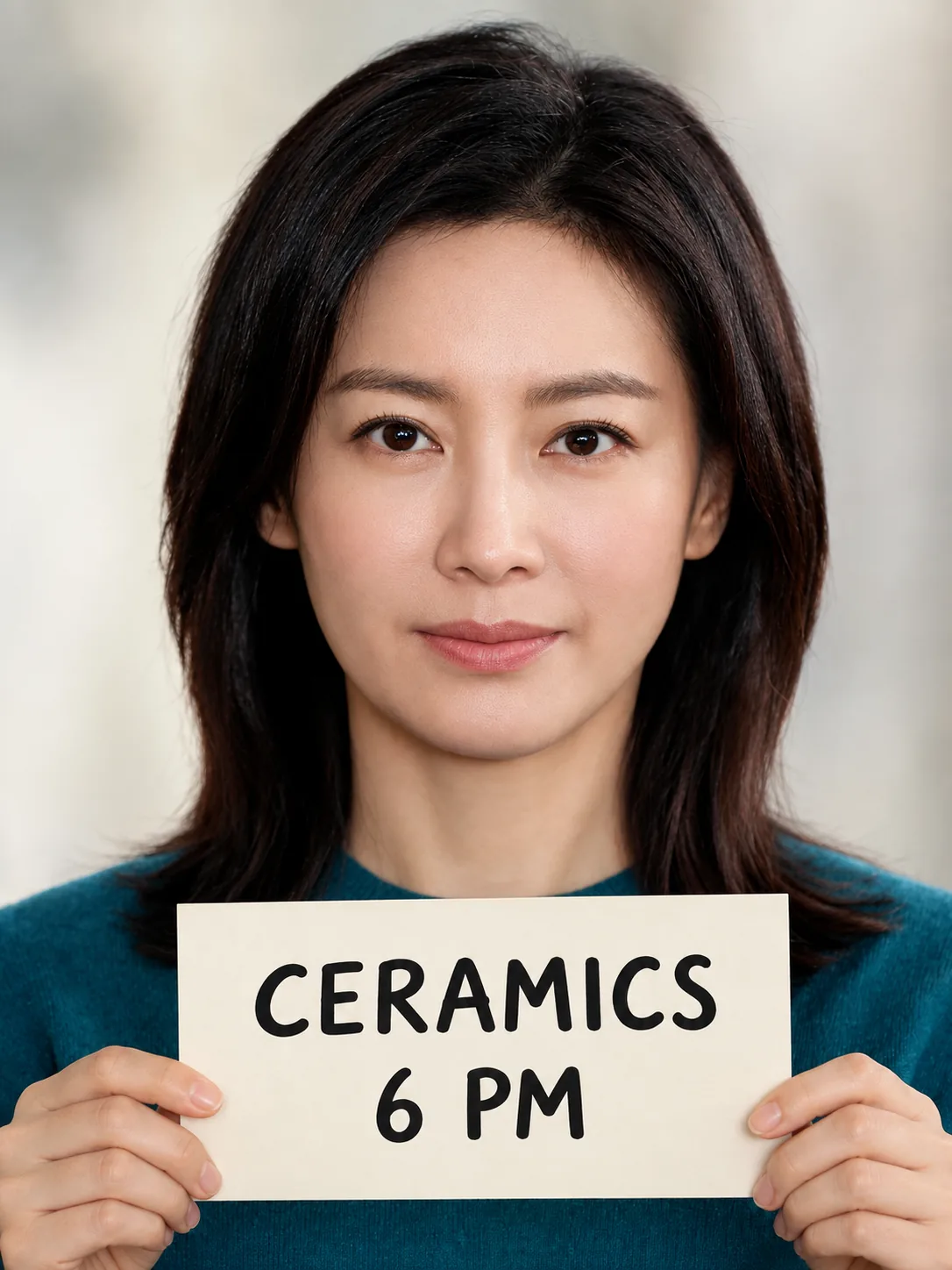
An AI photo text editor can replace lettering already in a picture. Upload the image to AI Photo Generator, choose GPT Image 2.5, and specify the old and new wording. The example below changes “CERAMICS 6 PM” to “CERAMICS 7 PM,” with full images and close-ups to judge the result.
Last updated: October 7, 2026 · 5 min read
Do you want to replace existing words or add text over a photo?
These are different editing jobs. Pick the one that matches your image:
| Your goal | Suitable workflow | Example |
|---|---|---|
| Replace lettering already in the picture | Upload the image and describe the replacement | Change a sign from 6 PM to 7 PM. |
| Add a caption or heading | Add an editable text layer in a layout editor | Put an invitation title above a portrait. |
| Change the scene through a text prompt | Upload the photo and describe the scene change | Replace a plain wall with a ceramics studio. |
A text layer gives you direct control over the font, position, and line breaks of a new caption. Existing lettering is part of the image: changing it also means matching the sign’s angle, color, and lighting.
For a new event design, the AI poster generator lets you describe the artwork and lettering together. For a wording correction, start with the image that already contains the words.
1. How do you upload the sign you want to correct?
Open the AI photo editor and use these settings to follow the example:
- Attach the image with the + button. JPG, PNG, and WebP work. Use the clearest file available; you should be able to read the old lettering yourself.
- Select GPT Image 2.5, the editor’s default model, and 1K under Quality.
- Choose 3:4 under Size for this portrait example. For your own image, choose the ratio that matches its shape.
The starting image for the replacement is the woman holding the CERAMICS 6 PM placard shown below. Attach that version as the only reference. The plain portrait at the end of this guide was used to create the placard; it has no text to replace.
GPT Image 2.5 requires an account and credits. The live pricing page, checked October 7, 2026, lists 3 credits for a 1K image. Check the cost beside Generate before starting, including each retry.
2. What prompt changes only “6 PM” to “7 PM”?
With the CERAMICS 6 PM image attached, enter this exact instruction:
Replace only 6 PM with 7 PM on the placard. Keep CERAMICS, the placard position, texture, shadows, person and background unchanged.
Generate the edit with GPT Image 2.5, 1K, 3:4 selected. Naming both strings makes the requested change precise. Naming CERAMICS separately tells the model to preserve the other word on the sign.
For another image, use this pattern:
On [specific sign or label], replace only “[old wording]” with “[new wording].” Keep [other lettering], the surface texture, angle, shadows, and everything outside the sign unchanged.
If there are several signs, identify the one you mean by its location. Write capitalization, currency symbols, and punctuation exactly as you want them to appear. “Fix the event details” leaves the new wording unspecified; “replace 6 PM with 7 PM” gives the finished text.
This editor works through a prompt, with no separate editable text layer in the uploaded photo. Tool pages pre-fill prompts that you can change; your instruction goes to the model as typed.
3. Did the time change while the rest of the sign stayed recognizable?
| Before replacement | After replacement |
|---|---|
| Fictional woman in a teal sweater holding an ivory sign reading CERAMICS 6 PM | 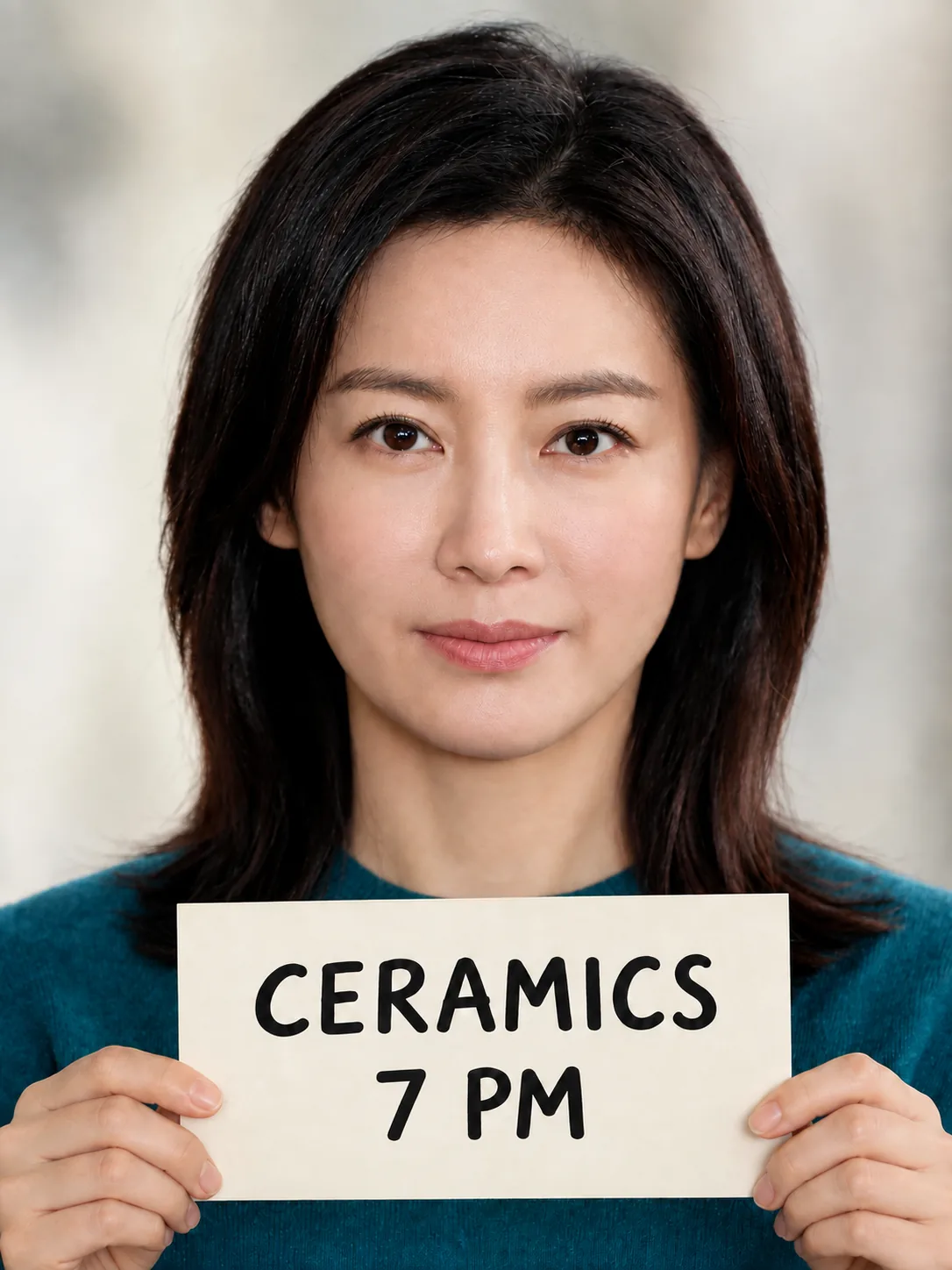 |
Left: generated “CERAMICS 6 PM” reference. Right: replacement reading “CERAMICS 7 PM,” using the left image as its only reference. Both outputs: GPT Image 2.5, 1K, 3:4.
The 6 became a readable 7. CERAMICS and PM remain legible, and the ivory placard stays below the woman’s face, with her hands at its edges. Her face, hair, teal sweater, and pale background look consistent at this display size.
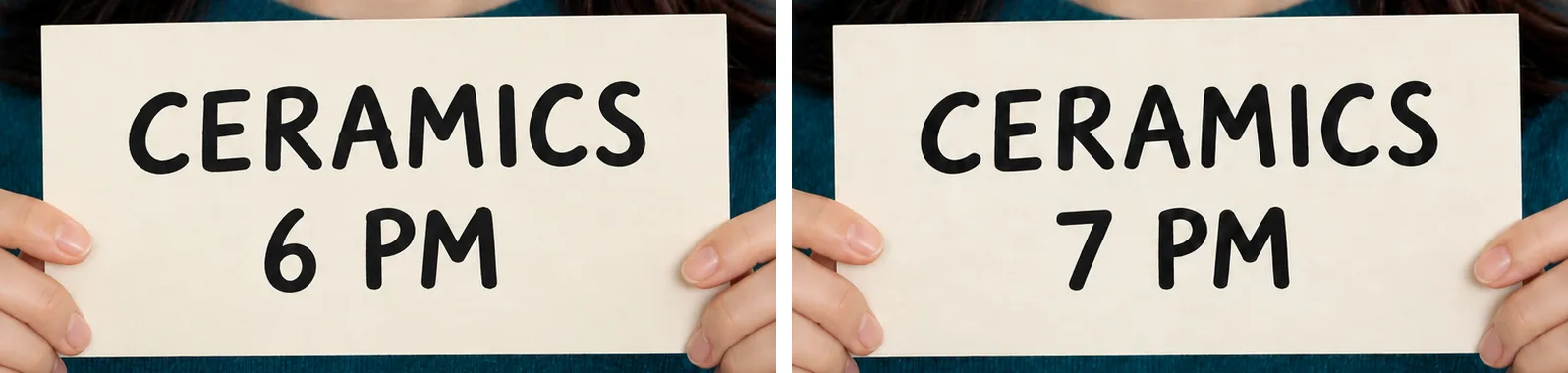
Unretouched crops from the same area of each output: 6 PM on the left, 7 PM on the right. Both originals: GPT Image 2.5, 1K, 3:4.
Read every word in the downloaded result, including the text you asked to preserve. Compare letter spacing, alignment, the surface around the new numeral, and the outer edges of the sign. Then compare the full frames for changes to the person or background.
This example covers one numeral on a large, front-facing, AI-generated sign. It does not establish how well the edit would work on tiny print, curved packaging, or a longer replacement.
If a result has the wrong wording or an unwanted change, retry from the original sign image with a narrower instruction. Use the accepted output as your next reference only after you have read all its lettering.
How was the “CERAMICS 6 PM” reference created?
You can skip this preparation when your own photo already contains a sign. To reproduce the example, start with this AI-generated portrait of a fictional adult woman:
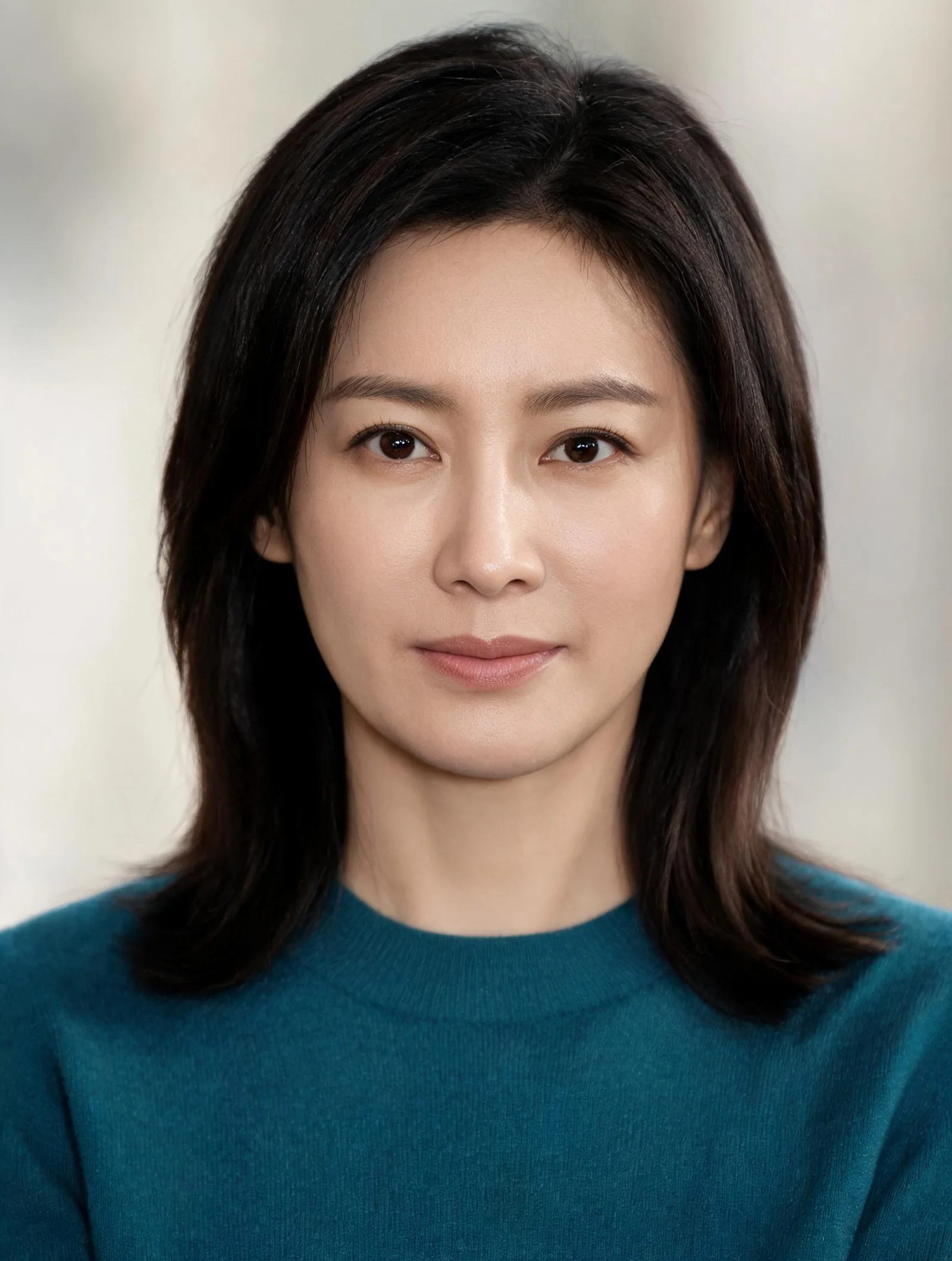
Fictional source portrait used to create the “CERAMICS 6 PM” reference; it contains no lettering.
With the portrait attached, select GPT Image 2.5, 1K, 3:4 and use:
Add an ivory placard below her face reading CERAMICS 6 PM exactly. Keep her face, hair, clothing and background unchanged.
That run created the sign and the hands holding it, covering the lower sweater. Save the output that reads CERAMICS 6 PM, remove the plain portrait from the uploader, and attach the saved sign image for the replacement run.
At the checked 1K price, preparing the sign and replacing its time costs 6 credits for two runs, before any retries. Starting from an existing sign requires only the replacement run.
How do you change more text or the setting afterward?
For a second wording change, upload the accepted result and name the next replacement. Include the lettering you have already approved in the details to preserve.
For a separate setting change, the image-to-image tool offers scene prompts using the same generator. Finish the lettering first so you can judge the scene edit on its own.
The small-object editing guide uses eyeglass examples to show how to describe an edit and the details around it. The Nano Banana and GPT Image comparison includes poster lettering for projects that need a new design.
Frequently asked questions
Can you AI edit a text picture?
Yes. Upload the picture and specify the exact old and new wording. The example here replaces 6 with 7 on an AI-generated placard using GPT Image 2.5. Read the surrounding text too before accepting the result.
Is there a free AI photo editor available?
AI Photo Generator offers a separate free FLUX.2 [klein] model. These lettering edits used GPT Image 2.5, which requires an account and credits. This example does not demonstrate the free model’s text-editing quality.