how to make line art from a photo: Clean Black Outlines
Make line art from a photo with exact prompts and two Nano Banana 2.1 results. Compare outlines, shading, and facial changes, then check raster versus vector output.
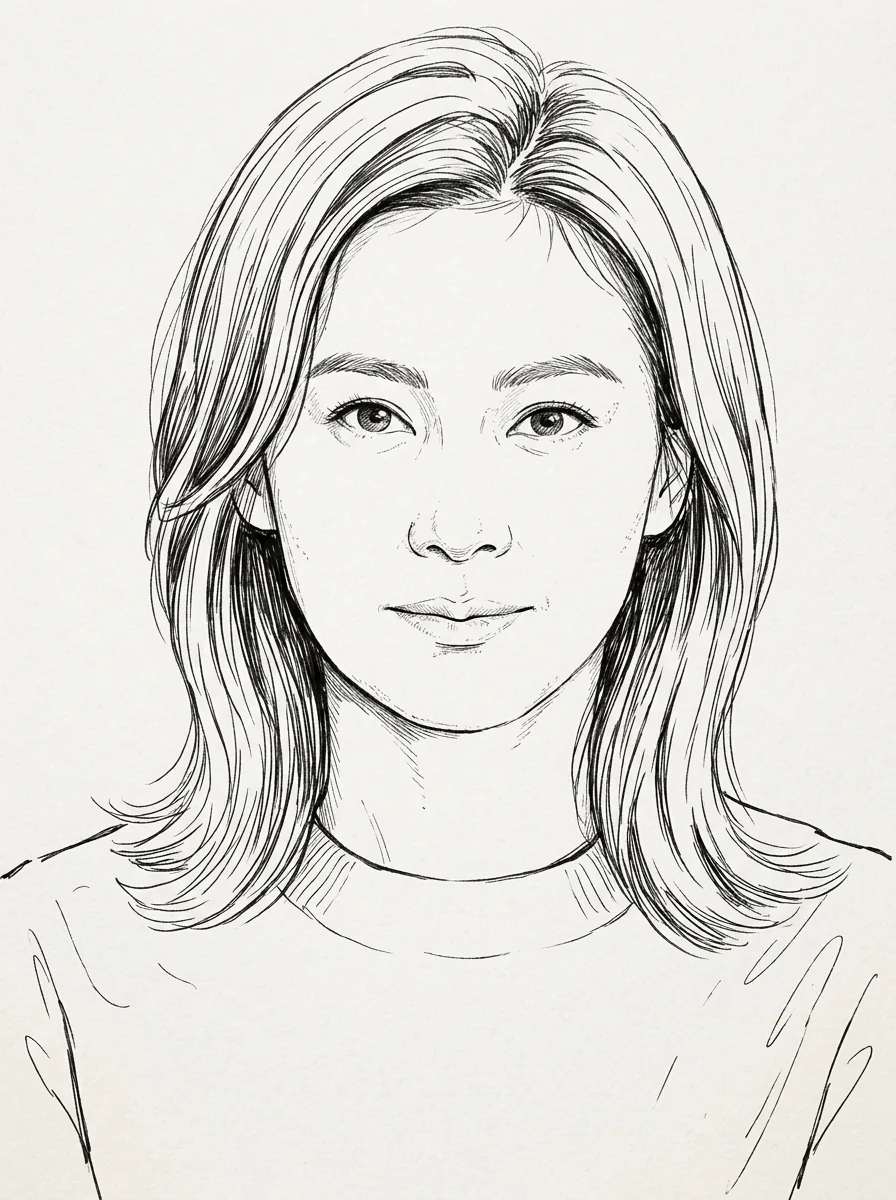
To make line art from a photo, upload a clear picture to AI Photo Generator and ask for black contours on white, with no shading, hatching, gray fills, or paper texture. In the AI photo editor, name the face, hairstyle, clothing, and pose you want preserved. The portrait below shows how a specific instruction produced cleaner outlines, though some facial details changed.
Which photos work well for clean outlines?
Start with a sharp photo of one subject against a simple background. Leave space around the head and any clothing or objects you want included. Clear edges give you a useful reference for checking the drawing afterward.
The fictional portrait below has a plain background, shoulder-length hair, and a solid teal sweater. Those large shapes are easy to compare with the outputs. Patterned clothes, leaves, and textured walls introduce more details for the model to interpret; crop them out or explicitly ask to remove them if they do not belong in the drawing.
Choose the detail level for your purpose. A coloring page needs open areas and simple boundaries. A portrait study may need more lines around the eyes and hair. For an exact likeness or a cutting path, plan to inspect and adjust the drawing manually.
How do you turn the photo into line art?
Upload the original photo, select an image-editing model, and describe the outlines you want. For this example, both requests used Nano Banana 2.1 at 1K with a 3:4 aspect ratio.
- Open the AI photo editor and attach your JPG, PNG, or WebP photo. The current upload limit is 8 MB per file.
- Select Nano Banana 2.1 to use the model demonstrated here. Choose 1K quality and 3:4 size for a portrait like this one. Premium models require an account and credits; review the displayed cost before generating. See pricing for current plans and credits.
- Type the instruction. Specify black contours, a white background, the features to preserve, and the marks to exclude. The prompt is your instruction to the model; opening a tool page does not apply a separate line-art filter.
- Generate, compare the drawing with the original, and download it if the details suit your purpose. Check the hairline, eyes, mouth, neckline, and edges of the frame before printing.
The examples here demonstrate a premium model. They do not establish what the site's separate free option will produce.
Two prompts on the same portrait
The short instruction returned a drawing with fine shading strokes and a textured off-white background. The detailed instruction returned simpler black outlines on white. Both used the same source photo, model, quality, and aspect ratio; there was one output per prompt.
Prompt A — the broad request:
Turn this photo into a line drawing.
Prompt A output: Nano Banana 2.1, 1K, 3:4. Fine shading strokes remain under the chin and around facial features; the sweater has loose sketch marks.
Prompt B — specify the contours and exclusions:
Redraw this fictional adult woman as clean black contour lines on pure white. Preserve her face shape, hairstyle, sweater and pose. Remove the background. No shading, hatching, gray fills, color or paper texture.
| Original reference | Prompt B output |
|---|---|
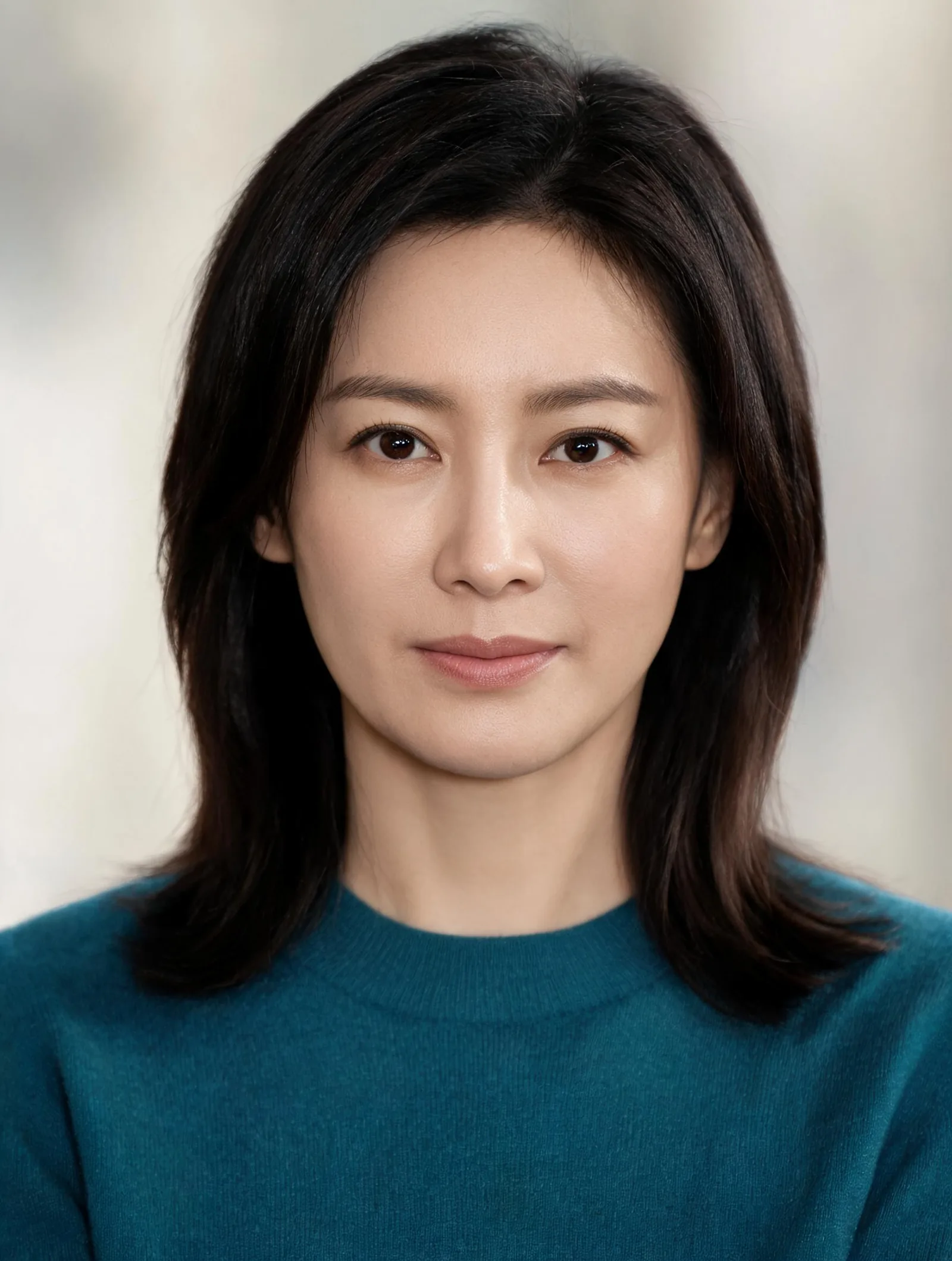 | 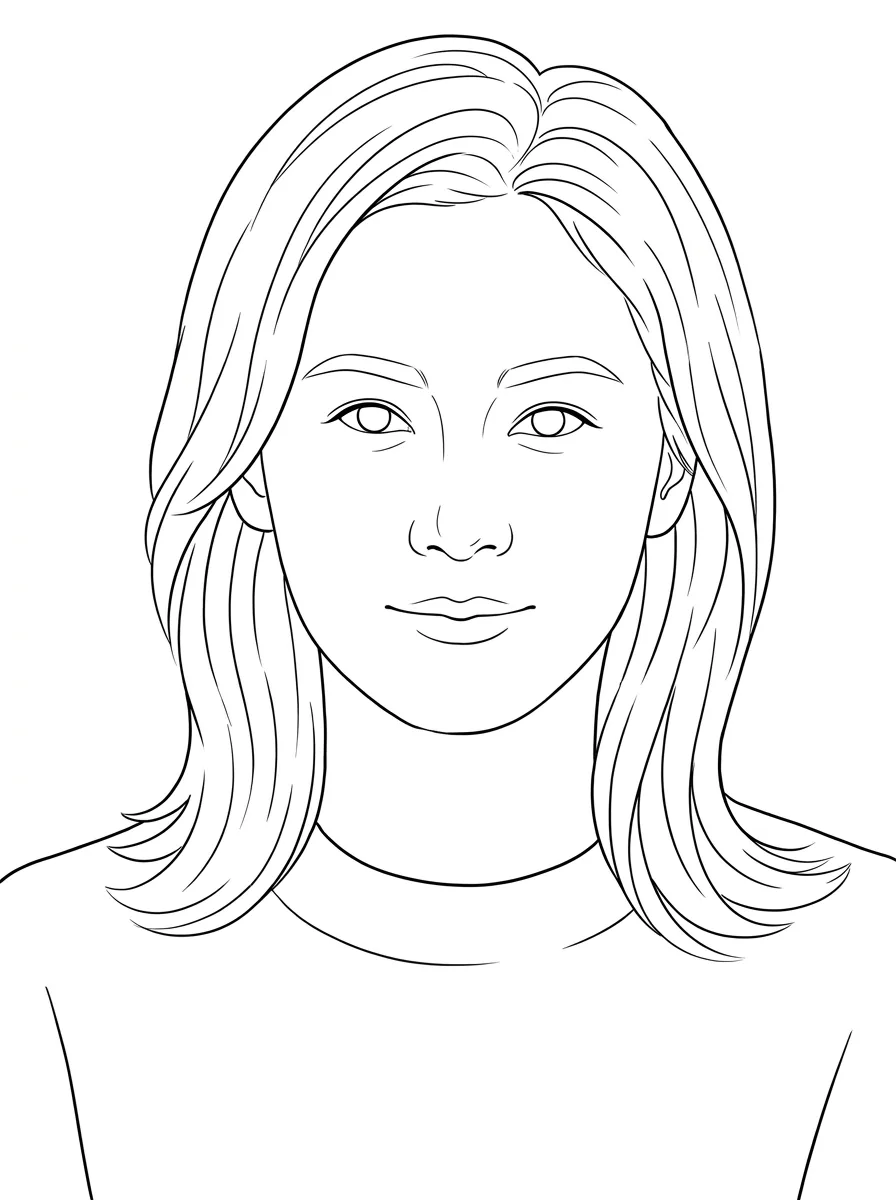 |
Left: fictional source portrait. Right: Nano Banana 2.1, 1K, 3:4, using Prompt B. The output removes the sweater's color and knit texture and leaves a plain white background.
Prompt B is closer to a coloring-page outline: fewer hair strokes, smoother contours, and more open white space. It also leaves the irises unfilled, omits the pupils, and changes facial proportions, so it loses some likeness. The shoulder-length hairstyle, crewneck, and front-facing pose remain recognizable in both drawings.
This pair shows a useful wording change to try. One output per prompt cannot establish that the longer instruction will consistently produce cleaner results.
Fixing shading, clutter, and changed details
For another attempt, attach the original photo again and change one part of the instruction. That gives you a consistent reference when judging whether the new wording helped. The adjustments below are suggestions; only Prompts A and B above were used for this example.
| What you see | What to try in the next instruction |
|---|---|
| Gray patches or shadows | “Black contour lines only; no shading, gray fill, or color.” |
| Dense hatching or paper texture | “Use smooth outlines on pure white; no hatching or paper grain.” |
| Background objects remain | Name what to remove: “Remove the room, furniture, and wall details.” |
| Hair or clothing has too many marks | “Keep the outer silhouette, main hair sections, and neckline; omit fabric texture.” |
| Facial details change or disappear | Name the missing detail, such as “retain the pupils,” and compare the next result with the original. |
Keep the intended use in view. For coloring, inspect whether boundaries enclose the areas you want to fill. For a portrait, compare the eye spacing, jaw, mouth, hair part, and neckline with the photo. If a feature needs exact placement, correct it in a drawing editor rather than relying on another generation to align it.
Is this line art a vector file?
No. The examples shown here are WebP raster images: their outlines are made of pixels. A smooth black line can look like vector artwork without containing editable paths.
If a cutter, laser, or print workflow requires SVG paths, trace or convert the image in a vector editor and inspect the resulting paths. Check for gaps, doubled edges, and small stray shapes before using it. Conversion does not restore facial details that the redraw omitted.
For a shaded drawing with graphite, charcoal, or ink texture, use the photo-to-sketch tool. For a new subject described in words, the AI line art generator offers prompts for outline artwork. Both pages use prompts; this guide's example starts from an uploaded photo in the editor.
Frequently asked questions
What should I type to get line art without shading?
Ask for clean black contour lines on pure white, then exclude shading, hatching, gray fills, color, and paper texture. Name the face, hairstyle, clothing, and pose you want preserved. Prompt B above is the exact instruction used for the cleaner example.
Will the line drawing keep the face exactly the same?
It may change facial details. In Prompt B's output, the pupils are omitted and the facial proportions differ from the source. Compare the drawing with the original and manually correct details if likeness matters.
Does this example use the free model?
No. Both outputs used Nano Banana 2.1, a premium model that requires an account and credits. Check the displayed cost before generating; the site's free option was not used for these examples.
Why does my line art still have shading?
A broad drawing request can leave shading strokes and paper texture, as Prompt A did here. Try specifying smooth black contours on white and explicitly excluding hatching, gray fills, and paper grain. The wording guides the result but does not guarantee it.
Can I use the result as an editable SVG?
The example files are WebP images, not SVGs. Trace or convert the drawing in vector software if you need editable paths, then inspect the contours for your intended use.
Next step
Attach a clear photo in the AI photo editor, try the contour instruction, and compare the eyes, hair, neckline, and background with your original. For more examples of naming details to preserve, read the Nano Banana image editing guide.