how to turn a photo into wall art: Crop, Size, and Print
Learn how to turn a photo into wall art with the right crop and pixel dimensions, plus steps for an optional painted version and a separate print order.
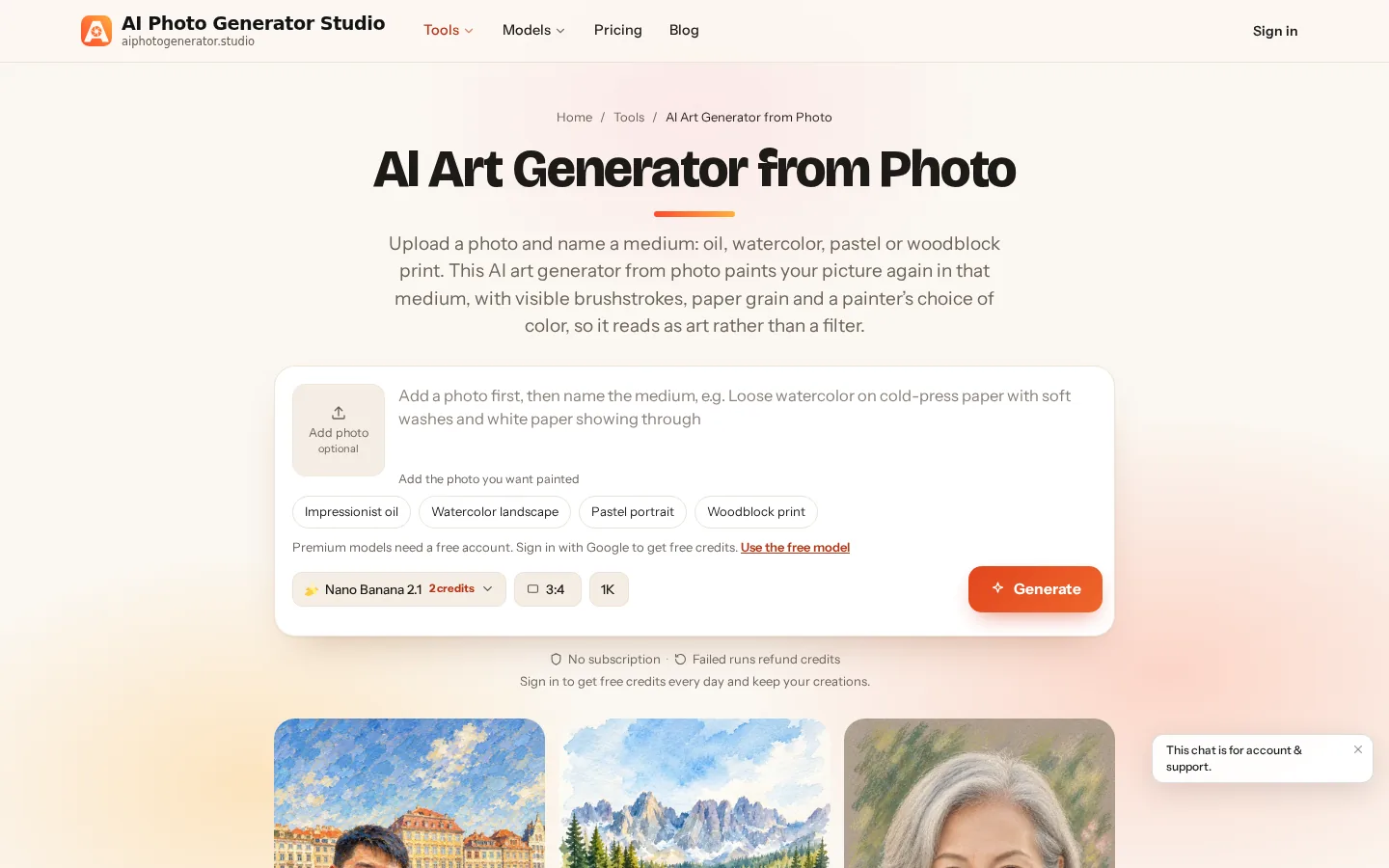
To turn a photo into wall art, choose a print size, crop the image to fit, and check that enough pixels remain for printing. For example, an 8 × 10 inch print at 300 PPI needs 2400 × 3000 pixels after cropping. You can print your original or use AI Photo Generator's photo-to-art tool for a painted version. Make the final crop in a photo editor and order the physical print from a separate printer.
1. Start with the frame opening and the original photo
Measure where the image will actually show. For an existing frame, use the visible opening inside the mat; for a new canvas, choose the finished dimensions from the printer's catalog. An 8 × 10 print and an 8 × 12 print need different crops even though both are vertical.
Use the original photo from your camera or phone. Avoid starting from a screenshot of the photo or a copy saved from a messaging preview. Open the file's information or properties to find its width and height in pixels.
Choose a picture with one clear subject and some room around its edges. A tightly cropped portrait leaves little space for a mat or canvas wrap. For a travel photo, check whether straightening the horizon would cut off a landmark or someone near the edge.
2. Should you keep the photograph or turn it into a painting?
Keep the photograph when the exact scene, expression, or fine detail matters most. Choose an art treatment when you want brushwork, simplified shapes, or a different color palette. You can print the original directly; artistic conversion is optional.
For a painted version, upload your photo and describe the medium you want. The photo-to-art page's style buttons pre-fill the prompt box; you can edit that wording before sending it to the selected model.
AI Photo Generator's photo-to-art interface, checked October 20, 2026. Nano Banana 2.1, 3:4, and 1K are selected. This screenshot shows the controls before upload.
To use that page for an existing picture:
- Upload a JPG, PNG, or WebP file, up to 8 MB per file.
- Select a style prompt or write your own. Name the medium, colors, and details you want preserved, such as the person's expression or a building's outline.
- Choose the shape under Size and the output tier under Quality. Nano Banana 2.1 is selected by default and offers 1K, 2K, and 4K. Premium models require an account and credits; check the displayed cost or the pricing page before generating.
- Download the version you prefer and inspect the actual file before preparing it for print.
For pencil or charcoal instead of paint, the photo-to-sketch tool offers drawing prompts you can edit. Compare important faces and objects with your original before keeping an art treatment. The sizing example below uses an existing photographic output; it does not demonstrate a painted conversion.
3. How many pixels does your print size need?
Multiply the print dimensions in inches by the target pixels per inch, or PPI. An 8 × 10 inch print at 300 PPI needs 2400 × 3000 pixels after cropping. Use your printer's requirements to choose the target resolution.
Adobe's print-resolution guidance, checked October 20, 2026, describes 300 PPI as a standard for detailed prints viewed up close. Lower resolutions can suit larger images viewed farther away. The 200 PPI column below is a calculation option to discuss with your printer.
| Finished print size | Pixels at 300 PPI | Pixels at 200 PPI | Width-to-height ratio |
|---|---|---|---|
| 6 × 8 inches | 1800 × 2400 | 1200 × 1600 | 3:4 |
| 8 × 10 inches | 2400 × 3000 | 1600 × 2000 | 4:5 |
| 8 × 12 inches | 2400 × 3600 | 1600 × 2400 | 2:3 |
| 12 × 16 inches | 3600 × 4800 | 2400 × 3200 | 3:4 |
These dimensions describe the visible image before any extra bleed or wrap area required by the printer. Check the downloaded width and height even if you selected 1K, 2K, or 4K. Those output settings are separate from the print dimensions in inches.
This existing AI Photo Generator portrait gives us a file to calculate with. It used Nano Banana 2 at 1K with 3:4 selected; the saved example file measures 896 × 1200 pixels.
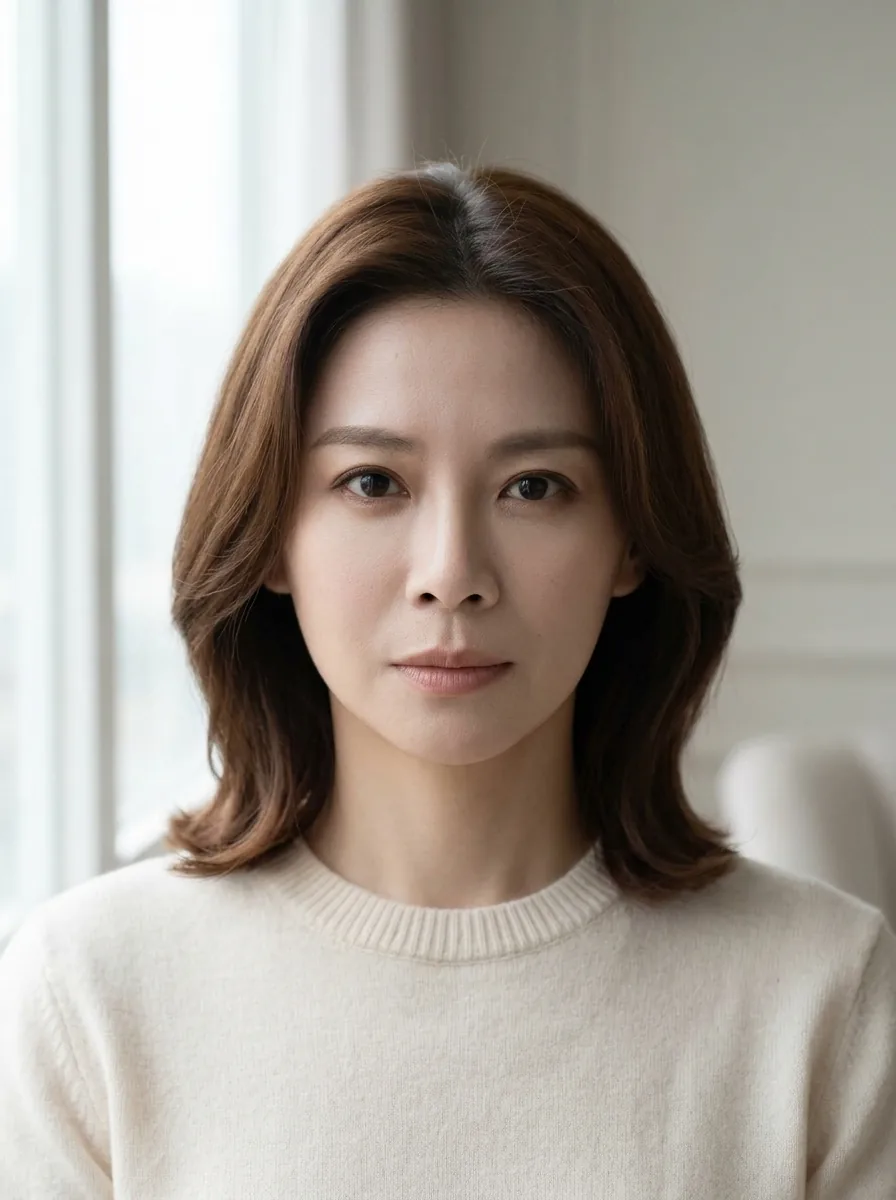
Example output of AI Photo Generator (Nano Banana 2), 1K, 3:4 setting; saved file: 896 × 1200 pixels. Fictional subject. Used here for print-size calculations, with its original instruction below.
Turn this reference photo into a window-light headshot. Use soft daylight from a large window on the left, a pale neutral indoor background, natural skin texture, and head-and-shoulders framing with the whole head visible. Preserve her facial features, shoulder-length brown hairstyle, neutral expression, and cream crew-neck sweater with the same clothing coverage.
Her whole head is visible, with background above the hair and sweater below the shoulders. That space gives us room to adjust the crop for a frame.
Divide pixels by PPI to work backward from a file to a print size:
| Saved example file | At 300 PPI | At 200 PPI |
|---|---|---|
| 896 × 1200 pixels, before cropping | About 2.99 × 4 inches | About 4.48 × 6 inches |
This saved file falls well below the pixel targets for an 8 × 10 print in the earlier table. For a larger display, choose a source with more pixels or a larger generation tier, then inspect the resulting download again. Resizing a small image does not restore missing original detail, and no physical print of this example was tested.
4. How do you crop a portrait for an 8 × 10 frame?
Use a 4:5 crop in your phone's photo editor or a desktop editor, position it around the subject, and then check the remaining pixels. Keep the image proportional; stretching a 3:4 picture into 4:5 changes the person's proportions.
The photo-to-art page's Nano Banana 2.1 shape menu does not include 4:5. If your frame needs that ratio, leave room around the subject when generating and crop the downloaded file afterward.
For the pictured 896 × 1200 file, an exact 4:5 crop that keeps all 896 pixels of width would be 896 × 1120 pixels. That removes 80 pixels of height—40 from the top and bottom if centered. You can move the crop to protect the hair and trim more sweater instead.
At 8 × 10 inches, that cropped file supplies 112 PPI in both directions: 896 ÷ 8 = 112 and 1120 ÷ 10 = 112. It fits the frame's shape but remains below both resolution targets in the table. A 4 × 5 inch print of the same crop would supply 224 PPI; ask your printer whether that meets its requirements.
If you need every edge of the image, place it inside a border that fits your chosen print shape. In an ordering preview, “fill” commonly crops to cover the area, while “fit” commonly leaves space around the complete image. Confirm the printer's labels and preview before accepting the crop.
5. Choose the surface and protect its edges
Choose paper, canvas, or a matted frame before making your final export. The surface changes the finish, and the mounting can cover or wrap the edges.
| Display choice | A reason to consider it | Detail to confirm |
|---|---|---|
| Matte paper in a frame | You prefer a subdued paper surface | Paper texture and reflections from the frame's glazing |
| Glossy photo paper | You prefer a shiny photographic finish | Glare from nearby windows or lamps |
| Stretched canvas | You want a textured surface on a wooden frame | Wrap depth and how the side image is created |
| Print behind a mat | You want a border around the picture | The visible opening and how much of the print it covers |
Canvas edge treatments differ. For example, Canva's canvas-print page, checked October 20, 2026, describes stretched edges that repeat the outermost pixel and mirrored edges that reflect the picture onto the sides. Your printer may use different options, so inspect its specific preview.
Keep faces, lettering, and essential details inside the front-facing area. Where a printer asks for bleed, extend the background beyond the trim line using its template. Ask for a paper or material sample if you are unsure which surface you prefer.
6. Inspect the export and the printer's preview
Open the final exported file and confirm its dimensions after cropping. Calculate PPI using those dimensions, then check the provider's accepted file format, color-profile instructions, and any required bleed. Follow its export specification rather than assuming the generator's download is already prepared for every printer.
Inspect faces, fine lines, and lettering at 100% zoom, then view the whole image to judge the crop. Check that the hair, hands, and other important details remain intact. In the ordering preview, inspect all four edges, any mat overlap, and the canvas sides.
Save the untouched original and a separate print-ready copy. If the provider flags low resolution, revisit the file or reduce the print size before ordering. For an expensive enlargement, consider ordering a smaller proof on the same material first.
Frequently asked questions
How to turn iPhone pictures into wall art?
Start with the original photo, choose a print size, and check its pixel dimensions after cropping. Export a JPG, PNG, or WebP copy if you want to upload it for an art treatment, then prepare the final download using your printer's requirements.
What is the standard canvas size?
There is no single standard. Canva, for example, lists 8 × 8, 8 × 10, and 11 × 14 inch canvases among its options. Choose your provider's finished size, then match the crop and check its edge treatment.
How can I create a canvas print?
Choose a canvas size and edge finish from a print provider, upload your prepared image, and review the front and side previews before ordering. AI Photo Generator creates the digital image; a separate printer produces the canvas.
Can you turn photos into prints?
Yes. You can print a photograph directly or give it an artistic treatment first. Check the cropped file's pixel dimensions against the printer's requirements for your chosen physical size.
Next step: choose one photo and one print size
Write down the visible width and height you want, then check the original file's pixels. If you choose a painted treatment, use the upload steps above and make the final crop from the downloaded result.
For more detail, read the Nano Banana aspect-ratio guide for shape controls and the portrait prompt examples for the pictured edit's original reference and instructions. If you decide to create a new picture from a description, the AI art generator offers a text-based starting point.