
Nano Banana Aspect Ratio: Settings, Sizes, and Crop Fixes
Set Nano Banana aspect ratio, compare real 1:1, 9:16, and 16:9 outputs, and learn when to change the prompt or crop to exact dimensions.
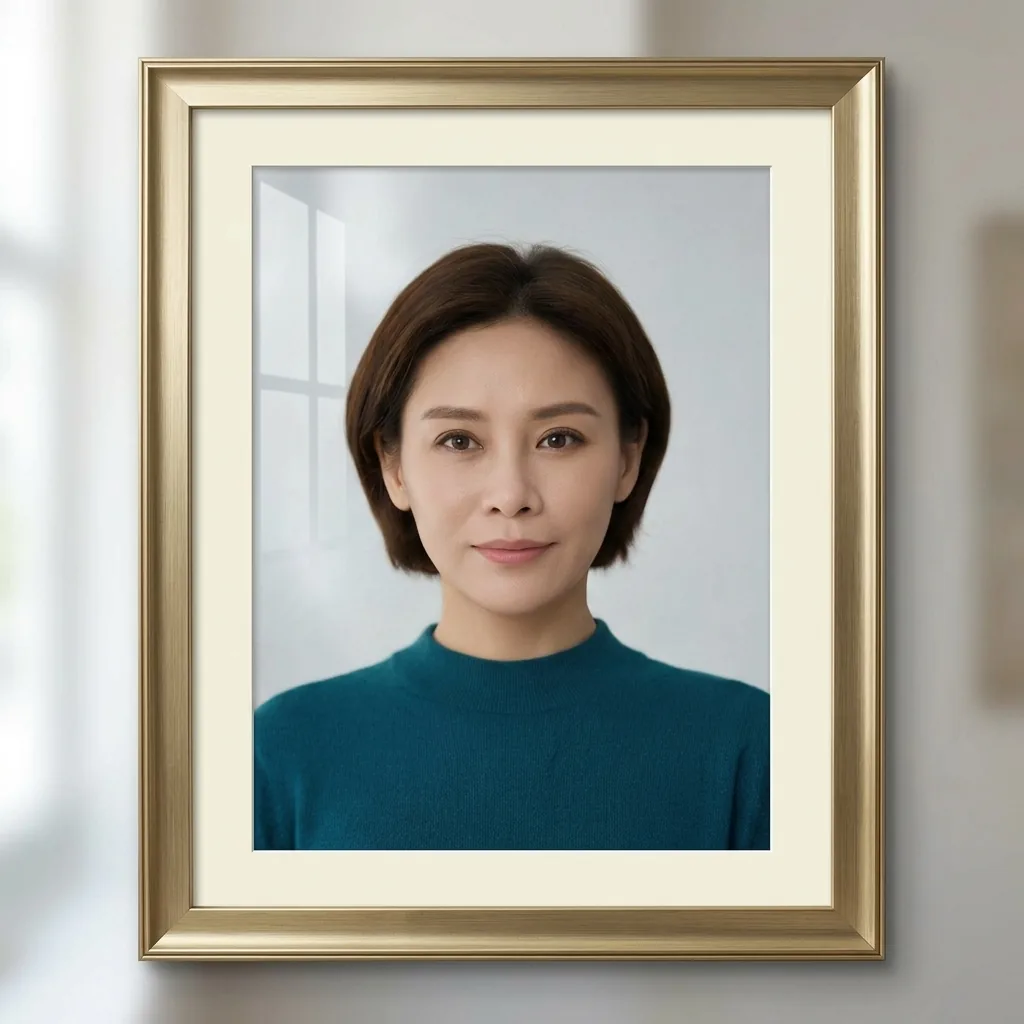
Set the Nano Banana aspect ratio through the generator’s ratio control, then describe how the subject should fit. In AI Photo Generator, choose Nano Banana 2 or Pro, set the ratio under Size, and select 1K, 2K, or 4K under Quality. Download the result to check its dimensions and crop.
Last updated: October 3, 2026 · ~5 min read
How do you set Nano Banana to 9:16 or 16:9?
- Choose Nano Banana 2 or Nano Banana Pro under Model. For an edit, upload your reference photo.
- Set Size to 9:16 for a tall image, 16:9 for a wide image, or 1:1 for a square. Choose the output tier under Quality.
- Describe the composition, generate, and download the file. Inspect both its pixel dimensions and the space around your subject before using it.
Read the ratio as width:height. Quality controls the output tier; switching from 1K to 4K leaves the selected shape in place. Prompt wording such as “vertical portrait” describes composition but does not replace the ratio setting.
Both Nano Banana models offer eight ratios here: 1:1, 9:16, 16:9, 4:3, 3:4, 3:2, 2:3, and 21:9, each at 1K, 2K, or 4K. These are this site’s choices. Google’s image-generation documentation lists additional shapes for direct API use and treats aspect ratio and image size as separate settings.
The AI portrait generator offers starting prompts you can edit. Tool pages pre-fill the prompt box; your submitted wording goes to the model as typed. Select Nano Banana 2 to use the model in the examples below.
How does the same portrait change in square, tall, and wide images?
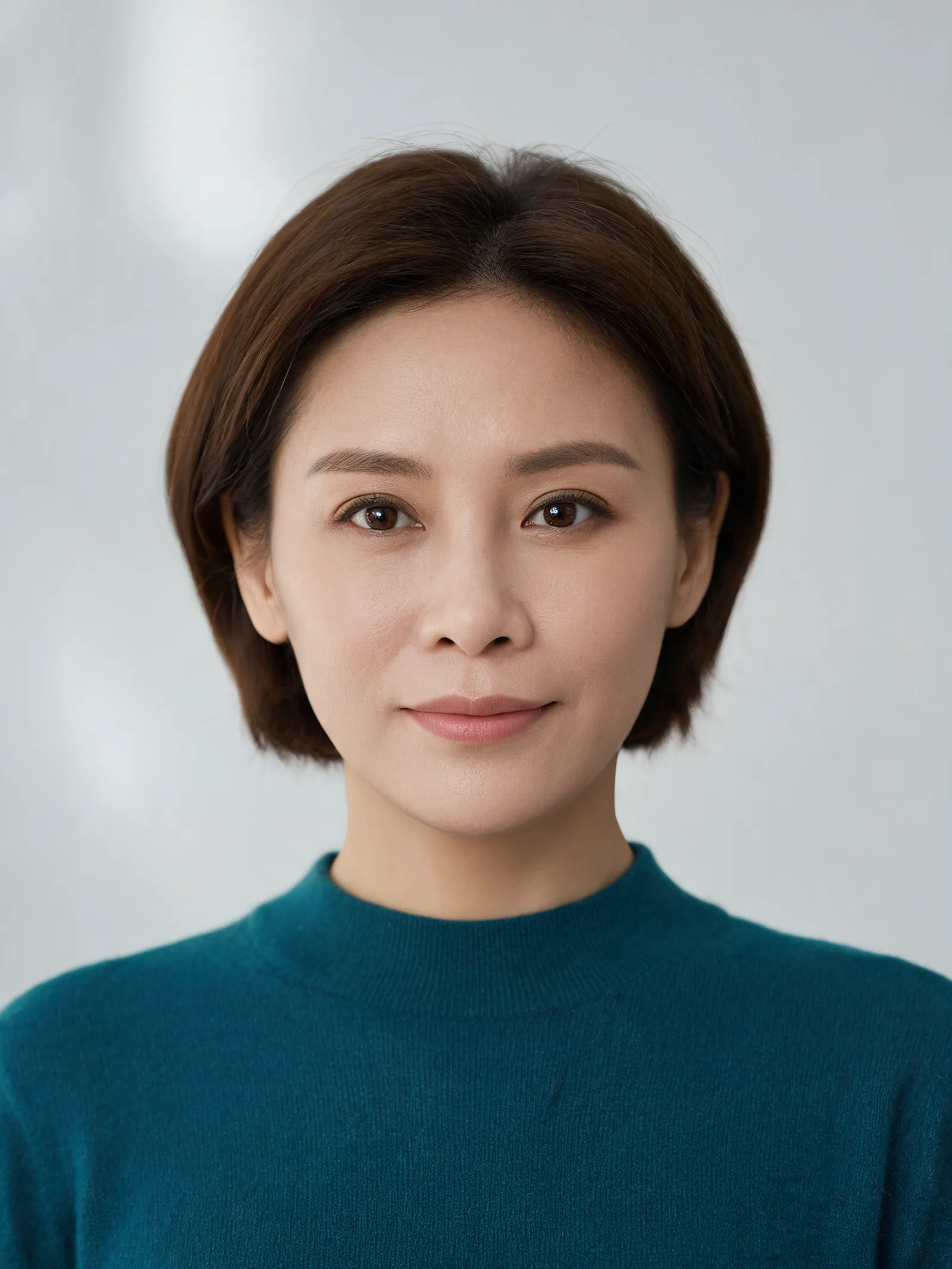
The reference below is an AI-generated fictional adult with short brown hair and a teal crew-neck sweater. Each output used that same reference, Nano Banana 2 at 1K, and this exact instruction:
Adapt this portrait to the selected frame. Preserve her recognizable facial features, hairstyle, sweater, and clothing coverage. Keep her entire head visible and extend the plain studio background where needed.
| Original reference | Square output |
|---|---|
 | Nano Banana 2 aspect ratio example at 1:1 showing the portrait inside an added gold picture frame |
Left: fictional reference, originally 1728 × 2304 pixels, resized to 1600 × 2133 for this page. Right: Nano Banana 2, 1K, 1:1, 1024 × 1024 pixels; the output adds a gold picture frame.
| Tall output | Wide output |
|---|---|
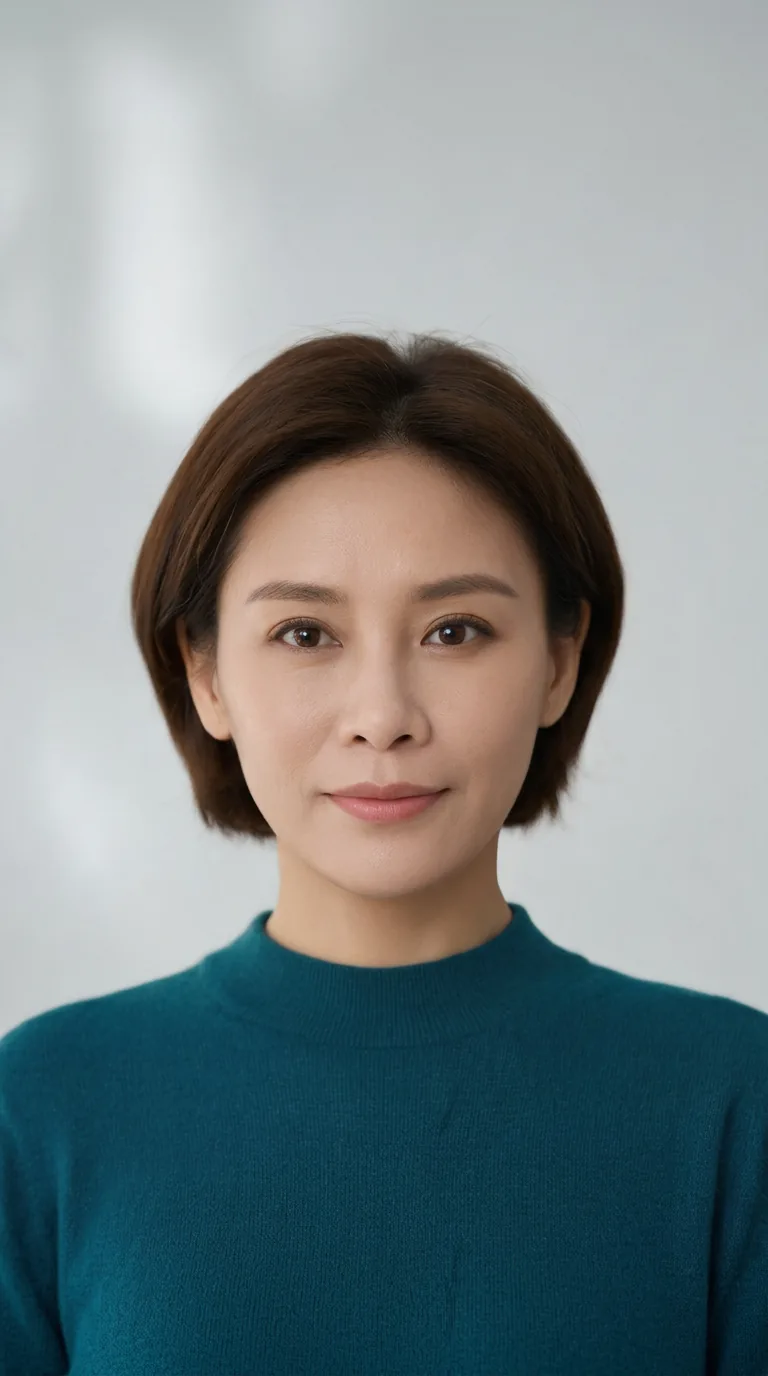 | 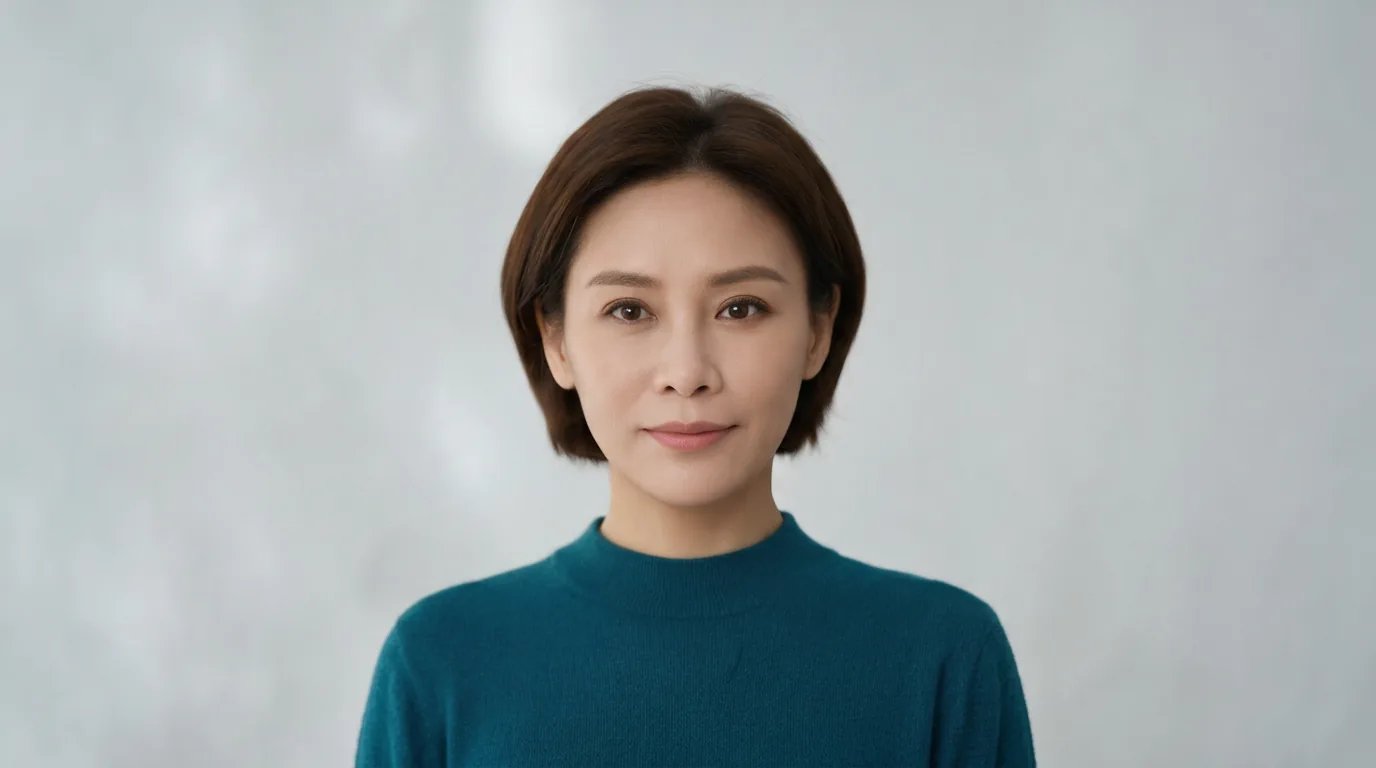 |
Left: Nano Banana 2, 1K, 9:16, 768 × 1376 pixels. Right: Nano Banana 2, 1K, 16:9, 1376 × 768 pixels. Both keep the entire head visible.
The original downloaded files have these dimensions. The three output WebPs retain them.
| Selected ratio | Downloaded pixels | Visible composition |
|---|---|---|
| 1:1 | 1024 × 1024 | Smaller portrait inside an added gold frame and pale mat |
| 9:16 | 768 × 1376 | More space above the hair and more sweater below than in the reference |
| 16:9 | 1376 × 768 | Centered portrait with background extending to both sides |
All three keep the whole head visible, a recognizable face, short brown hair, and the teal sweater. The square output adds a physical picture frame after the prompt uses “frame”; the cause is uncertain. To avoid that ambiguity, try “image boundaries” and “no picture frame”—that wording change has not been tested here.
Why does a 1K output have a side longer than 1,024 pixels?
1K names an output tier, not an exact width for every ratio. Our square file is 1024 × 1024; the tall and wide files have a 1376-pixel long side. Those dimensions match Google’s current 1K size table for Gemini 3.1 Flash Image, the model Google calls Nano Banana 2, in the documentation linked above.
Divide width by height to check the shape. The tall file is about 0.558, close to 9 ÷ 16 (0.5625). The wide file is about 1.792, close to 16 ÷ 9 (1.778). The native pixel dimensions are slightly different from the exact mathematical ratios.
If you need exactly 1080 × 1920, generate a vertical image, crop it to the exact 9:16 shape in an image editor, then resize. Leave background around important details for the trim, and keep the image proportional so the face does not stretch. A larger output tier can give you more pixels to work with; it does not select a custom width and height.
What should you check if the output stays square or cuts off the head?
If the downloaded file is square: confirm Model, Size, and Quality before another run. Select 9:16 or 16:9 through Size, even if the prompt already mentions a tall or wide image.
If the file has the right shape but the head is cropped: revise the composition instruction. The ratio sets the outer rectangle; the prompt describes the subject’s placement within it. Try “entire head visible,” “space above the hair,” and “extend the background without enlarging the face.” The examples above show intact heads, so they do not demonstrate a successful repair of a cropped head.
If only a website preview crops the head: compare it with the downloaded file. When the full file looks right, adjust the website’s display crop or image placement.
For another edit, the AI photo editor accepts PNG, JPEG, or WebP references up to 8 MB per file. Nano Banana 2 supports up to 14 reference images here; Pro supports up to eight. These examples use one reference and one run per ratio.
Nano Banana models require an account and use credits. The live pricing page, checked October 3, 2026, lists Nano Banana 2 at 4 credits for 1K, 5 for 2K, and 8 for 4K. The separate free FLUX.2 model did not produce these images.
For lighting and face-preservation wording, see the Nano Banana prompt recipes. The Nano Banana 2 and Pro comparison covers model choice for portrait edits.
Which ratio should you use for a wallpaper?
Start with 9:16 for a phone, 16:9 for a desktop, or 21:9 for an ultrawide layout in the AI wallpaper generator. Check your screen’s dimensions before making the final crop.
Describe where you need room for a clock or icons. The tall example leaves space above the hair; the wide one leaves space on both sides. Inspect that placement in the output before setting it as your background.
Frequently asked questions
Can I choose 4:5 or a custom Nano Banana aspect ratio here?
This site’s Nano Banana controls offer the eight ratios listed above; 4:5 and custom ratios are not among them. For a 4:5 image, generate a 3:4 portrait with extra background above and below the subject, then crop to 4:5 in an image editor. That workflow is a suggestion, not one of the examples shown here.
Does choosing 4K fix the crop?
4K selects a larger output tier. Check the ratio under Size and describe the margins you need in the prompt. A higher resolution alone does not specify how large the face should appear.
Can I resize the original photo without generating again?
Yes. Use an image editor if you only need to crop or resize the existing photo. Generating a new composition can add background or change the subject’s scale, as these outputs show, but it also redraws image details.