
Nano Banana 2.1 Product Photos: Packshots and Lifestyle Scenes
Create Nano Banana 2.1 product photos with three exact prompts. See a packshot, shop scene, and shelf edit—and the label change to catch before store use.
Nano Banana 2.1 product photos can cover a white-background packshot, a shop scene, and a bathroom shelf edit. In our examples, the shelf edit retained the label; the shop scene changed “250 mL” to “200 mL.” To make your own set in AI Photo Generator, select Nano Banana 2.1 in the model picker.
As of October 13, 2026.
The bottle and shopkeeper below are fictional. All three product images were generated with Nano Banana 2.1 at 1K. Both edits use the original packshot as their bottle reference, so you can compare how the same packaging appears in two settings.
What should a reusable bottle packshot show?
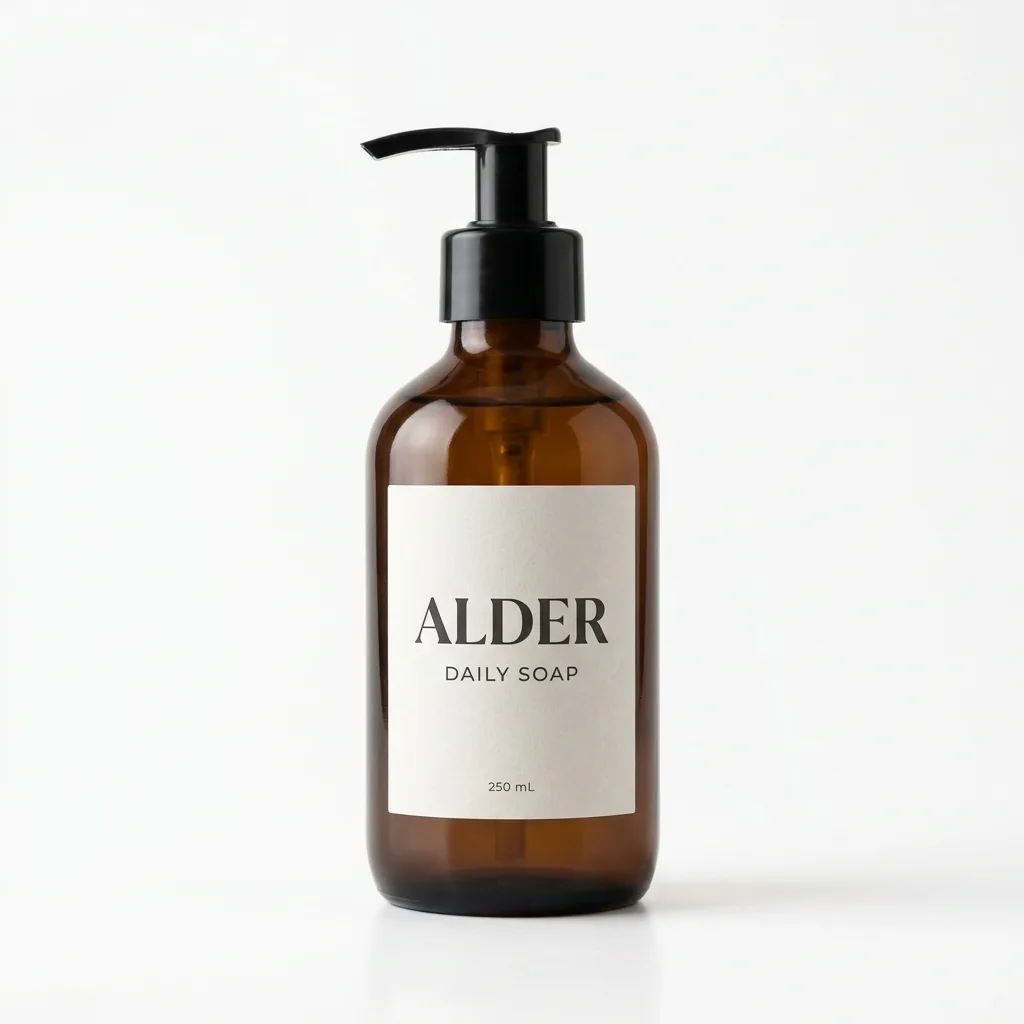
A front-facing packshot gives you a clear view of the pump, bottle outline, and printed label. We requested a 1:1 image with no uploaded photo:
Photorealistic fictional amber pump bottle labeled exactly ALDER, DAILY SOAP, 250 mL; centered on pure white, soft studio lighting, gentle contact shadow, label facing camera.
Nano Banana 2.1, 1K, 1:1; output: 1,024 × 1,024 pixels. Generated from the exact prompt above, with no reference photo.
The entire black pump and bottle base fit in the frame. The cream label reads ALDER, DAILY SOAP, and 250 mL, as requested. A soft shadow and faint reflection sit beneath the bottle.
For merchandise you sell, use a sharp photo of the actual item as your reference. Keep the cap, base, and label in frame. The AI product photo generator has editable product-shot prompts; the generator sends your wording to the model as typed. Include the details that must stay, such as the pump direction, amber color, and printed capacity.
Does a shop scene preserve the bottle's label?
For the 4:3 shop scene, we supplied two separate uploads: the bottle packshot and a fictional shopkeeper portrait. The panel below places those references beside the result; it was assembled for display after generation.
Place this bottle on a sunlit shop counter beside this adult shopkeeper; preserve the bottle silhouette, amber color, pump and exact label; keep the label unobstructed.
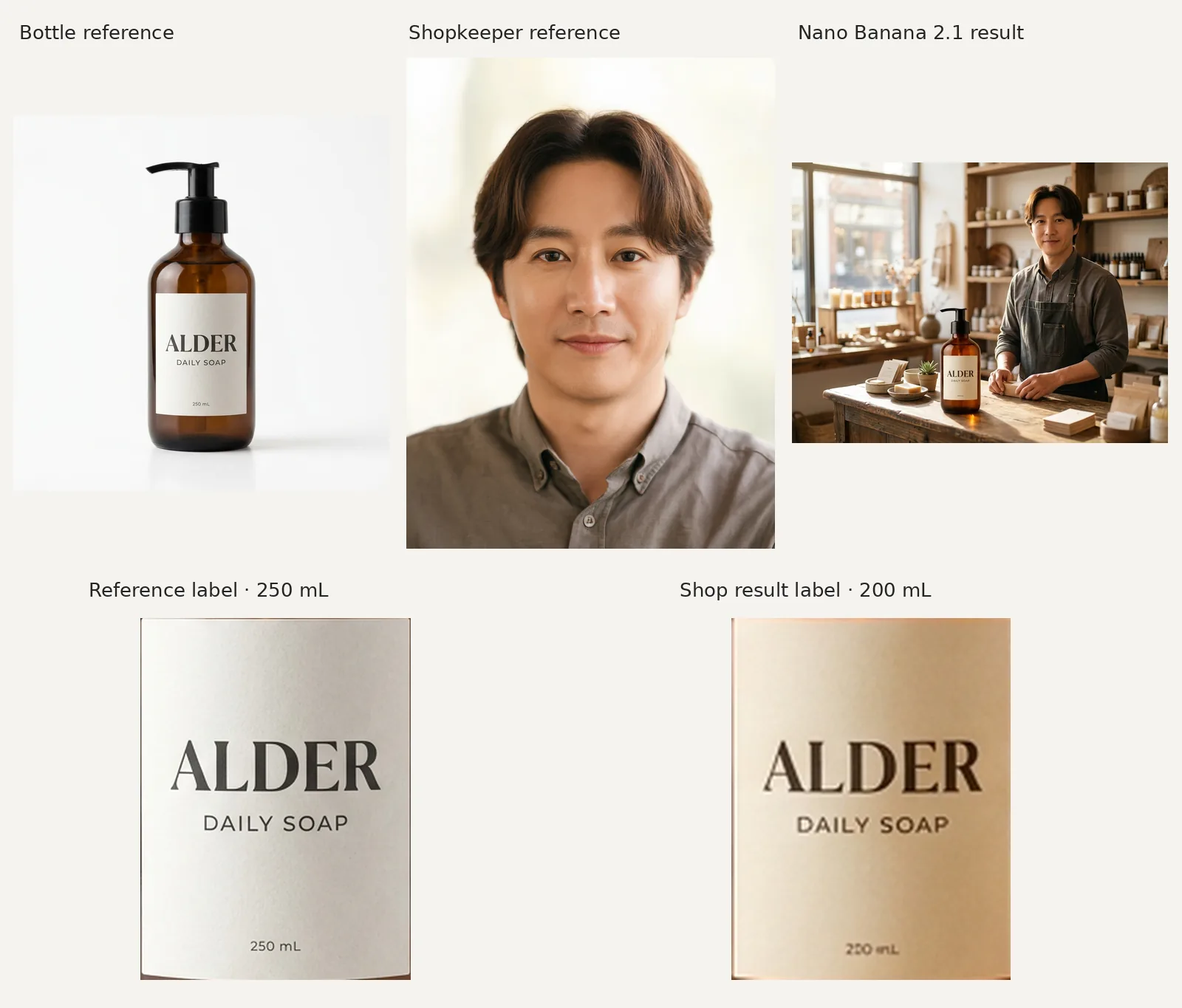
References: bottle, 1,024 × 1,024 pixels; fictional shopkeeper, 1,728 × 2,304 pixels. Result: Nano Banana 2.1, 1K, requested 4:3; output: 1,200 × 896 pixels. Bottom: enlarged reference and result label crops.
The bottle stands at the front of a wooden counter, with the shopkeeper behind it. The model adds an apron, a box under the shopkeeper's hands, and shelves of jars. The face remains recognizable, and the label is unobstructed.
The capacity changes from “250 mL” to “200 mL,” despite the instruction to preserve the exact label. That error needs correction before the image could represent a 250 mL item in a store.
The prompt assigns each upload a role: one supplies the bottle, the other supplies the person. Keep that distinction explicit when combining references. The multiple-reference examples show other ways to assign product, person, and room photos separate roles.
Can a limestone shelf edit keep the printed capacity?
For the 3:4 bathroom image, we supplied only the original packshot. Using that source again gives you a direct comparison with the white-background bottle:
Change only the background to a pale limestone bathroom shelf; preserve the bottle, pump, proportions and every printed label character.
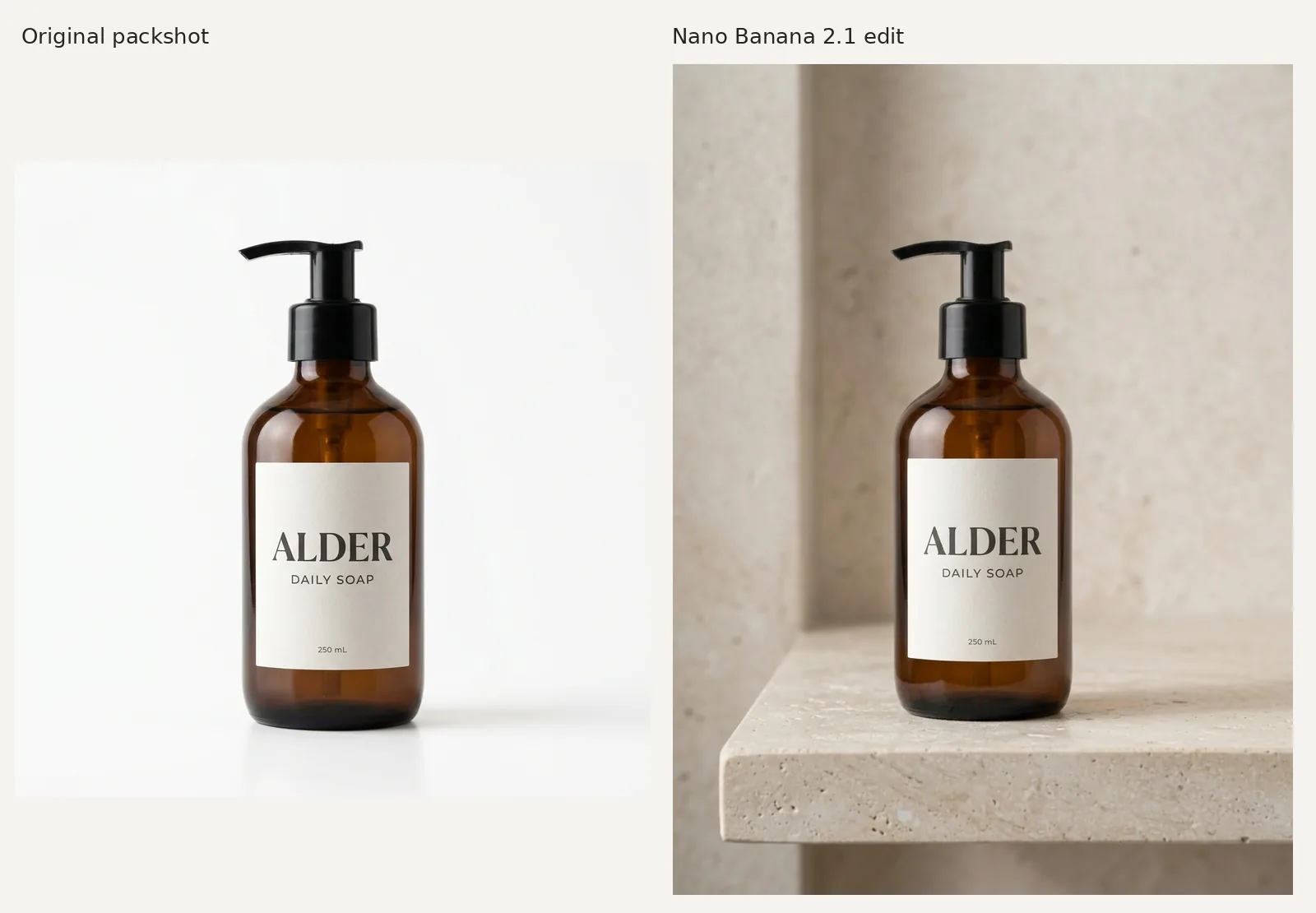
Left: original packshot. Right: Nano Banana 2.1, 1K, requested 3:4; output: 896 × 1,200 pixels. The original packshot was the only reference photo.
The bottle now sits on a projecting stone shelf. Its rounded shoulders, black pump, and left-facing spout remain recognizable. All three label lines, including 250 mL, are readable in this result. The tall frame leaves wall space above the pump and shows the shelf edge below the bottle.
The reflections change with the setting, so compare the bottle's outline and print separately from its highlights. Here, the label wording survives the edit, while the amber glass takes on the warmer stone surroundings. The image-to-image AI examples include another bottle scene with an editable setting-change prompt.
Which packaging details should you compare before publishing?
Display the source and result with the bottles at roughly the same height, then zoom in on the print. A full scene can hide a changed numeral that becomes obvious in a label crop.
| Detail | What to compare | What these examples show |
|---|---|---|
| Label | Brand, product name, capacity, and units | 250 mL in the packshot and shelf edit; 200 mL in the shop scene |
| Bottle outline | Shoulders, neck, base, and proportions | Rounded shoulders and a dark base remain recognizable |
| Pump | Spout direction, stem, and collar | A black pump with a left-facing spout in all three images |
| Color and reflections | Glass hue, highlights, and contact shadows | Amber glass with different reflections on white, wood, and stone |
Check scale against the real item's dimensions, too. The fictional bottle has no measured dimensions, so its size beside the shopkeeper does not establish accurate product scale. For a store image, compare the result with your actual packaging before approving the scene.
How do you build a packshot, shop, and shelf set?
- Open the homepage generator and select Nano Banana 2.1, or use the New · Nano Banana 2.1 chip. For a real product, upload its photo; for the fictional packshot above, start with the quoted text prompt and no upload.
- Choose the framing under Size: 1:1 for the packshot, 4:3 for the shop scene, or 3:4 for the shelf. Choose 1K under Quality to match these examples.
- Use the original product reference for each new scene. Add the person reference for the shop version, paste the corresponding instruction, and compare each result with the original before downloading your final set.
As of October 13, 2026, the site supports up to 10 reference photos, 1K, 2K, and 4K quality choices, and eight aspect ratios: 1:1, 9:16, 16:9, 4:3, 3:4, 3:2, 2:3, and 21:9. Nano Banana 2.1 costs 2 credits at 1K, 3 at 2K, and 4 at 4K, according to the live pricing page.
Google's official model documentation describes image generation and editing. The upload limit and picker choices above are the settings available in AI Photo Generator on the date shown. These examples use only 1K; they do not compare label accuracy across resolutions.
Frequently asked questions
Will Nano Banana 2.1 keep my product label exactly the same?
Check every result. The shelf edit retained all three label lines, but the shop scene changed the capacity even though the prompt requested the exact label. Keep a clear source photo available and read the small print before using an image in your store.
Should I reuse the original product photo for each scene?
Yes, if you want to compare each scene with the same source. Both edits here used the original packshot. Feeding an edited scene into the next request would carry any changes in that image into the new reference.
Start your own set in AI Photo Generator, select Nano Banana 2.1, and keep the original product photo beside the results for comparison.