
How to Use Nano Banana 2.1: Generate, Edit, and Download
Learn how to use Nano Banana 2.1 on AI Photo Generator, with exact prompts, two real examples, reference uploads, resolution settings, and downloads.
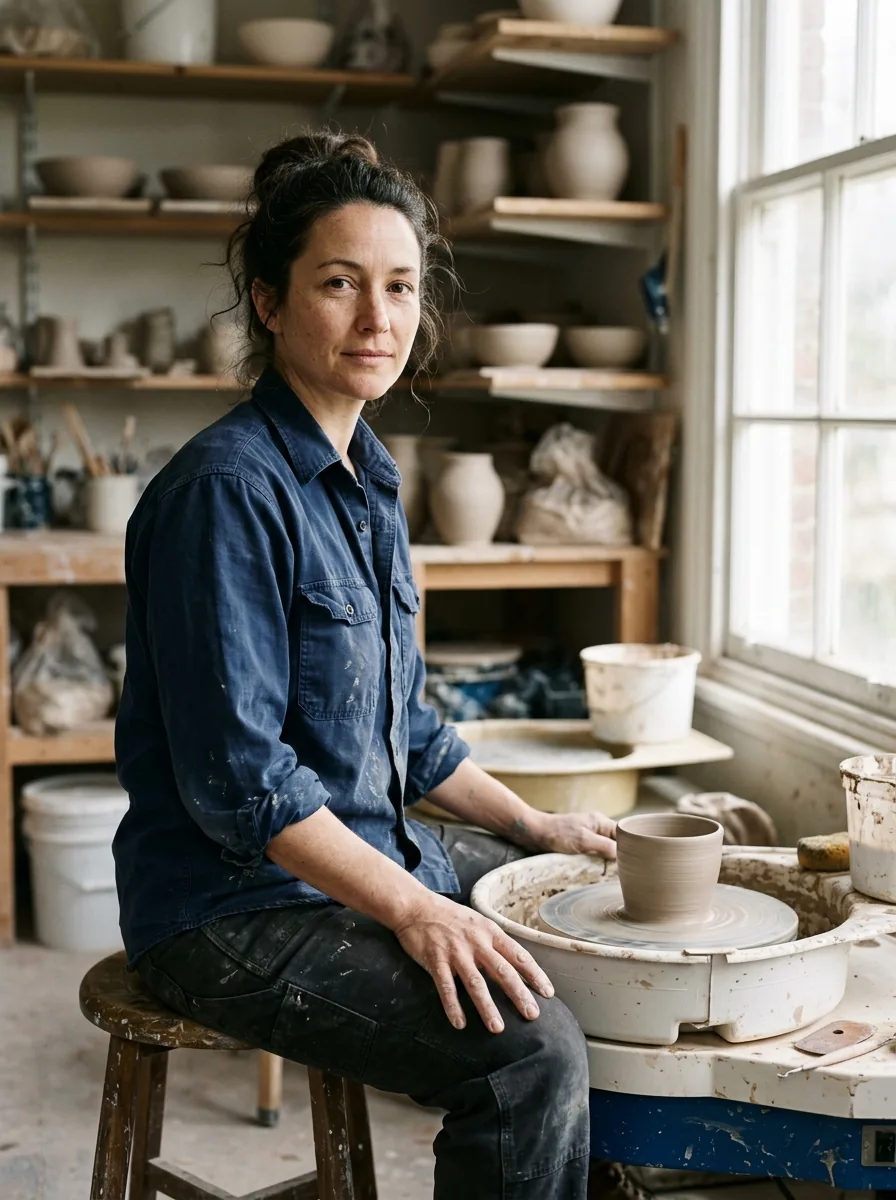
To use Nano Banana 2.1, open AI Photo Generator, sign in, and select Nano Banana 2.1 in Model. Enter a prompt, choose an aspect ratio in Size and 1K, 2K, or 4K in Quality, then generate and download. Leave uploads empty for a new image; add a photo for an edit.
Last updated: October 12, 2026
How do you select Nano Banana 2.1 on AI Photo Generator?
1. Open the homepage and sign in
The generator is on the homepage, under Describe your photo. Sign in with Google to use Nano Banana 2.1 with account credits. The homepage starts on the separate free FLUX.2 model, so check the selection before generating.
2. Choose Nano Banana 2.1 in Model
Open Model and choose Nano Banana 2.1. You can also click the New · Nano Banana 2.1 chip above the headline to select it. Confirm that Nano Banana 2.1 appears beside the prompt box before choosing your settings.
Google's October 6, 2026 release notes announce Nano Banana 2.1. The steps and limits below describe AI Photo Generator as of October 12, 2026.
How do you write a text-only prompt?
3. Describe the subject, setting, and light
For a new image, leave Add a photo empty. Say who or what should appear, where they should be, and how the scene should be lit. Include clothing or framing when those details matter.
For this ceramic-artist portrait, we used Nano Banana 2.1 at 1K, 3:4 with this exact prompt:
Photorealistic portrait of an original fictional adult ceramic artist aged 36, fully clothed in a navy work shirt, beside a pottery wheel in soft window light; natural skin texture; no text or logos.
Nano Banana 2.1, 1K, 3:4. Generated from the quoted prompt without a reference photo.
The image shows a seated artist, a clay vessel on the wheel, pottery shelves, and a bright window on the right. The navy shirt and visible skin texture match the request. We left the artist's appearance and studio layout unspecified; the model supplied those details.
For tighter framing, add a phrase such as “waist up, entire head visible.” To guide the image toward a particular person's appearance, upload a reference photo as described in step 5.
The AI portrait generator offers a starting prompt you can edit. Tool pages prefill the prompt box; your prompt is sent to the model as typed.
Which Size and Quality settings should you choose?
4. Set the image shape and resolution
Size selects the aspect ratio; Quality selects the resolution tier. Choose 3:4 for a vertical portrait like the examples here, 1:1 for a square image, or 16:9 for a wide composition. Match your written framing to that shape.
As of October 12, 2026, the Nano Banana 2.1 picker offers eight ratios: 1:1, 9:16, 16:9, 4:3, 3:4, 3:2, 2:3, and 21:9. For more framing examples, see the Nano Banana aspect-ratio guide.
The live pricing page lists these costs on October 12, 2026:
| Quality | Credits per image | Suggested use |
|---|---|---|
| 1K | 2 | Work out the prompt and composition |
| 2K | 3 | Request a larger image |
| 4K | 4 | Request the highest resolution tier offered here |
Both examples in this article were generated at 1K. For a 4K image, select 4K in Quality before pressing Generate. Changing the picker after generation does not change the completed result; you need a new generation at the selected quality.
How do you edit a photo with Nano Banana 2.1?
5. Upload a reference and name the change
Click the plus tile, labeled Add a photo, to upload a JPG, PNG, or WebP. Nano Banana 2.1 accepts up to 10 reference photos here as of October 12, 2026. For a background replacement, start with one photo and specify what should change and what should stay.
We used a separate fictional adult portrait for this edit, with 1K, 3:4 selected and this exact instruction:
Replace only the background with a sunlit pottery studio; preserve the face, hair, navy shirt and pose. No text or logos.
| Original reference | Background edit |
|---|---|
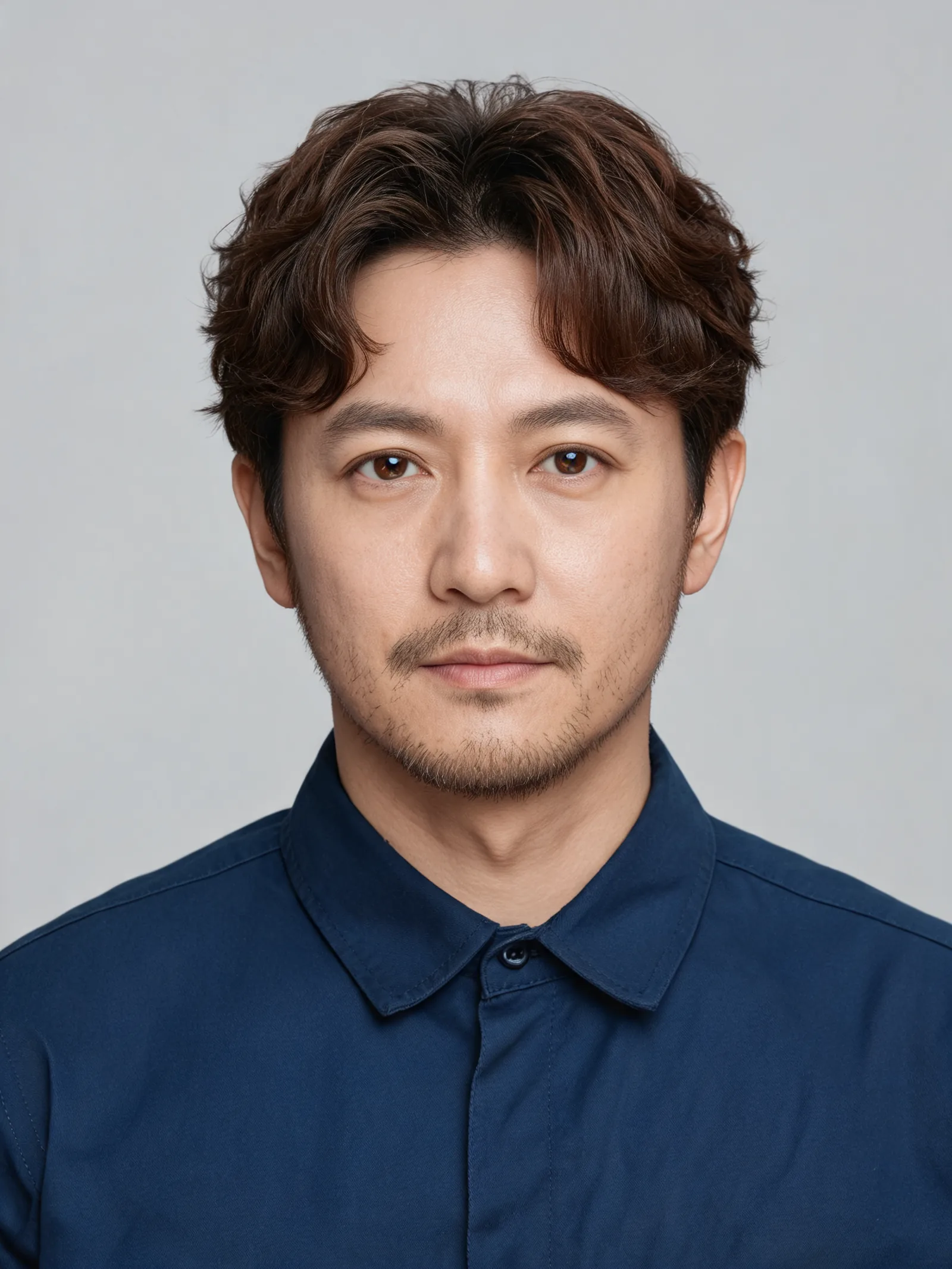 | 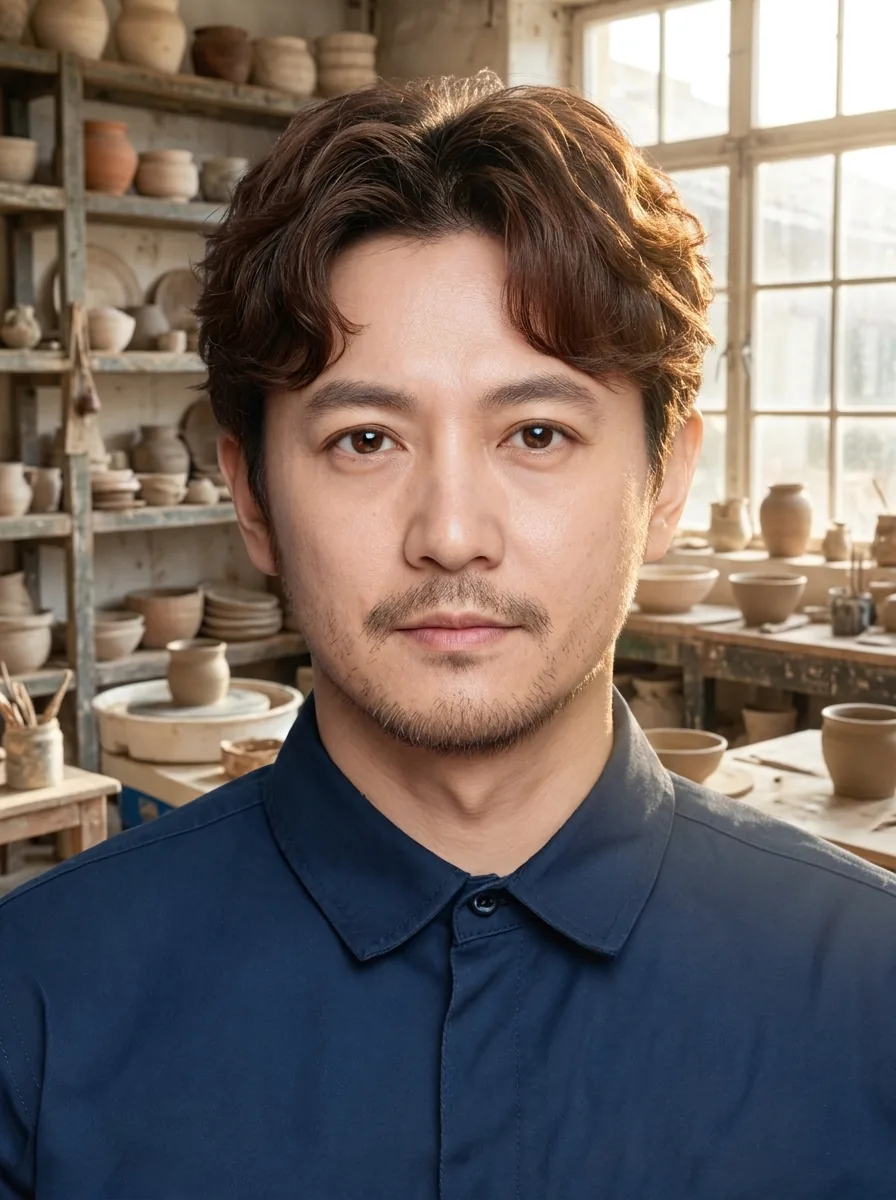 |
Left: fictional input portrait. Right: Nano Banana 2.1, 1K, 3:4, using one reference photo and the quoted instruction.
The gray background became a pottery studio with shelves, a wheel, and a window. The man remains recognizable, with wavy hair, light stubble, a navy collar, and a front-facing pose. Despite “replace only the background,” the output also adds warm light to his hair and the right side of his face.
The instruction names four details to retain and one part to replace. Use that structure for your own edit: “Change [detail]; preserve [features].” The AI photo editor offers editable prompt ideas for targeted changes. The glasses removal and recoloring example shows another use of this approach.
How do you check and download the result?
6. Generate, then compare the result with your request
Confirm the model, ratio, quality, and references, then press Generate. Complete the security check if requested.
For a text-only image, check the subject, clothing, setting, and light. In the ceramic example, the artist's hands rest beside the wheel; the prompt asked for an artist beside it, without specifying active work. If you need that action, describe it explicitly.
For an edit, compare the input and output side by side. Check the face, hairline, collar, and framing as well as the changed background. Our edit kept the general portrait but changed its lighting, which matters if you need the subject to look untouched.
To refine the studio, you could use the original portrait again and ask: “Make the pottery studio background less busy; preserve the face, hair, navy shirt and pose.” Treat that as a new request and inspect the next result too.
7. Click Download beneath the completed image
Use Download under the result to save it. Keep the prompt, ratio, and quality with the file so you can identify which settings produced it.
To make your own image, open the homepage generator and select Nano Banana 2.1 in Model or through its New chip. Follow the same sequence: prompt, Size, Quality, optional references, Generate, Download.
Frequently asked questions
Do I need a photo to use Nano Banana 2.1?
No. Leave uploads empty and describe a new image in the prompt box. Upload a photo when you want to edit it or use it as a reference. The two examples above show each approach.
Is Nano Banana 2.1 free on AI Photo Generator?
Nano Banana 2.1 requires an account and uses credits: 2 for 1K, 3 for 2K, and 4 for 4K as of October 12, 2026. The homepage also offers a separate free FLUX.2 model. Neither example above was made with FLUX.2.
How do I get 4K output from Nano Banana 2.1?
Choose Nano Banana 2.1 in Model, select your aspect ratio in Size, and select 4K in Quality before generating. Download the completed result. The examples above demonstrate 1K generation and editing; they do not demonstrate 4K image quality.