
Nano Banana Architecture: Building Prompts and Facade Edits
Create Nano Banana architecture images from a building prompt, compare a brick-to-stone facade edit, and check windows, rooflines, and entrance placement.
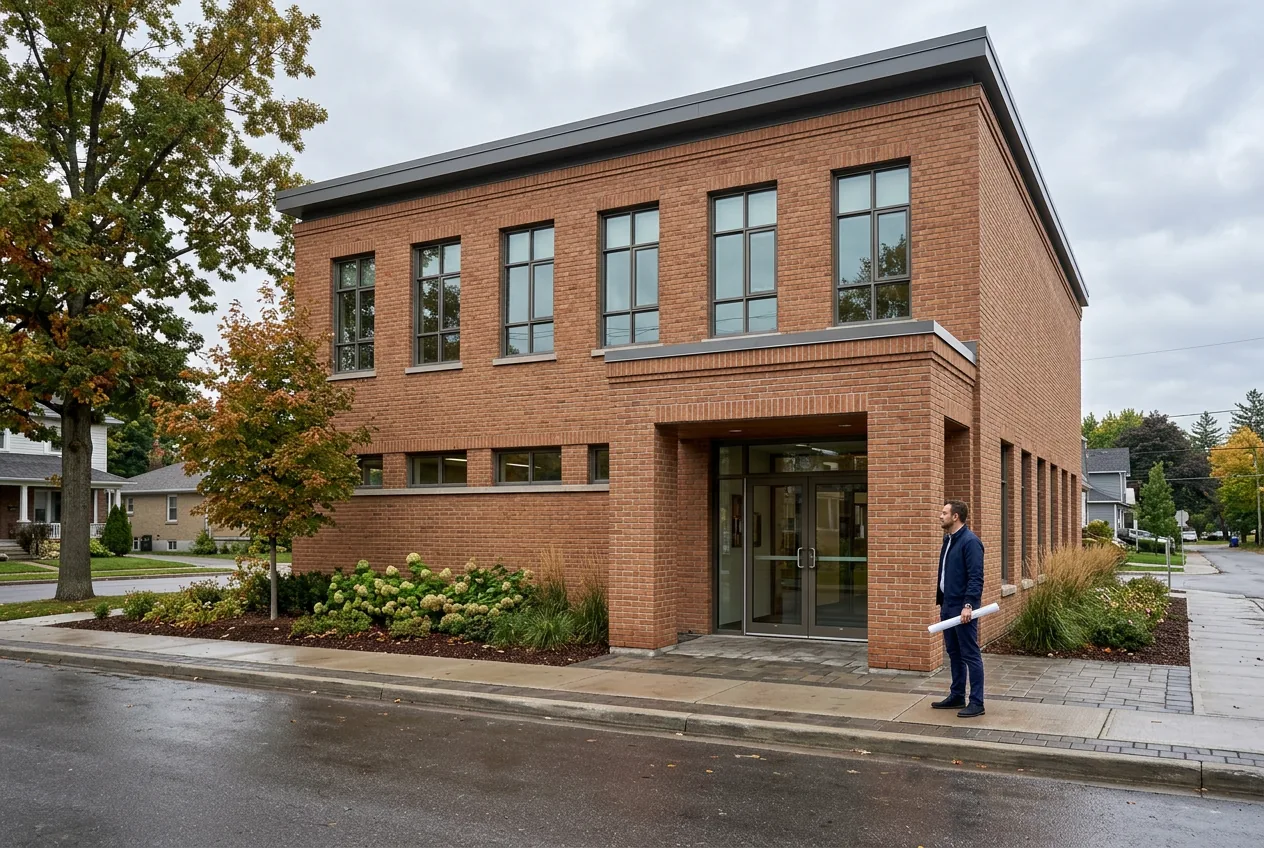
Nano Banana architecture images start with a specific building prompt: name the shape, roof, openings, materials, viewpoint, and light. In AI Photo Generator, select Nano Banana 2 to generate a building, then upload that image for a material edit. The library below changes from brick to pale stone while retaining its visible window layout.
Last updated: October 6, 2026 · 5 min read
A two-story community library makes the comparison easy to read. Count the upper windows, find the entrance, and follow the roofline before judging the new finish. The library is fictional; both images were generated with Nano Banana 2 at 1K and 3:2.
What belongs in a Nano Banana architecture prompt?
Describe the building before the atmosphere. Start with its use, number of stories, overall shape, and roof. Then specify the openings, facade material, and camera position. Put lighting last so it is easy to change for another version.
“Street-level three-quarter view” asks for the front and one side together. “Soft overcast daylight” requests readable surfaces without strong sun shadows. A window count gives you something concrete to check in the output.
| Prompt detail | Library example | What to inspect |
|---|---|---|
| Building and shape | Two-story community library, rectangular facade | Two levels and a simple box-shaped building |
| Roof | Flat roof | A continuous, low roofline |
| Openings | Six evenly spaced upper windows | Six large windows across the front |
| Entrance | Recessed central entrance | Doorway position and depth |
| Material | Brick facade | Brick color, joints, and texture |
| Viewpoint and light | Street-level three-quarter view, overcast daylight | Front and side walls visible, with soft shadows |
The prompt also includes one fictional adult in navy clothing for scale. Leave people out if they distract from the building. If you keep a figure, check its placement along with the architectural details after each edit.
Google's Nano Banana image-generation page describes creating images from text and editing an uploaded picture. Here, the first prompt creates the building; the second uses that output as its reference.
How do you generate the library and change its facade?
- Open the generator, sign in, and select Nano Banana 2. Set Size to 3:2 and Quality to 1K. Leave the photo upload empty, paste the building prompt below, and generate.
- Download the brick result. Upload it in the AI photo editor, which starts with GPT Image 2.5 selected. Switch to Nano Banana 2, set 3:2 and 1K again, and replace the prompt with the material instruction below.
- Generate the revision and compare it with the brick reference. Check the windows, doorway, roofline, and framing before deciding whether to keep the stone finish.
Exact building prompt — left image:
Photorealistic architectural visualization of an original fictional two-story community library, rectangular brick facade, six evenly spaced upper windows, recessed central entrance, flat roof, street-level three-quarter view, soft overcast daylight. One fictional adult architect aged 35, fully clothed in a navy jacket and trousers, stands beside the entrance for scale. No signs, text or logos.
Exact material-edit instruction — right image, using the left image as its reference:
Replace only the red brick facade with pale limestone; preserve the roofline, window count, entrance, camera position and adult figure
| Brick library: text-generated reference | Limestone-style facade: reference edit |
|---|---|
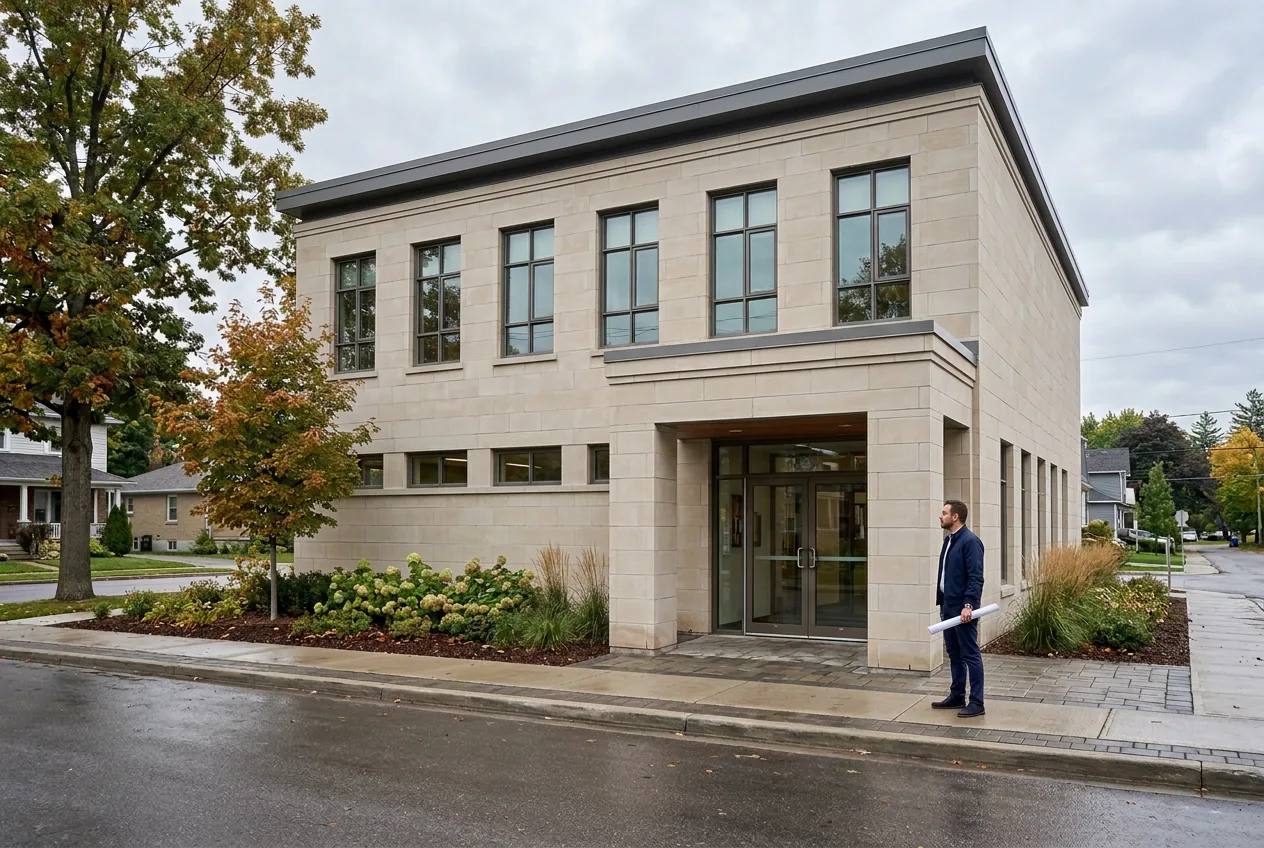 |
Left: text-generated brick library. Right: pale limestone facade requested using the brick image as a reference. Both: Nano Banana 2, 1K, 3:2.
The small red brick pattern becomes larger pale stone blocks across the front and side walls. All six upper windows remain visible. The dark roofline, recessed doorway, and navy-clad figure stay in corresponding places, with similar framing.
The original puts the entrance right of center despite the request for a “central entrance.” Correct that placement before exploring finishes if it matters to your design; use measured drawings for construction dimensions.
Your typed prompt is sent to the model. Tool pages supply starting wording and settings that you can replace; they do not require special architectural syntax.
Nano Banana 2 costs 4 credits per 1K image on the live pricing page, checked October 6, 2026. The base image and one material revision require two generations, or 8 credits at that rate. Further attempts use additional credits.
How do you check whether a facade edit moved anything?
Display the original and revision at the same size. Follow the roof edge first, count the upper windows, then compare the entrance corners and the junction between the front and side walls. Look at the window frames as well as the openings: a familiar silhouette alone does not establish that every detail stayed in place.
Judge the material separately. In this pair, the pale blocks have a different joint pattern from the brick. Check the areas around window edges and entrance columns, where the finish meets the parts you asked to preserve.
For separate finish options, upload the same original each time. That lets you compare each revision with one starting design. If an edit moves an opening, return to the original and name both the surface to change and the opening to keep.
The image-to-image tool opens the same generator with a suggested prompt. Replace it with your building brief and select Nano Banana 2 if you want to follow the library workflow.
For a lighting variation, you can try this instruction with the brick reference:
Change only the lighting to warm dusk with softly illuminated windows; preserve the building geometry, materials, camera position and adult figure.
This is an additional prompt suggestion; no dusk result is shown here. Use the limestone image as the reference if you want to explore that finish at dusk.
How can you start from a building sketch?
Upload a clear drawing through the sketch-to-image tool, then describe the surfaces and light to add. The page's existing house example shows a pitched roof, a front doorway, one side window, a tree on the right, and a winding path.
The current house preset offers this wording for your own sketch:
Turn this pencil sketch into a realistic photo of the same small house and tree: whitewashed stone walls, a dark slate roof, a red front door, a leafy oak tree and late afternoon sun. Keep the shape of the house, the windows and the tree where they are in the sketch.
| Existing house sketch | Existing finished-house example |
|---|---|
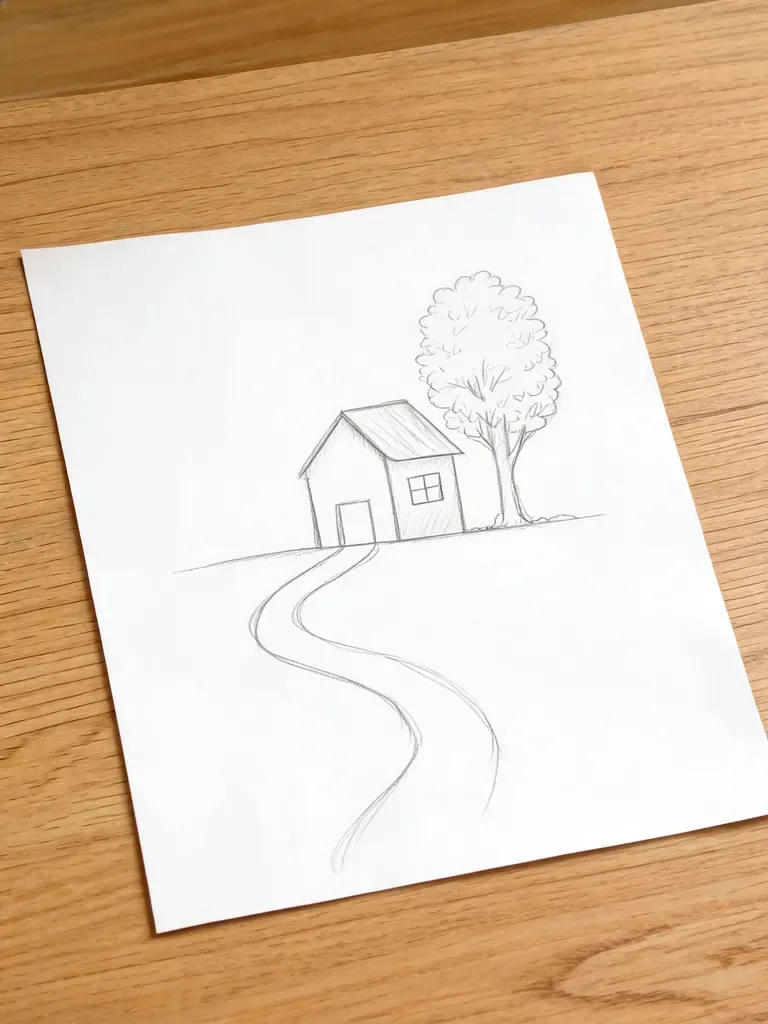 | 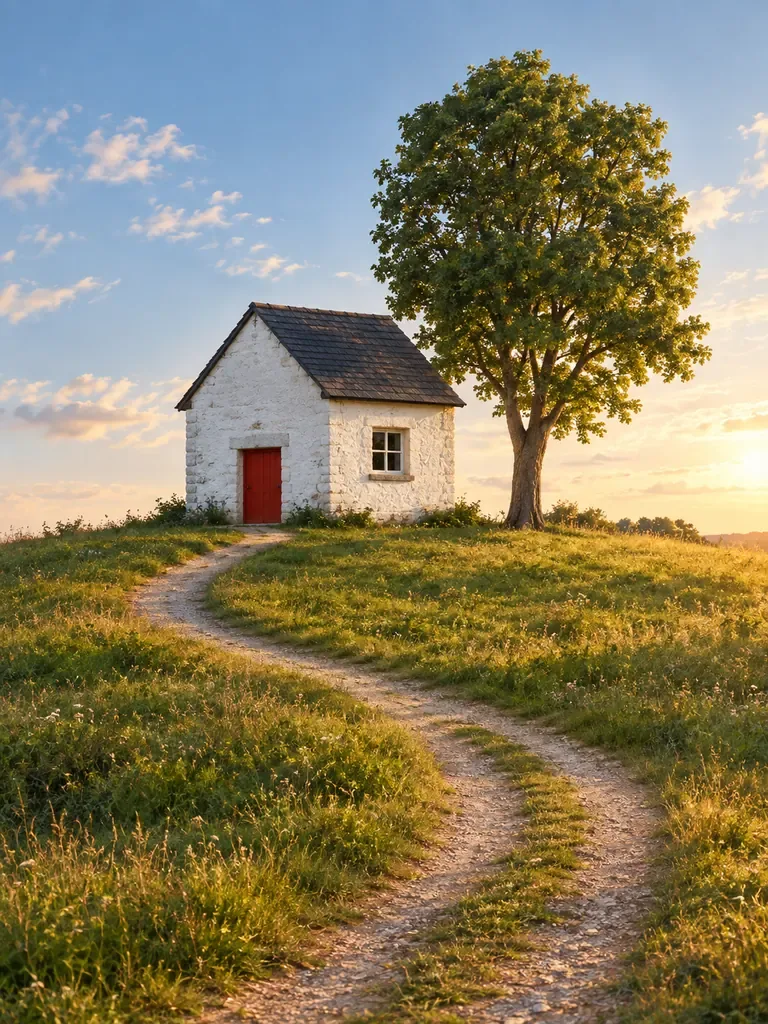 |
Existing sketch-to-image page example. Its original model and generation settings are not documented; this pair is separate from the Nano Banana 2 library results. The quoted wording is the current preset, not a verified record of the original generation prompt.
The finished image adds stone texture, roof tiles, grass, and warm light. Both images show the same broad arrangement of house, tree, and path. For your own sketch, inspect the roof shape and opening locations against the drawing before using the result to discuss a design.
For more help refining a reference, see Nano Banana image editing. The Nano Banana aspect-ratio guide covers framing choices and cropping.
Frequently asked questions
Can you give me an architectural prompt for Gemini?
Use the library prompt above, replacing the building type, roof, and materials with your own brief. Keep the viewpoint explicit and specify any openings whose count matters. Compare the result with those details before editing its finish.
Which AI tool is best for architecture?
Choose for the task: image generation for visual ideas, reference-based editing for finish comparisons, and drawing or modeling software for measured geometry. The library pair demonstrates one Nano Banana 2 facade edit; it does not establish a best tool across all architectural work.
Which model does nano banana use?
Google's image-generation documentation identifies Nano Banana 2 as Gemini 3.1 Flash Image and Nano Banana Pro as Gemini 3 Pro Image. The library images use Nano Banana 2. Select that exact name in the model menu to follow these settings.