
Nano Banana Transparent Background: Fix the Checkerboard
Nano Banana transparent background showing squares? See two real portrait edits, check the download, and remove an opaque backdrop in GIMP.
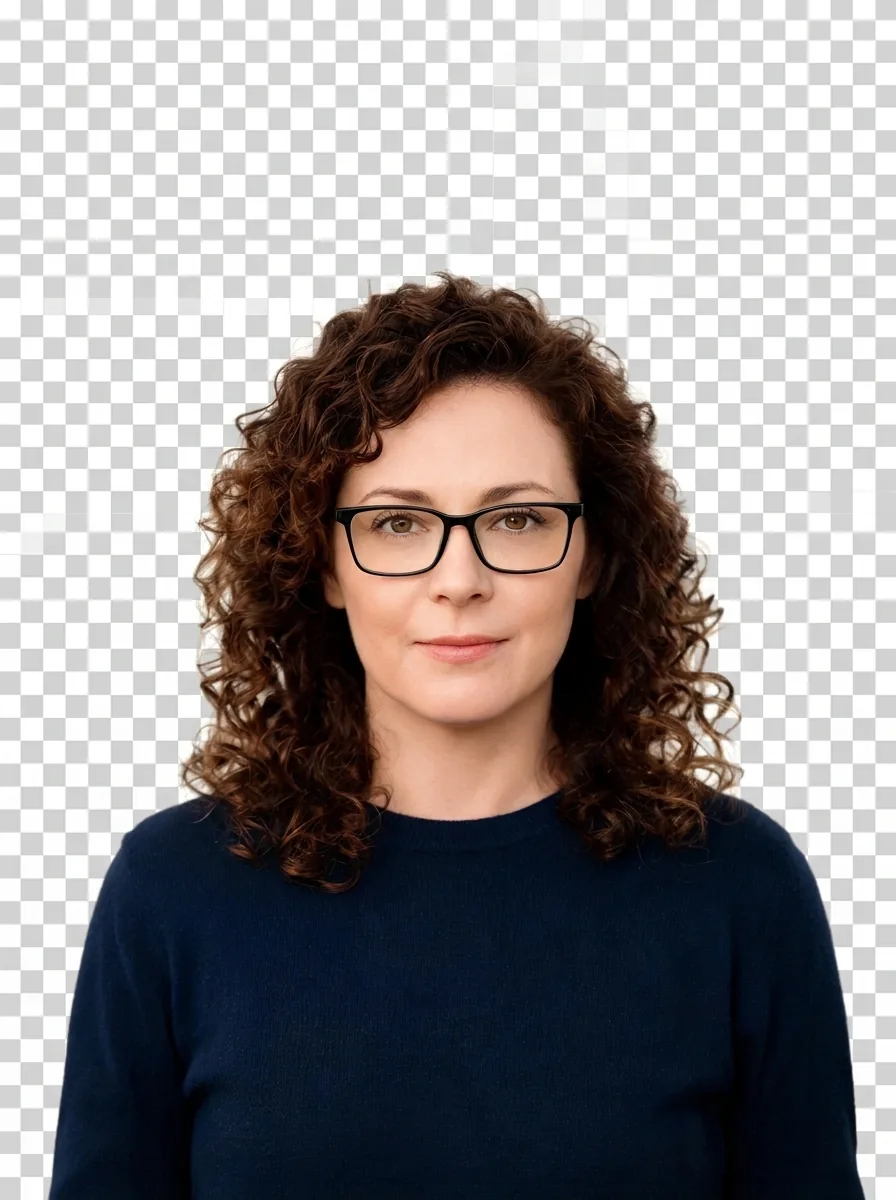
If a Nano Banana transparent background downloads as a white field or checkerboard, remove that backdrop in a graphics editor and export a PNG with transparency. AI Photo Generator can prepare the subject, but both Nano Banana 2.1 results below were opaque JPEGs. Check the actual download before using it as a cutout.
Last updated: October 14, 2026
Why does Nano Banana's checkerboard stay in the image?
A graphics editor uses a checkerboard to show empty areas. An image model can draw the same pattern as visible pixels. Paste that image onto blue, and the squares stay with the subject.
Real transparency lets the layer underneath show through. PNG can store that information in an alpha channel, which controls each pixel's opacity. A white background is still visible, and saving it as PNG does not remove it.
Some Nano Banana tutorials create transparency after generation. Philipp Schmid's Nano Banana Pro sticker tutorial generates a green backdrop, removes that color, and saves a transparent PNG. The removal step is essential to that workflow.
How can you tell whether the download is transparent?
Open the downloaded image in an editor with layers. Put a bright solid-color layer underneath it, then change that layer's color. Transparent areas reveal the new color; a painted white field or checkerboard stays visible.
For a closer check, inspect the image's opacity values:
- Every pixel fully opaque: the background will cover whatever is underneath.
- Some pixels partly transparent: the background may still show as a haze. Inspect the edges over both light and dark colors.
- Background pixels fully transparent: the layer underneath should show through. Make sure the subject is still intact.
On an 8-bit alpha scale, 0 is fully transparent and 255 is fully opaque. An alpha channel can exist with every value set to 255. The channel's presence alone does not tell you whether the background is gone.
Our two original model downloads contained JPEG data despite having .png filenames. Both were RGB images with no alpha channel. The file's contents matter more than its extension.
Check the downloaded file, not a screenshot of the preview. A screenshot captures the visible backdrop along with the subject.
Does a white-background prompt work better for this portrait?
We started with a fictional adult woman's portrait: curly brown hair, black-framed glasses, and a navy sweater. Both edits used the same original reference and Nano Banana 2.1, 1K, 3:4.
To follow this example, open the AI photo editor, upload the reference, and choose those settings. JPG, PNG, and WebP references are supported. Replace the pre-filled prompt with your instruction; tool pages send your text to the model as typed. The image-to-image tool also accepts references for these edits.
Transparent-background instruction:
Isolate this woman on a transparent background. Preserve her face, glasses, hair, sweater and pose. Do not draw a checkerboard.
White-background instruction, with the same original attached again:
Isolate this woman on a plain white background without shadows. Preserve her face, glasses, hair, sweater and pose. Do not draw a checkerboard.
| Original reference | Transparent-background request | White-background request |
|---|---|---|
 | Nano Banana transparent background request showing the woman on an opaque gray-and-white checkerboard | 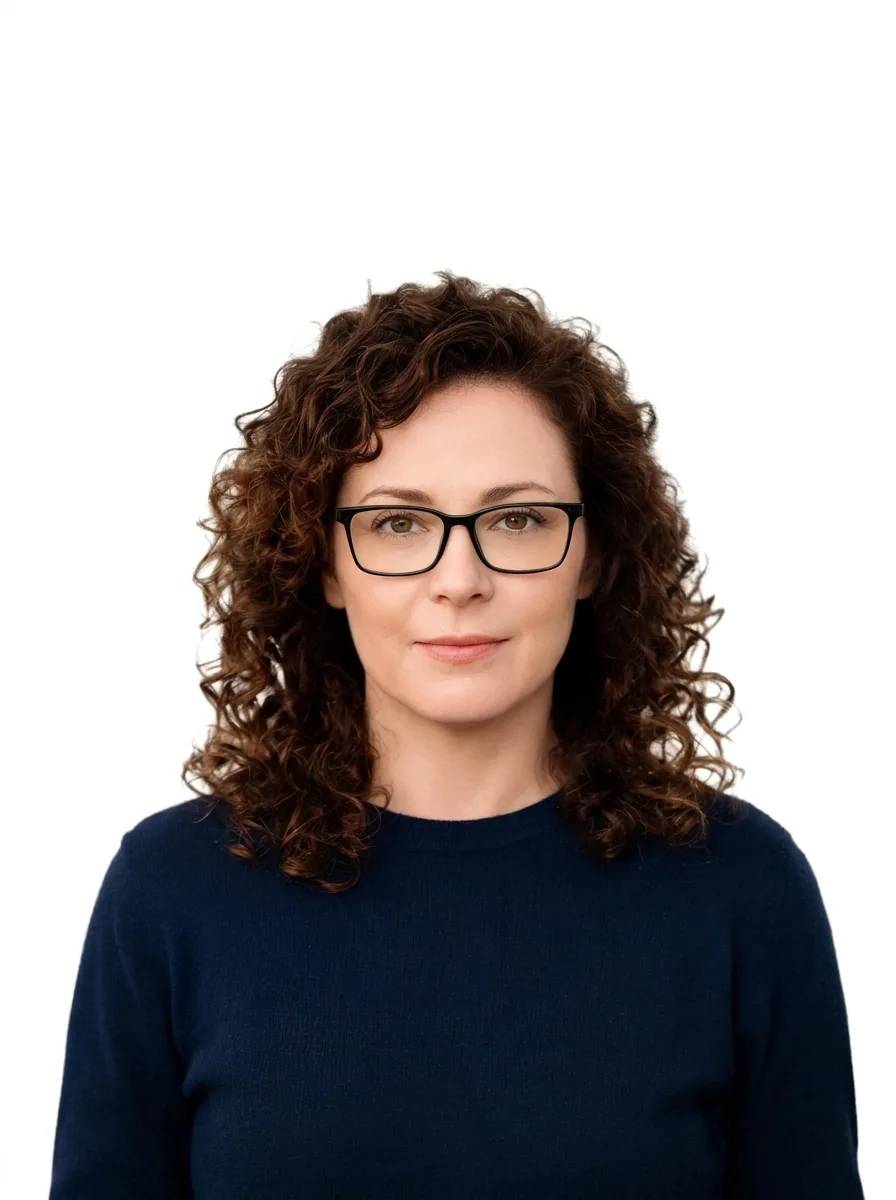 |
Left: fictional input portrait. Center and right: Nano Banana 2.1, 1K, 3:4; each download was 896 × 1200 pixels. The checkerboard and white field are both opaque backgrounds.
The transparent request drew squares despite the instruction to avoid them. The white request produced a nearly white field that was easier to select for removal. The woman remains recognizable in both edits, with black glasses, brown curls, and a navy sweater. Neither output has transparent pixels.
For this portrait, the skin and eyes behind the glasses belong to the subject. Erasing the whole lens area would remove them. The glasses-editing examples show other details to inspect around frames and eyes.
If you only need a cutout of an existing photo, you can start with that photo in a graphics editor and skip the generation step.
How do you remove the white background and keep the glasses?
We removed the connected white backdrop from the white-background result in ImageMagick. The preview below shows that cutout over dark blue. This removal happened in a separate graphics editor after generation.

Separate ImageMagick background removal, shown over dark blue. The cutout PNG has real alpha transparency; this preview is flattened onto blue.
The face and glasses remain visible, but white pockets between curls and a bright fringe along the hair and shoulders remain. The cutout needs edge cleanup before use on a dark background.
For a similar operation in GIMP:
- Open the white-background image and select its layer. Choose Layer → Transparency → Add Alpha Channel to enable transparent areas, as described in GIMP's alpha-channel instructions.
- Choose Fuzzy Select and click the white backdrop. Adjust the threshold until the background is selected without the face, frames, or sweater. GIMP's Fuzzy Select documentation explains how it selects neighboring pixels with similar colors.
- Delete the selection, then deselect it. Zoom in and remove enclosed white pockets between curls individually. Keep the skin and eyes inside the glasses.
- Add a dark layer underneath to inspect the edges. Keep the portrait layer selected while refining it, then hide the dark layer before exporting.
For lettering and enclosed shapes, the Nano Banana logo guide covers design cleanup. Check those shapes as carefully as the gaps between curls here.
How do you export the cutout without bringing the background back?
In GIMP, choose File → Export As and give the file a .png extension. Keep any solid-color preview layer hidden. Reopen the export and repeat the colored-layer check.
WebP also supports transparency. Standard JPEG does not store an alpha channel. Converting an opaque JPEG to PNG leaves its background in place until you remove those pixels.
Keep a transparent cutout for placing onto other designs and a separate flattened preview if you need one. Inspect the hair, sweater outline, and glasses at the final display size.
Frequently asked questions
How do I make my image background transparent?
In a graphics editor, add an alpha channel, select and delete the background, then export as PNG. Hide any solid-color layers before exporting. Reopen the file over a colored layer to confirm the background is gone.
Can Gemini generate a transparent background?
Both Nano Banana 2.1 edits in this AI Photo Generator example returned opaque JPEGs, including one with painted checkerboard squares. These results apply to the two requests shown here. Check the downloaded file from the version and service you use before treating it as a transparent asset.